
How to Remove Block on LG Tv: A Step-by-step Guide
Are you tired of being restricted from accessing your favorite TV programs, channels, applications, or inputs on your LG TV? Look no further! This comprehensive guide will walk you through the process of removing block on your LG TV, ensuring you can enjoy uninterrupted entertainment.
Understanding Blocks on LG TV
Before we dive into the removal process, it’s essential to understand what blocks are and why they’re implemented. Blocks are restrictions imposed by the TV manufacturer or operator to prevent access to certain content, apps, or inputs due to various reasons such as age-related restrictions, safety concerns, or hotel mode.
Removing Block Programs on LG TV
To remove block programs on your LG TV, follow these steps:
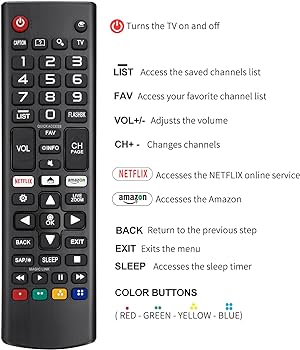
- Press the ⚙ button on your remote control.
- Highlight the icon (⋮) (#All settings) and press OK.
- Navigate to the Safety section and select the voice Blocks programs TV.
- Enter the password of four digits using the remote control or numerical keypad, and press OK.
- Select the option #Any to disable all block programs.
Removing Block Channels on LG TV
To remove block channels on your LG TV, follow these steps:
- Press the ⚙ button on your remote control.
- Highlight the icon (⋮) (#All settings) and press OK.
- Navigate to the Safety section and select the voice Blocks channels.
- Enter the password of four digits using the remote control or numerical keypad, and press OK.
- Select the channel you want to unblock and press OK.
Removing Block Applications on LG TV
To remove block applications on your LG TV, follow these steps:
- Press the ⚙ button on your remote control.
- Highlight the icon (⋮) (#All settings) and press OK.
- Navigate to the Safety section and select the voice Blocks applications.
- Enter the password of four digits using the remote control or numerical keypad, and press OK.
- Select the application you want to unblock and press OK.
Removing Block Inputs on LG TV
To remove block inputs on your LG TV, follow these steps:
- Press the ⚙ button on your remote control.
- Highlight the icon (⋮) (#All settings) and press OK.
- Navigate to the Safety section and select the voice Blocks inputs.
- Enter the password of four digits using the remote control or numerical keypad, and press OK.
- Select the input you want to unblock and press OK.
Removing Block Tasti on LG TV
To remove block tasti on your LG TV, follow these steps:
- Press the ⚙ button on your remote control.
- Highlight the icon (⋮) (#All settings) and press OK.
- Navigate to the Settings section and select the voice BLOCK.
- Select the option Block Tasti and turn it off.
How to Remove All Blocks on LG TV
To remove all blocks on your LG TV, follow these steps:
- Press the ⚙ button on your remote control.
- Highlight the icon (⋮) (#All settings) and press OK.
- Navigate to the Safety section and select the voice Active.
- Enter the password of four digits using the remote control or numerical keypad, and press OK.
- Confirm the operation by pressing OK.
Recovering Forgotten Pin Code on LG TV
To recover a forgotten PIN code on your LG TV, follow these steps:
- Press the ⚙ button on your remote control.
- Highlight the icon (⋮) (#All settings) and press OK.
- Navigate to the Safety section and select the voice Reimposta password.
- Enter the code 0313 and press OK to reset the PIN code.
- Create a new PIN code by following the on-screen instructions.
Contacting LG Customer Support
If you’re experiencing difficulties removing block on your LG TV, don’t hesitate to contact LG customer support. They offer various channels of communication, including:
- Live Chat: Accessible through the official LG website
- Email: Fill out a form on the LG website for assistance
- Phone: Call 199 600 099 (charges apply)
Conclusion
Removing block on your LG TV is a straightforward process that can be completed using the steps outlined above. Remember to always follow the correct procedures and consult the user manual or contact customer support if you’re unsure about any aspect of the process.
Frequently Asked Questions (FAQs)
- What is The Purpose of Blocks on LG Tv?
Blocks are restrictions imposed by the TV manufacturer or operator to prevent access to certain content, apps, or inputs due to various reasons such as age-related restrictions, safety concerns, or hotel mode.
- How do I Remove Block Programs on my LG Tv?
To remove block programs, press the ⚙ button, highlight the icon (⋮) (#All settings), and select the voice Blocks programs TV. Enter the password of four digits and confirm the operation by pressing OK.
- Can I Remove Block Channels on my LG Tv?
Yes, you can remove block channels by following similar steps as removing block programs.
- How do I Remove Block Applications on my LG Tv?
To remove block applications, press the ⚙ button, highlight the icon (⋮) (#All settings), and select the voice Blocks applications. Enter the password of four digits and confirm the operation by pressing OK.
- What is The Process For Removing Block Inputs on my LG Tv?
To remove block inputs, follow similar steps as removing block programs or channels.
- Can I Use an App to Control my LG TV Without a Remote?
Yes, there are apps available that can transform your smartphone or tablet into a TV remote.
- How do I Recover a Forgotten Pin Code on my LG Tv?
To recover a forgotten PIN code, press the ⚙ button, highlight the icon (⋮) (#All settings), and select the voice Reimposta password. Enter the code 0313 and follow the on-screen instructions to reset the PIN code.
- What if I’m Still Having Issues With Removing Block on my LG Tv?
If you’re experiencing difficulties, contact LG customer support through their official website, email, or phone number (charges apply).


