
How to Remove “Open to Work” on Linkedin: A Step-by-step Guide
Are you tired of receiving messages from recruiters and companies on LinkedIn, but you’ve already found a job? Or perhaps you’re not interested in new employment opportunities at the moment? Whatever your reason, it’s time to remove that pesky “Open to Work” status on your profile. In this article, we’ll show you how to do it easily, whether you’re using a PC or a smartphone.
Why Remove “Open to Work” on Linkedin?
Removing “Open to Work” on LinkedIn can be helpful in several ways:
- You won’t waste time responding to messages from recruiters and companies that are not interested in your profile.
- You’ll avoid getting messages for bids that don’t interest you.
- You’ll maintain a clean and organized profile, free from unnecessary distractions.
How to Remove “Open to Work” on Linkedin: A Step-by-step Guide
Removing “Open to Work” on Pc
To remove “Open to Work” on your LinkedIn profile using a PC:
- Log in to your LinkedIn account.
- Click on the icon of your profile located in the top right corner.
- Select the option to view your profile.
- In the “Available to work” section, click on the pencil icon to edit.
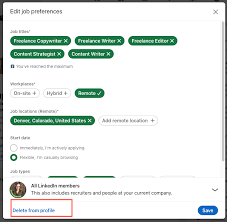
- You will see a new screen where you can modify or delete the information.
- To remove “Open to Work”, simply press the “Delete” button.
Removing “Open to Work” on Smartphone And Tablet
If you want to remove “Open to Work” using your smartphone or tablet:
- Download the official LinkedIn app from the App Store (for iOS) or Google Play Store (for Android).
- Open the app and select your profile icon in the top left corner.
- Tap on the option to view your profile.
- In the “Available to work” section, tap on the pencil icon to edit.
- You will see a new screen where you can modify or delete the information.
- To remove “Open to Work”, simply press the “Delete” button.
Tips And Variations
- If you want to modify your profile while removing “Open to Work”, follow the same steps as above, but instead of deleting the information, save the changes.
- If you’re not comfortable using the mobile app, you can also remove “Open to Work” directly from your LinkedIn profile on a PC.
Conclusion
Removing “Open to Work” on LinkedIn is a simple and straightforward process. Whether you’re using a PC or a smartphone, just follow the steps outlined above, and you’ll be done in no time. Don’t let unwanted messages clutter your inbox; take control of your LinkedIn experience today!
Frequently Asked Questions (FAQs)
- Q: Why do I Need to Remove “Open to Work” on Linkedin?
A: Removing “Open to Work” helps you avoid getting messages from recruiters and companies that are not interested in your profile, keeping your inbox clean and organized. - Q: How do I Remove “Open to Work” on my Pc?
A: To remove “Open to Work” on your PC, log in to your LinkedIn account, click on the icon of your profile, select the option to view your profile, edit the “Available to work” section, and press the “Delete” button. - Q: Can I Modify my Profile While Removing “Open to Work”?
A: Yes, you can! If you want to make changes to your profile, simply save them instead of deleting the information. - Q: How do I Remove “Open to Work” on my Smartphone or Tablet?
A: To remove “Open to Work” on your mobile device, download the LinkedIn app, open it, select your profile icon, tap on the option to view your profile, edit the “Available to work” section, and press the “Delete” button.


