
Removing Filter Family on Nintendo Switch: A Step-by-step Guide
Are you tired of your child spending too much time playing video games on the Nintendo Switch? Do you want to limit their access to certain titles or set a maximum gaming threshold without restricting their overall gaming experience? Look no further! In this article, we will guide you through the process of removing the filter family on Nintendo Switch, providing you with three different methods: Using the console, an app, and your account profile.
Why Remove Filter Family?
Removing the filter family is a great way to give your child more freedom while still maintaining some level of control over their gaming habits. By setting a maximum gaming threshold or limiting access to certain titles, you can ensure that they have a balanced experience without becoming too engrossed in gaming.
Method 1: Removing Filter Family Using The Console
To remove the filter family using the console, follow these steps:
- Accessing The Settings: Navigate to the home screen of your Nintendo Switch and move down to select the “Settings” icon. This will open up a new menu.
- Selecting Filter Family: Scroll through the list of settings and select the “Filter Family” option. Tap on this to access the filter family settings.
- Entering Pin Code: Enter the 8-digit PIN code associated with your filter family account.
- Deleting Filter Family: Select the “Erase” button to confirm the deletion.
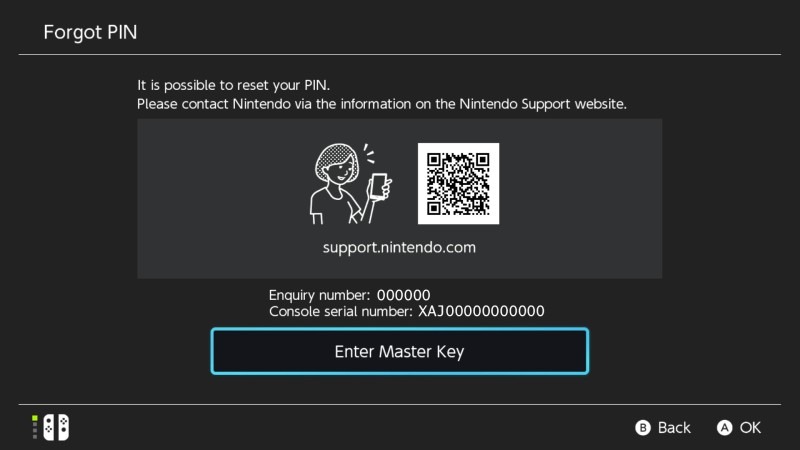
That’s it! If you’ve forgotten your PIN code, don’t worry – we have a backup plan for that too.
Method 2: Removing Filter Family Using an App
You can also remove the filter family using the Filter Family app on your smartphone or tablet. Here’s how:
- Downloading And Installing: Download and install the Filter Family app from the Google Play Store (for Android devices) or the Apple App Store (for iOS devices).
- Associating Your Switch: Open the app and select “Associate with Nintendo Switch” to link your console.
- Entering Account Details: Log in with your Nintendo account credentials.
- Deleting Filter Family: Tap on the “+” icon next to your Switch’s name, then tap on the voice “Delete” for two consecutive times.
And that’s it! Your filter family should now be removed.
Method 3: Removing Filter Family Using Your Account Profile
If you prefer to manage your filter family settings using your account profile, here’s how:
- Accessing Your Nintendo Account: Log in to your Nintendo account on the official website or through a web browser.
- Selecting Filter Family Settings: Click on the “Filter Family” option and select the cluster family associated with your child.
- Limiting Use of Funds: Click on the “Limitation to use of funds on Nintendo eShop” option, then toggle off the limit. Save changes.
Tips And Variations
- Using Browser Access: If you prefer to manage your filter family settings using a web browser, you can follow similar steps as above.
- Filter Family App Features: The Filter Family app also allows you to monitor gaming activity, set gaming limits, and restrict access to certain titles.
Conclusion
Removing the filter family on Nintendo Switch is a straightforward process that can be completed in just a few minutes. Whether you choose to use the console, an app, or your account profile, we’ve got you covered with our step-by-step guide. By setting a maximum gaming threshold or limiting access to certain titles, you can ensure that your child has a balanced experience without becoming too engrossed in gaming.
Frequently Asked Questions
Q: Can I remove the filter family if I forgot my PIN code?
A: Yes! If you’ve forgotten your PIN code, don’t worry – we have a backup plan. Simply access the Filter Family app on your smartphone or tablet and tap on the “+” icon next to your Switch’s name.
Q: How do I associate my Nintendo Switch with the Filter Family app?
A: To associate your Nintendo Switch with the Filter Family app, simply download and install the app, then select “Associate with Nintendo Switch” to link your console.
Q: Can I remove the filter family using a web browser?
A: Yes! You can access your Nintendo account on the official website or through a web browser to manage your filter family settings.
Q: What features does the Filter Family app offer?
A: The Filter Family app allows you to monitor gaming activity, set gaming limits, and restrict access to certain titles.
Q: Can I use the Filter Family app on both Android and iOS devices?
A: Yes! You can download the Filter Family app from either the Google Play Store (for Android devices) or the Apple App Store (for iOS devices).
Q: How do I reset my PIN code if I forget it?
A: If you’ve forgotten your PIN code, simply access the Filter Family app on your smartphone or tablet and tap on the “+” icon next to your Switch’s name.
Q: Can I remove the filter family without using an app?
A: Yes! You can also remove the filter family using the console settings or through your account profile.


