
How to Delete Password on Windows 10: A Step-by-step Guide
Are you tired of typing your password every time you want to access your computer? Do you wish there was a way to speed up the process without compromising security? Look no further! In this article, we’ll show you how to delete password on Windows 10 and make accessing your computer faster and more convenient.
Why Delete Password on Windows 10?
Deleting password on Windows 10 can be a great idea if you’re the only user of your PC. By removing the password, you can quickly access your computer without having to type in a complex password every time. However, it’s essential to note that deleting password on Windows 10 can also make your computer more vulnerable to unauthorized access.
Understanding The Different Types of Accounts
Before we dive into the steps, let’s clarify the different types of accounts you might have:
- Microsoft Account: If you’re using a Microsoft account for your Windows 10 PC, it’s essential to understand that deleting password on this type of account is slightly different from deleting password on a local account.
- Local Account: If you’re using a local account, the procedure for deleting password is straightforward.
Standard Procedure For Microsoft Account
If you want to delete password on your Windows 10 PC that’s associated with a Microsoft account, follow these steps:
- Click on the “Start” button and type “execute” in the search bar.
- Press Enter or click on the “Execute” option.
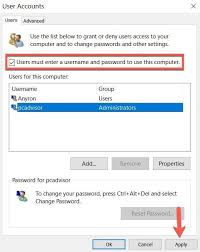
- In the new window that appears, select your user account from the list of users for the computer.
- Uncheck the box next to “Require users to enter a username and password to use this computer.”
- Click “Apply” and then “OK” to confirm the changes.
Standard Procedure For Local Account
If you’re using a local account on your Windows 10 PC, follow these steps:
- Click on the Start button and select “Settings.”
- Click on “Accounts” and then click on “Sign-in options.”
- Under the “Password” section, click on the “Add” button.
- Select the option to add a PIN or a graphic password.
- Follow the prompts to create your new PIN or graphic password.
Alternative Options
If deleting password entirely is not what you’re looking for, consider using a PIN numerical or a graphic password instead. This way, you can still access your computer quickly without compromising security.
Procedure “of Luck”
In case you’ve forgotten your password and can’t access your computer, don’t panic! Try following the steps outlined in our article on how to bypass Windows password using a procedure we’ve dubbed the “procedure of luck.”
Conclusion
Deleting password on Windows 10 can be a great way to speed up access to your computer. However, it’s essential to consider the risks and choose the best option for your needs. If you’re unsure about any aspect of deleting password or have specific questions, feel free to ask in the comments section below.
Faqs
Here are some frequently asked questions related to deleting password on Windows 10:
- Q: What Happens if I Delete my Password?
A: Deleting your password can make it easier for unauthorized users to access your computer. - Q: Can I Reset my Password Instead of Deleting It?
A: Yes, you can reset your password using the Windows 10 settings menu. - Q: Will Deleting my Password Affect Any Other Accounts or Services Associated With my Pc?
A: Yes, deleting your password may impact other accounts or services linked to your computer. - Q: Can I Use a Third-party Tool to Delete my Password?
A: We recommend using the built-in Windows 10 settings menu for this purpose. - Q: What if I’ve Forgotten my Password And Can’t Access my Pc?
A: If you’ve forgotten your password, try following our “procedure of luck” outlined in another article.
Remember to weigh the pros and cons before making a decision about deleting password on your Windows 10 PC. Stay safe online!


