
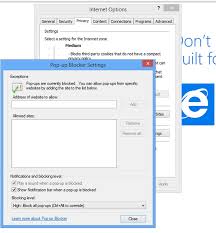
How to Remove Annoying Pop-ups on Your Device
Are you tired of constantly closing pop-ups that appear on your screen, disrupting your browsing experience? You’re not alone! In this article, we’ll show you how to remove these annoying windows and block future ones from appearing.
Why Do Pop-ups Appear in The First Place?
Pop-ups are usually triggered by websites trying to get your attention or by malware trying to infect your device. These unwanted windows can be frustrating and may even lead to security issues if not addressed promptly.
How to Remove Pop-ups on Your PC
Removing pop-ups on your PC is a relatively straightforward process that involves accessing your browser settings. Here’s how you can do it:
Google Chrome
- Click on the three vertical dots in the top-right corner of your Chrome window.
- Select “Settings” from the drop-down menu.
- Scroll down to the “Advanced” section and click on “Content settings.”
- Look for the “Pop-ups and redirects” section and toggle the switch to the off position.
Mozilla Firefox
- Click on the three horizontal lines in the top-right corner of your Firefox window.
- Select “Options” from the drop-down menu.
- Click on the “Privacy & Security” tab.
- Look for the “Block pop-ups” option and toggle it to the on position.
Microsoft Edge
- Click on the three horizontal dots in the top-right corner of your Edge window.
- Select “Settings” from the drop-down menu.
- Scroll down to the “Advanced” section and click on “Cookies and saved data.”
- Look for the “Pop-ups and redirects” section and toggle the switch to the off position.
How to Remove Pop-ups on Your Mac
If you’re using a Mac, removing pop-ups is similar to the process described above for PC users. Here’s how you can do it:
- Click on the Safari icon in your dock.
- Select “Safari” from the menu bar and click on “Preferences.”
- Click on the “Websites” tab.
- Look for the “Pop-ups” option and select “Block and Notify.”
How to Remove Pop-ups on Your Android Device
Removing pop-ups on your Android device is slightly different, but still relatively easy to do:
Google Chrome
- Tap on the three vertical dots in the top-right corner of your Chrome window.
- Select “Settings” from the drop-down menu.
- Scroll down to the “Advanced” section and tap on “Content settings.”
- Look for the “Pop-ups and redirects” option and toggle it to the off position.
Microsoft Edge
- Tap on the three horizontal dots in the top-right corner of your Edge window.
- Select “Settings” from the drop-down menu.
- Scroll down to the “Advanced” section and tap on “Cookies and saved data.”
- Look for the “Pop-ups and redirects” option and toggle it to the off position.
How to Remove Pop-ups on Your Iphone
Removing pop-ups on your iPhone is similar to the process described above:
- Tap on the Safari icon in your dock.
- Select “Safari” from the menu bar and tap on “Preferences.”
- Look for the “Pop-ups” option and select “Block.”
Tips And Tricks
- To avoid missing pop-up blockers, check your browser settings regularly to ensure that they are enabled.
- If you’re using multiple browsers, be sure to disable pop-ups in each one separately.
Conclusion
Removing annoying pop-ups is a simple process that can be done on most devices. By following the steps outlined above, you can block these unwanted windows and enjoy a smoother browsing experience.


