
How to Remove a Post From Instagram That’s Been Tagged
Are you tired of seeing an old post on your Instagram profile that you’d rather not be associated with anymore? You’re in luck! Removing a post from Instagram that’s been tagged is easier than you think, and we’ve got the step-by-step guide to help you do it.
What Happens When You Get Tagged
When someone tags you in a post on Instagram, your name appears below the photo or video, making it clear that you’re associated with the content. While this can be a great way to engage with others and show support for their work, sometimes you might want to remove yourself from the conversation.
Why Would You Want to Remove a Post?
Maybe you posted something in the past that you no longer stand by or are embarrassed about. Perhaps someone else posted something that’s not suitable for your brand or personal image. Whatever the reason, removing a post from Instagram can be a quick and easy way to clean up your profile and maintain a positive online presence.
Step-by-step Guide: Removing a Post From Instagram That’s Been Tagged
Here’s how to remove a post from Instagram that you’ve been tagged in:
Method 1: Concealing The Post
If you only want to conceal the post without removing it entirely, follow these steps:
- Open your Instagram app and navigate to the profile icon.
- Tap on the three dots next to the photo or video you want to conceal.
- Select “Options” from the menu.
- Choose “Conceal my presence” and confirm.
That’s it! The post will no longer be visible on your profile, but it won’t disappear entirely. If you change your mind, you can always go back and make the post visible again by following these same steps and selecting “Show on my profile” instead.
Method 2: Removing The Post
If you want to remove the post altogether, follow these steps:
- Open your Instagram app and navigate to the profile icon.
- Tap on the three dots next to the photo or video you want to remove.
- Select “Remove me from this post” and confirm.
Keep in mind that removing a post is irreversible, so make sure you’re confident about your decision before proceeding. If you need to recover a removed post, contact Instagram support for assistance.
Why Can’t I Remove a Post on The Web Version?
Unfortunately, it’s not currently possible to remove posts from the web version of Instagram. This feature is only available through the app.
What If Someone Posts Something That Violates My Privacy?
If you encounter a post that violates your privacy or contains inappropriate content, report it to Instagram using the “Report” feature on the three-dot menu next to the offending post. You can also ask the author to remove it directly by sending them a message and asking them to take down the post.
How to Remove Tags From Photos
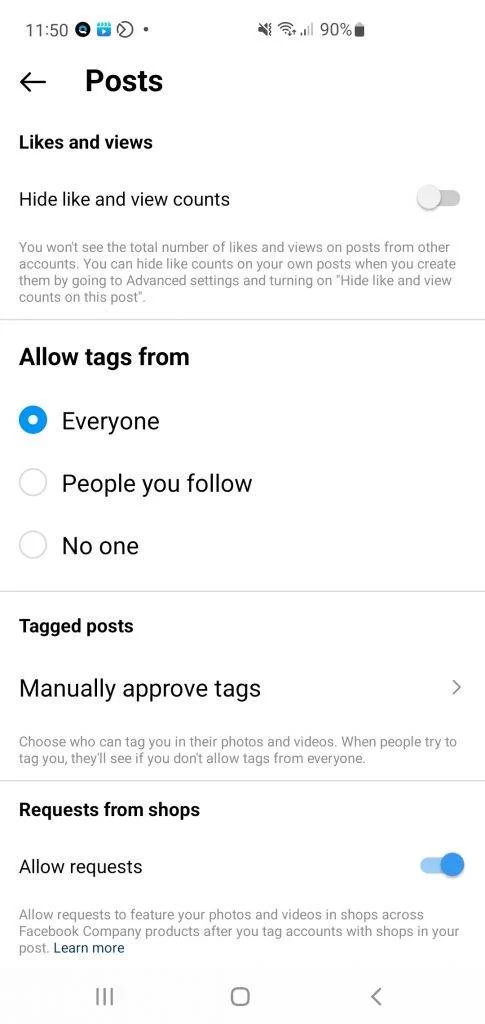
Not only can you remove posts that have been tagged, but you can also remove tags from individual photos. Here’s how:
- Open your Instagram app and navigate to the photo or video in question.
- Tap on the three dots next to the photo and select “Tagged users.”
- Find the person who was originally tagged in the post and tap on their name.
- Choose “Remove tag” from the menu.
Conclusion
Removing a post from Instagram that’s been tagged is easier than you think, and we’ve got the step-by-step guide to help you do it. Remember, if you’re unsure about removing a post or need further assistance, don’t hesitate to reach out to Instagram support for guidance.
Frequently Asked Questions (FAQs)
- Q: Can I remove a post that someone else posted?
A: Unfortunately not. Only the person who originally posted the photo can remove it. - Q: Will removing a post delete it entirely?
A: No, removing a post will only conceal it from your profile and others’ profiles. - Q: How do I report a post that violates my privacy?
A: Use the “Report” feature on the three-dot menu next to the offending post or contact Instagram support for assistance.


