
Unblocking Channels on Samsung Tv: A Step-by-step Guide
Are you tired of being blocked from accessing your favorite channels on your Samsung TV? Do you want to regain control over the content that appears on your screen? Look no further! In this article, we will guide you through a step-by-step process on how to unblock channels on your Samsung TV.
Understanding Block Channels
Before we dive into the process of unblocking channels, it’s essential to understand what block channels are and why they might be blocked in the first place. Block channels are a feature on Samsung TVs that allows parents or caregivers to restrict access to certain TV channels or programs based on their content. This feature is designed to protect children from accessing mature content or other material deemed unsuitable for them.
Why Unblocking Channels Might Be Necessary
There may be situations where you need to unblock channels on your Samsung TV, such as:
- You want to access a specific channel that was previously blocked by a family member.
- You’re an adult who wants to watch a particular program or movie that’s been restricted for younger viewers.
- You’ve moved into a new home and the previous owner had block channels enabled.
Removing Block Channels on Samsung TV
Removing block channels is a relatively straightforward process, and we’ll guide you through it step by step. Here’s how to do it:
Step 1: Access The Settings Menu
To remove block channels, you need to access the settings menu on your Samsung TV. To do this:
- Turn on your TV and navigate to the home screen.
- Use the directional arrows on your remote control to move the cursor down to the “Settings” icon.
- Select the “Settings” icon by pressing the OK button.
Step 2: Access The Block Channel Menu
Once you’re in the settings menu, look for the “Block Channels” option. You can find this under a section called “Safety or Parental Controls” (the exact name may vary depending on your TV model). Select the “Block Channels” option by using the directional arrows and pressing the OK button.
Step 3: Remove Block Channels
In the block channels menu, you’ll see two options:
- “Block Programs”
- “Apply Block Channels”
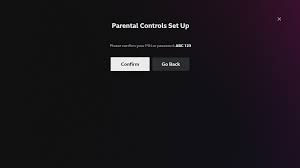
To remove a block channel, select the first option “Block Programs”. You’ll be prompted to enter a PIN code to authenticate your action. If you’ve never set a PIN before, you can use the default codes (1111 or 0000) or reset and choose a new PIN.
Once you’ve entered the correct PIN, confirm the action by pressing the OK button.
Step 4: Remove Block Channels For Multiple Users
If multiple users have block channels enabled, repeat steps 2-3 for each user. This will ensure that all users can access the blocked channel.
Additional Tips And Variations
If you’re still having trouble or if your TV model has a slightly different interface, don’t worry! There are some variations and additional tips to keep in mind:
- Unblock Apps on Samsung TV: If you want to unblock apps instead of channels, follow the same steps as above but select the “App” menu option.
- Check Your TV Model: If your TV model has a different interface or menu options, consult your user manual for specific instructions.
- Reset Your Pin: If you’ve forgotten your PIN or want to change it, go back to the settings menu and reset it by following the on-screen prompts.
Conclusion
Unblocking channels on Samsung TV is an easy process that can be completed in a few simple steps. By following this guide, you should be able to regain control over the content that appears on your screen and access your favorite channels without any restrictions.


