
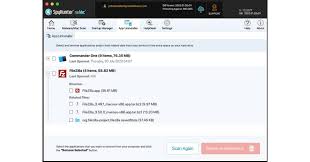
How to Remove Spyhunter From Your Pc: A Step-by-step Guide
Are you tired of dealing with the pesky notifications and prompts from SpyHunter on your Windows computer? Do you want to remove this program from your system but are not sure how? Look no further! In this article, we will provide a step-by-step guide on how to uninstall SpyHunter from your PC.
What is Spyhunter?
SpyHunter is a software program designed to detect and remove spyware and other malicious programs from your computer. While it may seem like a useful tool, its effectiveness has been questioned by many users, and some have reported experiencing problems with the program’s behavior.
Why Remove Spyhunter?
There are several reasons why you might want to remove SpyHunter from your PC:
- Insistent Notifications: SpyHunter is known to display frequent and persistent notifications on your screen, asking you to purchase its premium version.
- Resource Consumption: The program may consume a significant amount of system resources, slowing down your computer’s performance.
- Security Concerns: Some users have reported experiencing security issues with SpyHunter, such as false positive detection or failure to remove malware.
Removing Spyhunter From Your PC
Fortunately, removing SpyHunter is a relatively straightforward process. Here are the steps you can follow:
For Windows 10 Users
- Click on the Start button and select the Settings app.
- In the Settings window, click on the “Apps” option.
- Scroll down to the list of installed apps and find SpyHunter in the list.
- Select SpyHunter and click on the “Uninstall” button.
- Confirm that you want to uninstall the program by clicking on the “Yes” button.
For Windows 8.x And Earlier Users
- Click on the Start button and select the Control Panel app.
- In the Control Panel window, click on the “Programs and Features” option (or “Add or Remove Programs” for earlier versions of Windows).
- Find SpyHunter in the list of installed programs and select it.
- Click on the “Uninstall” button and confirm that you want to uninstall the program.
What If I Encounter Problems?
If you encounter any problems while trying to remove SpyHunter from your PC, don’t worry! There are alternative solutions available:
- Microsoft Fix It: You can try using Microsoft Fix It, a utility provided by Microsoft to resolve common issues with software installation and removal.
- Revo Uninstaller: This is a third-party uninstaller tool that can help you remove SpyHunter and other programs from your system.
Alternative Solutions
If removing SpyHunter directly doesn’t work for you, try using Malwarebytes Anti-Malware, a powerful tool to scan your PC and remove malware:
- Malwarebytes: This is a popular anti-malware program that can detect and remove spyware, trojans, and other types of malware from your system.
- Scanning With Malwarebytes: After installing Malwarebytes, run a full system scan to identify and remove any malicious programs on your PC.
Conclusion
Removing SpyHunter from your Windows computer is a straightforward process that can be completed in just a few steps. If you encounter any problems during the uninstallation process, don’t hesitate to try alternative solutions like Microsoft Fix It or Revo Uninstaller. By following these tips, you’ll be able to get rid of SpyHunter and enjoy a faster, more secure computing experience.


