
How to Remove Subtitles From a Video: A Step-by-step Guide
Are you tired of dealing with annoying subtitles in your videos? Look no further! In this article, we’ll show you how to remove subtitles from a video using various software and tools.
Why Remove Subtitles From a Video?
Subtitles can be distracting and take away from the viewing experience. Whether you’re watching a movie or TV show, or creating content for others, removing subtitles can make your video more engaging and enjoyable.
Method 1: Using Vlc Media Player
VLC (VideoLAN) is a free media player that’s available on Windows, macOS, and Linux. It’s also one of the most popular media players out there, known for its high-quality playback and customization options.
To remove subtitles from a video using VLC:
- Open VLC and select “Media” > “Open File” to open your video.
- Click on the “Subtitles” tab in the top menu bar.
- Select “Disable” next to “Subtitle” to remove the subtitles.
Method 2: Using Handbrake
HandBrake is another free media player and converter that’s available on Windows, macOS, and Linux. It’s a great tool for converting video files between different formats, including removing subtitles.
To remove subtitles from a video using HandBrake:
- Open HandBrake and select the “Video” tab.
- Click on the “Subtitles” button next to “Language”.
- Select “No subtitles” or choose a specific language if you want to keep the audio but not the subtitles.
Method 3: Using Virtualdubmod
VirtualDubMod is a free video editing software that’s available on Windows. It’s a great tool for editing and converting video files, including removing subtitles.
To remove subtitles from a video using VirtualDubMod:
- Open VirtualDubMod and select “Video” > “Filters”.
- Click on the “Add” button and select “MSU Subtitles Remover”.
- Select the video file you want to edit and click on the “Apply” button.
- Choose “Save as” and save the edited video without subtitles.
Method 4: Using Avidemux
Avidemux is a free video editing software that’s available on Windows, macOS, and Linux. It’s another great tool for removing subtitles from videos.
To remove subtitles from a video using Avidemux:
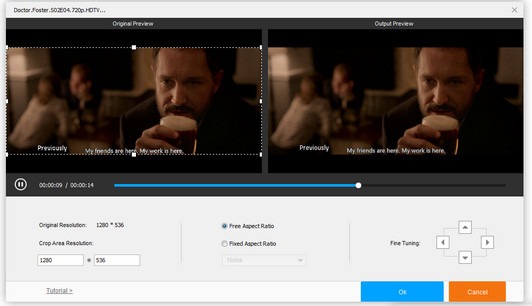
- Open Avidemux and select “Video” > “Filters”.
- Click on the “Add” button and select “Transform” > “Crop”.
- Select the area of the video where the subtitles are located.
- Save the edited video without subtitles.
Method 5: Using Smartphones And Tablets
Removing subtitles from a video using your smartphone or tablet is also possible, although it may not be as straightforward as using computer software.
To remove subtitles from a video on your Android device:
- Open VLC media player and select the video you want to edit.
- Tap on the three dots in the top right corner of the screen.
- Select “Subtitles” and choose “Disable”.
To remove subtitles from a video on your iOS device:
- Open VLC media player and select the video you want to edit.
- Tap on the share button and select “VLC”.
- Choose “Edit” and then select “Subtitle”.
- Disable subtitles by toggling off the switch.
Removing Subtitles From Youtube Videos
If you’re watching a YouTube video with annoying subtitles, here’s how to remove them:
- Click on the three dots in the top right corner of the screen.
- Select “Settings” and then click on “Procreation and performances”.
- Toggle off the switch next to “Display always subtitles”.
Conclusion
Removing subtitles from a video can be a simple process using various software and tools. Whether you’re watching a movie or TV show, or creating content for others, getting rid of annoying subtitles can make your viewing experience more enjoyable.
We hope this guide has been helpful in showing you how to remove subtitles from a video using different methods and devices. Happy editing!
Faqs
- Q: Can I Remove Subtitles From Any Type of Video File?
A: Yes, most video editors and converters allow you to remove subtitles from various file formats. - Q: How do I Know if The Subtitles Are Removable?
A: Check if the subtitles are separate from the audio or if they’re embedded in the video file. If they’re separate, you can usually remove them using software like VLC or HandBrake. - Q: Will Removing Subtitles Affect The Video Quality?
A: No, removing subtitles should not affect the video quality. However, if you’re using a converter to change the video format, there might be some minor losses in quality. - Q: Can I Remove Subtitles From Youtube Videos on my Computer?
A: Yes, you can disable subtitles while watching a YouTube video on your computer by clicking on the three dots and selecting “Settings”. - Q: How do I Prevent Subtitles From Appearing in my Videos?
A: To avoid getting subtitles in your videos, make sure to select the correct language or turn off subtitles when uploading your content. - Q: Can I Remove Subtitles From a Video That Has Been Downloaded From Youtube?
A: Yes, you can usually remove subtitles from downloaded YouTube videos using software like VLC or HandBrake. - Q: Is it Possible to Remove Subtitles From Videos on my Android Device?
A: Yes, you can use the VLC media player app to remove subtitles from videos on your Android device. - Q: Can I Remove Subtitles From Videos on my Ios Device?
A: Yes, you can use the VLC media player app to remove subtitles from videos on your iOS device.


