
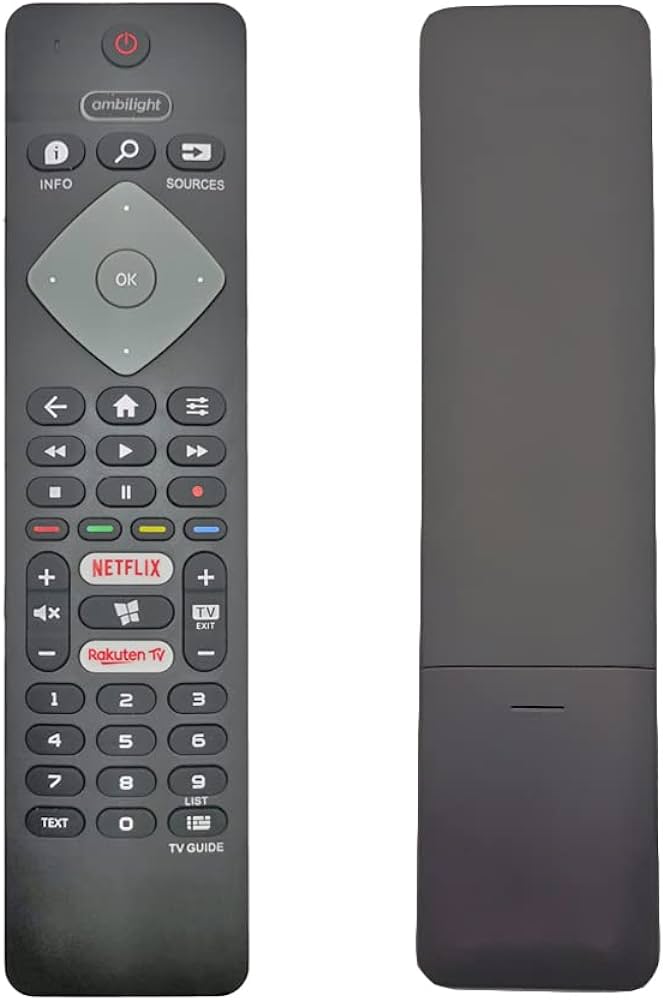
Removing Subtitles From Philips Tvs: A Step-by-step Guide
Are you tired of seeing subtitles on your Philips TV that you don’t need? Look no further! In this article, we will guide you through the process of removing subtitles from your Philips TV in various scenarios.
Understanding The Problem
Have you ever accidentally activated the subtitles feature on your Philips TV and wondered how to disable it? This is a common problem many users face. In this article, we will show you how to remove subtitles from your Philips TV using different methods.
Method 1: Using The Menu System (TVs With Proprietary Operating System)
If you have a Philips TV with a proprietary operating system, follow these steps to disable subtitles:
- Press the “Menu” button on your remote control.
- Navigate to the “Features” section and select it.
- Choose the “Caption Settings” option and then select “Closed Caption”.
- Select the “OFF” option to disable subtitles.
Method 2: Using The Teletext Service (TVs With Android Tv)
If you have a Philips TV with an Android operating system, follow these steps to disable subtitles:
- Press the “Home” button on your remote control.
- Navigate to the “Settings” icon and select it.
- Choose the “Accessibility” option and then select “Subtitles”.
- Select the “ON” option next to “Display” to enable subtitles.
Method 3: Using The Teletext Service (TVs With Smart Tv)
If you have a Philips TV with a smart operating system, follow these steps to disable subtitles:
- Press the “Menu” button on your remote control.
- Navigate to the “Features” section and select it.
- Choose the “Caption Settings” option and then select “Closed Caption”.
- Select the “OFF” option to disable subtitles.
Method 4: Using The Teletext Service (TVs With No Smart Tv)
If you have a Philips TV without a smart operating system, follow these steps to disable subtitles:
- Press the “Menu” button on your remote control.
- Navigate to the “Features” section and select it.
- Choose the “Caption Settings” option and then select “Closed Caption”.
- Select the “OFF” option to disable subtitles.
Troubleshooting: Common Problems And Solutions
If you encounter any problems while trying to remove subtitles from your Philips TV, don’t worry! Here are some common solutions:
- If you’re unable to find the menu options, try checking the user manual or online documentation for your specific TV model.
- If the subtitles still appear after disabling them, try restarting your TV or resetting it to its default settings.
Conclusion
Removing subtitles from your Philips TV is a straightforward process that can be completed using various methods. Whether you have a smart TV with Android operating system or a regular TV without a smart interface, we’ve provided step-by-step guides for each scenario. Remember to troubleshoot any problems you may encounter and don’t hesitate to contact the manufacturer’s support team if needed.
Frequently Asked Questions (FAQs)
- Q: How do I Disable Subtitles on my Philips Tv?
A: To disable subtitles, follow the steps provided in the article for your specific TV model. - Q: Can I Still Watch TV Without Subtitles Even Though They’re Enabled?
A: Yes, you can continue watching TV with or without subtitles, but the process of removing them will depend on your TV’s operating system. - Q: What if I Encounter Problems While Trying to Disable Subtitles?
A: Check the user manual or online documentation for your specific TV model, and don’t hesitate to contact the manufacturer’s support team for assistance. - Q: Will Disabling Subtitles Affect my Tv’s Performance?
A: Disabling subtitles should not affect your TV’s performance.
References
- Philips TV User Manual
- Android TV Support Page
- Smart TV Support Page


