
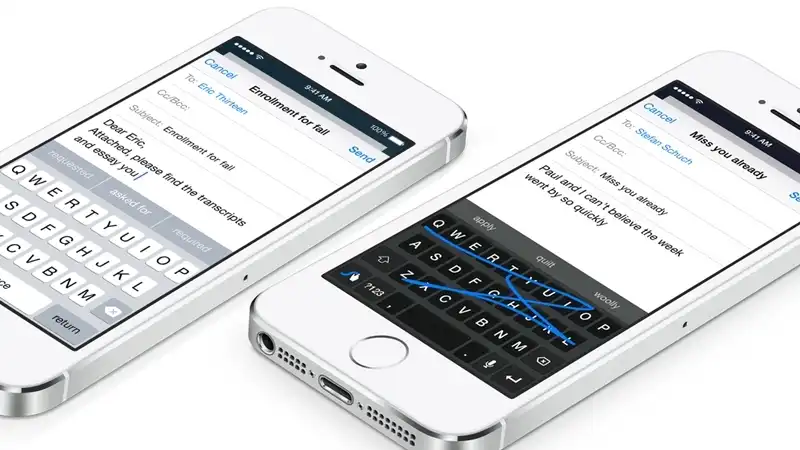
Removing Swype Keyboard: A Comprehensive Guide
Are you tired of using the Swype keyboard on your Android or iOS device? Do you want to switch back to the default keyboard? You’re in luck! Removing the Swype keyboard is a straightforward process that can be completed in just a few steps. In this article, we’ll guide you through the process of removing Swype from both Android and iOS devices.
Why Remove Swype?
Swype was a popular virtual keyboard for Android and iOS devices, but it has since been discontinued by its developer. As a result, it’s no longer receiving updates, which can lead to bugs and compatibility issues. If you’re experiencing problems with the Swype keyboard, it’s best to remove it and switch back to your device’s default keyboard.
Removing Swype on Android
To remove Swype from an Android device, follow these steps:
Step 1: Disable Swype Keyboard
To disable the Swype keyboard, go to your device’s settings app. Scroll down and select “Language & input.” Select the three-dot menu icon in the top-right corner and choose “Keyboard & input methods.” Select the “Other” tab and find the “Swype Keyboard” option. Uncheck the box next to it to disable Swype.
Step 2: Remove Swype App
To remove the Swype app from your device, go to the Google Play Store or Samsung Galaxy Apps store and search for “Swype.” Select the app and click on the three-dot menu icon in the top-right corner. Choose “Uninstall” to remove the app.
Removing Swype on Ios
To remove Swype from an iOS device, follow these steps:
Step 1: Disable Swype Keyboard
To disable the Swype keyboard, go to your device’s settings app. Select “General,” then select “Keyboard.” Tap on the “Keyboards” option and swipe left on the “Swype Keyboard” option. Tap on the (-) icon next to it to delete the keyboard.
Step 2: Remove Swype App
To remove the Swype app from your device, go to the Home screen and find the Swype icon. Press and hold on the icon until it starts to jiggle. Then, tap on the “X” in the top-left corner of the icon to delete it.
Why Choose The Default Keyboard?
Choosing the default keyboard has its advantages. For one, it’s a more stable option since it’s not dependent on any third-party developers for updates. Additionally, the default keyboard is often faster and more efficient than third-party keyboards like Swype.
Tips For Removing Swype
- Make sure to disable the Swype keyboard before removing the app to avoid any conflicts.
- If you’re experiencing issues with the Swype keyboard, try restarting your device or resetting it to its factory settings.
- Consider switching to a different third-party keyboard if you want more features and customization options.
Conclusion
Removing Swype from your Android or iOS device is a simple process that can be completed in just a few steps. By following the steps outlined above, you can switch back to your device’s default keyboard and enjoy a more stable and efficient typing experience.
Frequently Asked Questions (FAQs)
- Q: Why Remove Swype?
A: Swype has been discontinued by its developer, so it’s no longer receiving updates. This can lead to bugs and compatibility issues. - Q: How do I Disable The Swype Keyboard on Android?
A: Go to your device’s settings app, select “Language & input,” then uncheck the box next to the “Swype Keyboard” option. - Q: How do I Remove The Swype App From my Ios Device?
A: Go to the Home screen and find the Swype icon. Press and hold on the icon until it starts to jiggle, then tap on the “X” in the top-left corner of the icon. - Q: Why Choose The Default Keyboard?
A: The default keyboard is a more stable option since it’s not dependent on any third-party developers for updates.
Recommended Guides


