
How to Remove The “Connection Not Secure” Warning on Your Browser
Are you tired of seeing the annoying “Connection not secure” warning on your browser every time you try to access a website? You’re not alone! This message can be frustrating, especially when you need to access important information or complete tasks online. Don’t worry; we’ve got you covered!
Understanding The “Connection Not Secure” Warning
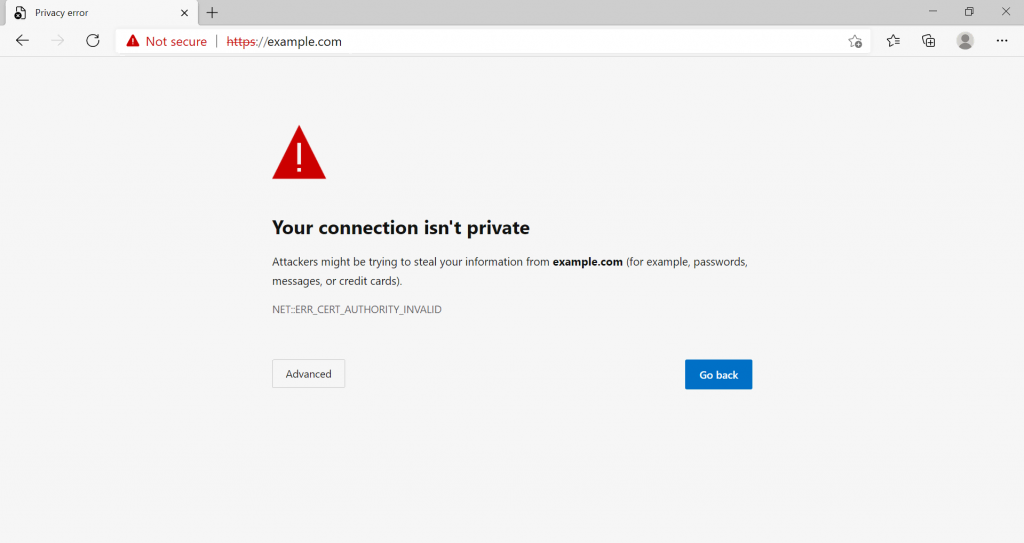
Before we dive into the solutions, let’s quickly understand what this warning is all about. The “Connection not secure” warning is displayed by your browser when it detects a problem with the website’s security certificate. This certificate ensures that the connection between your browser and the website is safe and encrypted.
Solutions to Remove The “Connection Not Secure” Warning
In this article, we’ll provide you with several solutions to remove the “Connection not secure” warning on your browser. These solutions are easy to implement and will help you access websites without any interruptions.
1. Refresh The Page
The simplest solution is to refresh the page by clicking the reload button or pressing F5 on your keyboard. Sometimes, this simple action can resolve the issue and allow you to access the website securely.
How to Refresh The Page:
- On Chrome, click the circular arrow in the top-right corner of the browser window.
- On Firefox, press Ctrl+R (Windows) or Command+R (Mac).
- On Safari, tap the three dots in the top-right corner and select “Reload.”
2. Update Your Browser
Another solution is to update your browser to the latest version. An outdated browser can sometimes cause compatibility issues with websites, leading to security warnings.
How to Update Your Browser:
- On Chrome, click on the three dots in the top-right corner and select “Help” > “About Google Chrome.”
- On Firefox, press Ctrl+Shift+A (Windows) or Command+Shift+A (Mac).
- On Safari, tap the gear icon in the top-right corner and select “Update.”
3. Clear Browser Cache And Cookies
Clearing your browser cache and cookies can also resolve the issue.
How to Clear Cache And Cookies:
- On Chrome, click on the three dots in the top-right corner and select “More tools” > “Clear browsing data.”
- On Firefox, press Ctrl+Shift+Delete (Windows) or Command+Shift+Delete (Mac).
- On Safari, tap the gear icon in the top-right corner and select “Safari” > “Preferences” > “Advanced.”
4. Check Date And Time
Sometimes, a discrepancy between your device’s date and time can cause security warnings.
How to Check Date And Time:
- On Windows, press Win+I to open Settings.
- On Mac, click on the Apple logo in the top-left corner and select “System Preferences” > “Date & Time.”
- On Android, go to Settings > Date and time.
- On iOS, tap the gear icon in the bottom-right corner and select “Settings” > “General.”
5. Disable Antivirus And Firewall (Temporarily)
If none of the above solutions work, you can try disabling your antivirus and firewall software temporarily.
How to Disable Antivirus And Firewall:
- On Windows, press Win+I to open Settings.
- On Mac, click on the Apple logo in the top-left corner and select “System Preferences” > “Security & Privacy.”
- On Android, go to Settings > Security and disable your antivirus app.
- On iOS, tap the gear icon in the bottom-right corner and select “Settings” > “General” > “Restrictions.”
6. Bypass The Warning (Not Recommended)
If you’re sure that the website is safe, you can try bypassing the warning by clicking on the “Proceed to [website URL]” button.
How to Bypass The Warning:
- On Chrome, click on the “Advanced” tab and select “Proceed to [website URL].”
- On Firefox, tap the three dots in the top-right corner and select “Show details.”
- On Safari, tap the gear icon in the top-right corner and select “Display details.”
Conclusion
The “Connection not secure” warning is a security feature designed to protect your device from potential threats. However, it can sometimes cause inconvenience when trying to access websites. By following the solutions outlined above, you should be able to remove this warning and enjoy a safe browsing experience.
Frequently Asked Questions (FAQs)
Here are some frequently asked questions related to removing the “Connection not secure” warning:
- Q: Why do I See The “Connection Not Secure” Warning?
A: The warning is displayed when your browser detects a problem with the website’s security certificate. - Q: How Can I Remove The “Connection Not Secure” Warning?
A: Try refreshing the page, updating your browser, clearing cache and cookies, checking date and time, disabling antivirus and firewall software (temporarily), or bypassing the warning (not recommended). - Q: Is it Safe to Bypass The Warning?
A: No, it’s not recommended to bypass the warning. This can expose your device to potential threats. - Q: Can I Remove The “Connection Not Secure” Warning Permanently?
A: Yes, you can try removing the warning by updating your browser or clearing cache and cookies.
Hope this helps! If you have any further questions, feel free to ask.


