
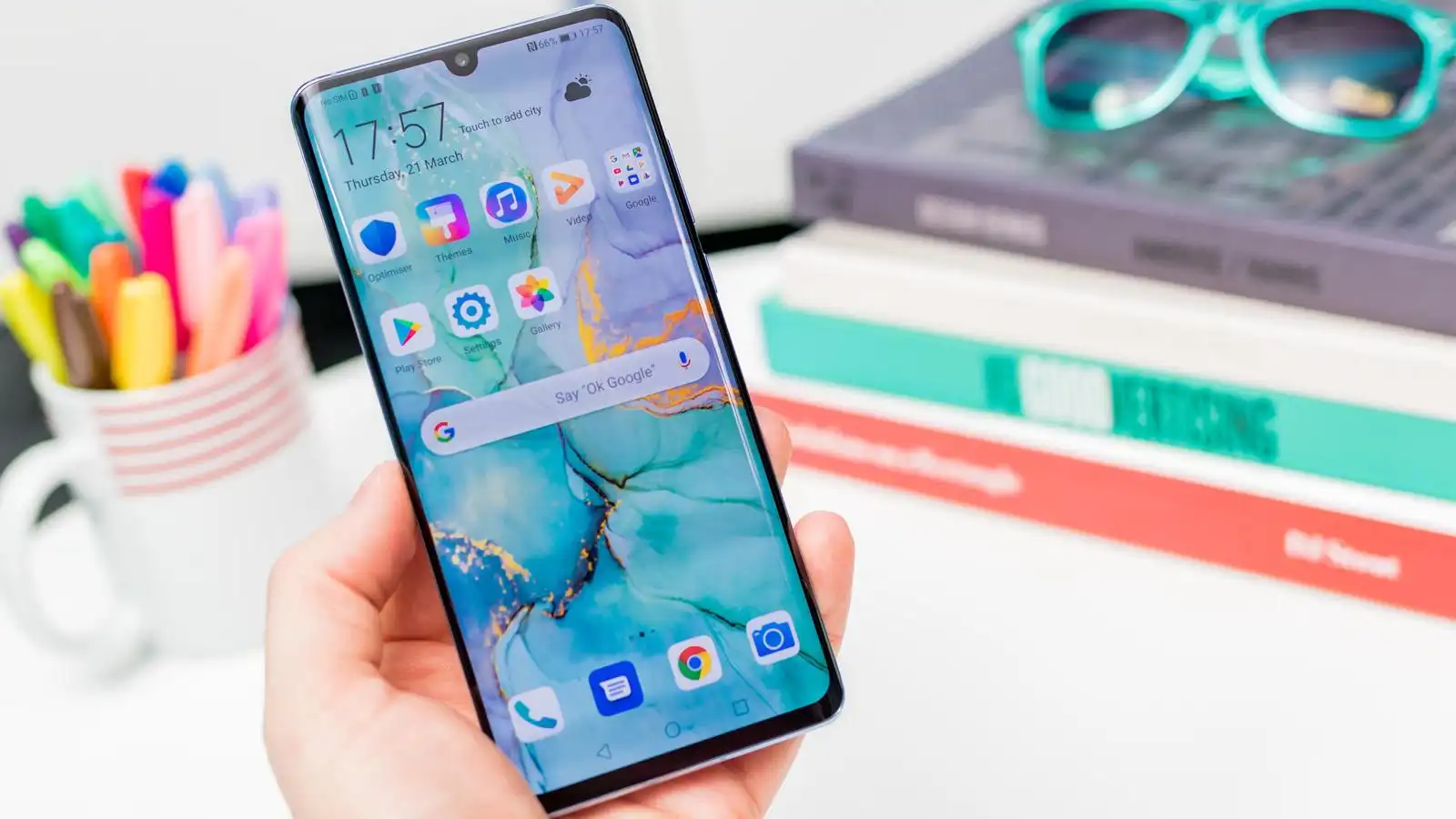
Removing The Home Button on Huawei Smartphones: A Step-by-step Guide
Are you tired of having a physical Home button on your Huawei smartphone? Do you want to take advantage of the gesture-based navigation system that allows you to control your phone with simple hand movements? If so, this guide is for you!
In this article, we will walk you through the steps to remove the Home button from your Huawei smartphone’s screen and learn how to use the gesture-based navigation system.
Why Remove The Home Button?
The Home button, also known as the “Home” or “Back” button, is a classic feature on Android smartphones. However, with the latest advancements in mobile technology, many smartphone manufacturers, including Huawei, have started to adopt a new way of navigating through your phone’s menus and apps using gestures.
Removing the Home button can be beneficial for several reasons:
- It gives you more screen real estate to enjoy your favorite games, movies, or social media apps.
- It allows you to access your recent apps quickly with a simple gesture.
- It provides a seamless and intuitive way of navigating through your phone’s menus.
The Gesture-based Navigation System
The gesture-based navigation system on Huawei smartphones is based on the concept of using hand movements to control your phone. With this system, you can:
- Swipe left or right to switch between recent apps.
- Swipe up from the bottom to go back home.
- Swipe down from the top to access the quick settings panel.
Removing The Home Button on Huawei Smartphones
To remove the Home button on your Huawei smartphone, follow these steps:
- Go to Settings: Open the Settings app on your phone and navigate to the “System & updates” section.
- Select Navigation System: Tap on the “Navigation system” option to access the navigation settings.
- Enable Gesture-based Navigation: Switch on the “Gesture-based navigation” toggle button to enable this feature.
- Confirm The Change: A confirmation message will appear, asking you to confirm that you want to remove the Home button. Tap on “OK” to proceed.
Using The Gesture-based Navigation System
Now that you have removed the Home button, here’s how to use the gesture-based navigation system:
- Swipe Left or Right: To switch between recent apps, simply swipe your finger from left to right or vice versa.
- Swipe up From The Bottom: To go back home, swipe your finger from the bottom of the screen upwards.
- Swipe Down From The Top: To access the quick settings panel, swipe your finger from the top of the screen downwards.
Using The Swift Menu
The Swift Menu is a feature on Huawei smartphones that allows you to quickly access the Home button by swiping up from the bottom of the screen. To enable this feature:
- Go to Settings: Open the Settings app and navigate to the “Navigation system” section.
- Select Swift Menu: Tap on the “Swift Menu” option to enable this feature.
- Disable The Swift Menu: To disable this feature, simply switch off the toggle button.
Using Google Assistant
To use Google Assistant on your Huawei smartphone:
- Go to Settings: Open the Settings app and navigate to the “Navigation system” section.
- Select Google Assistant: Tap on the “Google Assistant” option to enable this feature.
- Disable Google Assistant: To disable this feature, simply switch off the toggle button.
Conclusion
Removing the Home button on your Huawei smartphone can be a liberating experience, especially if you’re used to using gestures to navigate through your phone’s menus and apps. With this guide, you should now have a clear understanding of how to remove the Home button and use the gesture-based navigation system on your Huawei smartphone.
Frequently Asked Questions
Q: What is the purpose of removing the Home button?
A: The main purpose of removing the Home button is to give you more screen real estate and provide a seamless way of navigating through your phone’s menus and apps using gestures.
Q: How do I remove the Home button on my Huawei smartphone?
A: To remove the Home button, go to Settings > System & updates > Navigation system, and enable the “Gesture-based navigation” toggle button.
Q: What is the Swift Menu feature on Huawei smartphones?
A: The Swift Menu feature allows you to quickly access the Home button by swiping up from the bottom of the screen. To enable this feature, go to Settings > Navigation system and tap on the “Swift Menu” option.
Q: How do I use Google Assistant on my Huawei smartphone?
A: To use Google Assistant, go to Settings > Navigation system and tap on the “Google Assistant” option. You can then access Google Assistant by swiping up from the bottom of the screen.


