
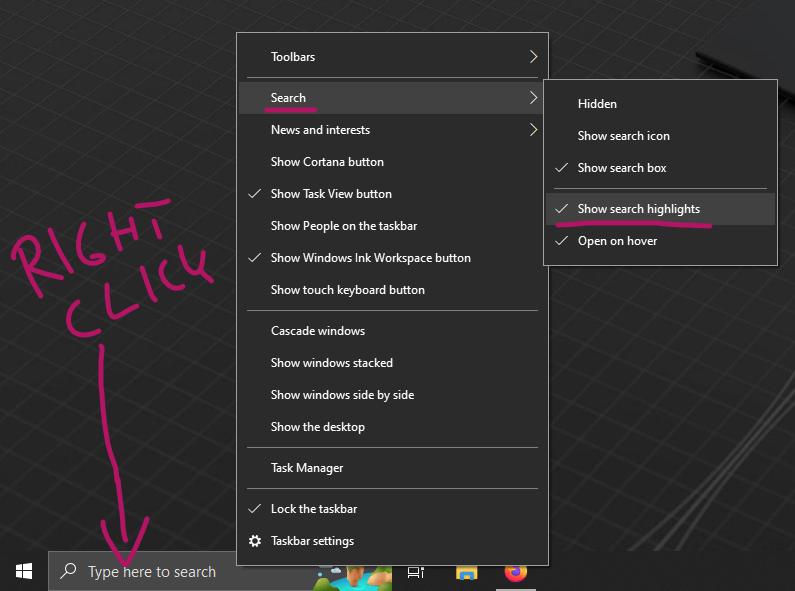
How to Remove The Annoying Google Search Bar From Your Desktop
Are you tired of seeing a pesky Google search bar on your desktop, taking up valuable space and disrupting your workflow? Look no further! In this article, we’ll guide you through the simple steps to remove this unwanted feature and reclaim your desktop’s real estate.
What is The Google Search Bar?
The Google search bar is a feature that was introduced by Microsoft in Windows 10, designed to provide fast access to searching the internet. While it may seem convenient at first, many users have found it to be more of a hindrance than a help. It takes up space on your desktop and can be distracting, especially if you’re not used to seeing it.
Why Remove The Google Search Bar?
There are several reasons why you might want to remove the Google search bar from your desktop:
- Aesthetics: The search bar can be visually unappealing and take away from the clean look of your desktop.
- Space: It takes up valuable real estate on your screen, which could be better used for other apps or widgets.
- Distraction: If you’re not careful, the search bar can become a distraction, especially if you’re prone to mindless searching.
How to Remove The Google Search Bar in Windows 10
Removing the Google search bar in Windows 10 is relatively straightforward. Here’s how:
- Click on the Start button and select “Settings.”
- In the Settings window, click on the “Personalization” option.
- Select the “Themes” tab from the left-hand menu.
- Click on the “Desktop icon settings” link at the bottom of the page.
- Uncheck the box next to “Google search bar” and select “OK.”
How to Remove The Google Search Bar in Windows 11
In Windows 11, the process is slightly different:
- Click on the Start button and select “Settings.”
- In the Settings window, click on the “Personalization” option.
- Select the “Taskbar” tab from the left-hand menu.
- Click on the “Search” dropdown menu and select “Off.”
How to Remove The Google Search Bar in Other Operating Systems
If you’re using a different operating system, such as macOS or Linux, the process for removing the Google search bar will vary. However, in general, you can follow these steps:
- Go to your desktop settings.
- Look for an option to remove the Google search bar or toggle it off.
- Follow any additional instructions provided.
How to Remove Unwanted Search Bars
If you’ve installed a program that has added a search bar to your desktop without your consent, you may need to take further action to remove it. Here’s what you can do:
- Go to the Control Panel and select “Programs and Features.”
- Look for the program that added the search bar and select “Uninstall.”
- Follow any additional instructions provided.
Conclusion
Removing the Google search bar from your desktop is a simple process that can help declutter your workspace and improve your productivity. Whether you’re using Windows 10, Windows 11, or another operating system, following these steps will ensure that you can say goodbye to this pesky feature once and for all.
Frequently Asked Questions
- What is The Google Search Bar?
The Google search bar is a feature in Windows 10 that provides fast access to searching the internet. - Why Remove The Google Search Bar?
There are several reasons why you might want to remove the Google search bar, including aesthetics, space, and distraction. - How do I Remove The Google Search Bar in Windows 10?
To remove the Google search bar in Windows 10, go to Settings > Personalization > Themes > Desktop icon settings and uncheck the box next to “Google search bar.” - How do I Remove The Google Search Bar in Windows 11?
In Windows 11, go to Settings > Personalization > Taskbar and click on the “Search” dropdown menu to toggle it off. - Can I Remove Unwanted Search Bars?
Yes, if you’ve installed a program that has added a search bar without your consent, you can follow the steps outlined above to remove it. - How do I Prevent Unwanted Search Bars From Appearing in The Future?
To prevent unwanted search bars from appearing in the future, be sure to carefully review any software installation prompts and uncheck boxes related to adding search bars to your desktop. - What if I’m Not Using Windows or Another Microsoft Operating System?
If you’re using a different operating system, such as macOS or Linux, the process for removing the Google search bar will vary. However, in general, you can follow the steps outlined above to remove it.
Additional Resources
- Microsoft Support: For more information on removing the Google search bar in Windows 10 and Windows 11, visit the Microsoft Support website.
- Google Search Bar Removal Guide: If you’re having trouble removing the Google search bar, try this step-by-step guide for assistance.


