
How to Remove The Taskbar on Windows 10: A Step-by-step Guide
Are you tired of seeing the taskbar on your Windows 10 desktop? Do you want to free up some space and make your screen look more minimalist? Look no further! In this article, we will guide you through the process of removing the taskbar on Windows 10.
What is The Taskbar?
The taskbar is a feature in Windows 10 that allows you to access various applications, settings, and tools. It’s usually located at the bottom of the screen and can be customized to show different types of information. However, sometimes it can be distracting or take up too much space on your desktop.
Why Remove The Taskbar?
There are several reasons why you might want to remove the taskbar:
- You have a small monitor and want to free up space.
- You’re playing games and don’t need access to other applications.
- You prefer a more minimalist look for your desktop.
- You’re using Windows 10 in tablet mode and want to make it look more like a traditional tablet.
How to Remove The Taskbar on Windows 10
Removing the taskbar is a straightforward process that requires some basic computer knowledge. Here’s how to do it:
- Click on The Start Button: Located at the bottom left corner of your screen, click on the Start button to open the menu.
- Select Settings: In the menu, select the “Settings” option to open the Settings window.
- Choose Personalization: In the Settings window, choose the “Personalization” section.
- Select Taskbar: In the Personalization section, select the “Taskbar” option from the left-hand menu.
- Turn Off The Taskbar: Turn off the toggle switch next to “Conceal automatically the taskbar” to disable it.
Alternative Method
If you’re using Windows 10 in tablet mode or have a touchscreen device, you can also remove the taskbar by:
- Going to Settings: Open the Settings app.
- Selecting Personalization: Choose the “Personalization” section.
- Selecting Taskbar: Select the “Taskbar” option from the left-hand menu.
- Turning Off The Taskbar: Turn off the toggle switch next to “Conceal automatically the taskbar”.
Removing Icons From The Taskbar
If you don’t want to remove the entire taskbar, but rather just some of the icons on it, follow these steps:
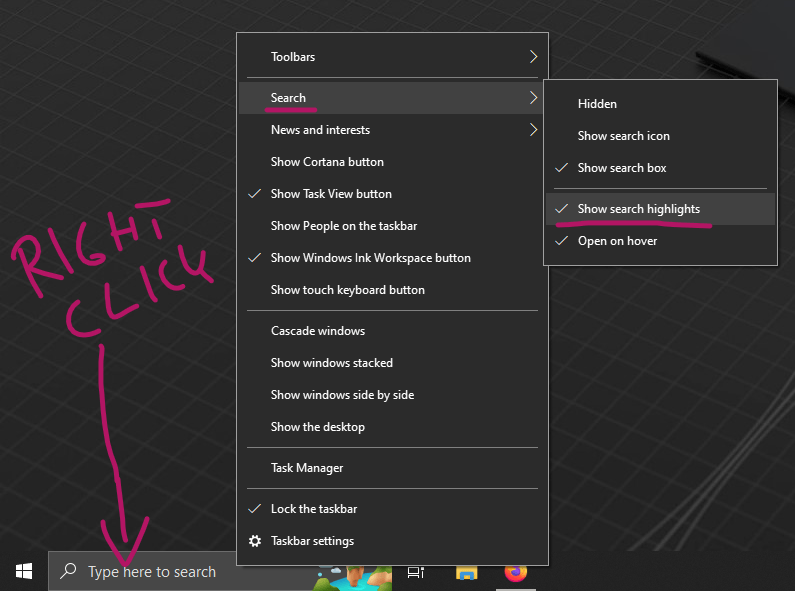
- Right-click on an Empty Space: Right-click on an empty space on the taskbar.
- Select Settings Bar of The Applications: Choose the “Settings bar of the applications” option from the menu.
- Turn Off Individual Icons: Turn off the toggle switches next to each icon you want to remove.
Removing Icons From Notification Area
If you don’t want to see any icons in the notification area, follow these steps:
- Right-click on an Empty Space: Right-click on an empty space on the taskbar.
- Select Settings Bar of The Applications: Choose the “Settings bar of the applications” option from the menu.
- Turn Off Notification Icons: Turn off the toggle switches next to each icon in the notification area.
Removing System Icons
If you don’t want to see any system icons, follow these steps:
- Right-click on an Empty Space: Right-click on an empty space on the taskbar.
- Select Settings Bar of The Applications: Choose the “Settings bar of the applications” option from the menu.
- Turn Off System Icons: Turn off the toggle switches next to each system icon.
Removing Added Instrument Bars
If you have added instrument bars, follow these steps:
- Right-click on an Empty Space: Right-click on an empty space on the taskbar.
- Select Settings Bar of The Applications: Choose the “Settings bar of the applications” option from the menu.
- Turn Off Individual Instrument Bars: Turn off the toggle switches next to each instrument bar.
What if I Want to Remove The Taskbar on Windows 11?
Removing the taskbar on Windows 11 is even easier than on Windows 10. Simply:
- Right-click on The Taskbar: Right-click on an empty space on the taskbar.
- Select Settings of The Bar of The Applications: Choose the “Settings of the bar of the applications” option from the menu.
- Turn Off The Taskbar: Turn off the toggle switch next to “Conceal automatically the taskbar”.
Conclusion
Removing the taskbar on Windows 10 is a simple process that requires some basic computer knowledge. If you’re tired of seeing it, or want to free up space on your desktop, this guide has shown you how to remove it for good.
Frequently Asked Questions (FAQs)
- Q: How do I Turn The Taskbar Back On?
A: To turn the taskbar back on, simply go to Settings > Personalization > Taskbar and toggle the switch next to “Conceal automatically the taskbar” to off. - Q: Can I Remove Only Some of The Icons From The Taskbar?
A: Yes! If you don’t want to see certain icons on your taskbar, simply right-click on an empty space, select Settings bar of the applications, and toggle the switches next to each icon you want to remove. - Q: Can I Remove All Icons From The Notification Area?
A: Yes! To remove all icons from the notification area, follow the same steps as above (right-click on an empty space, select Settings bar of the applications, and turn off the toggle switches next to each icon). - Q: What Happens if I Remove a System Icon?
A: If you remove a system icon, it will no longer appear in the notification area. However, you can always re-enable it by going back into Settings > Personalization > Taskbar. - Q: Can I Use Windows 10 Without a Taskbar?
A: Yes! While it’s not recommended to run Windows 10 without a taskbar, you can certainly do so if you prefer a more minimalist look or need to free up space on your desktop.
References
- Microsoft Support: How to customize the Taskbar in Windows 10
- TechRadar: How to remove the Taskbar from Windows 10


