
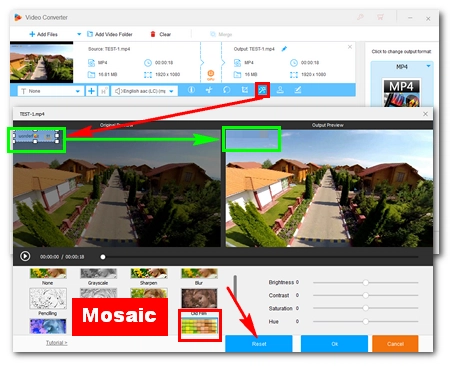
How to Remove Video Filigree: A Step-by-step Guide
Are you tired of dealing with unwanted video filigrees? Do you want to remove them from your videos without any hassle? Look no further! In this article, we will guide you through the process of removing video filigree using various methods.
What is Video Filigree?
Video filigree refers to the annoying logo or watermark that appears on a video, usually in the corner or at the bottom. It can be frustrating to deal with, especially when trying to share or edit videos.
Why Remove Video Filigree?
There are several reasons why you might want to remove video filigree:
- To avoid copyright issues
- To maintain brand consistency
- To enhance video quality
- To create a professional-looking video
Method 1: Using Davinci Resolve (Windows, Macos, Linux)
DaVinci Resolve is a free video editing software that can also be used to remove video filigree. Here’s how:
- Download And Install Davinci Resolve: Go to the official website and download the software for your operating system.
- Import Your Video: Open DaVinci Resolve and import your video by clicking on “Import” > “Media”.
- Select The Area: Select the area where you want to remove the filigree using the mouse or trackpad.
- Use Object Removal Tool: Go to the “Effects” tab and select “Object Removal”. Drag and drop this effect onto your video timeline.
- Wait For The Process: DaVinci Resolve will do the rest. Wait for it to process the video, which may take a few minutes depending on the size of your file.
- Save Your Video: Once the process is complete, save your video by clicking on “File” > “Export”.
Method 2: Using Anieraser (Android, Ios, Ipados)
AniEraser is a free app for mobile devices that can remove video filigree quickly and easily. Here’s how:
- Download And Install Anieraser: Go to the Google Play Store or Apple App Store and download the app.
- Open The Video: Open the video you want to edit using AniEraser.
- Choose Removal Pattern: Select either “Swift Pattern” or “Pattern IA”. Swift Pattern is less precise but faster, while Pattern IA is more accurate but slower.
- Drag And Drop The Brush: Use your finger to draw a rectangle around the area where you want to remove the filigree.
- Save Your Video: Once you’re satisfied with the result, tap on “Save” to save your video.
Method 3: Using Online Tools
If you don’t have time or prefer not to download software or apps, there are online tools that can help you remove video filigree. Here are a few options:
- Online Video Cutter: This free tool allows you to upload your video and select the area where you want to remove the filigree.
- Hitpaw Watermark Remover: This online tool is similar to Online Video Cutter but offers more features, such as batch processing and advanced editing tools.
- Beecut: This online video editor has a built-in tool for removing filigrees.
Additional Tips
Here are some additional tips to help you remove video filigree:
- Use DaVinci Resolve or AniEraser to achieve the best results.
- Be patient when using these methods, as they may take time to process.
- Experiment with different removal patterns and brushes to find what works best for your video.
Conclusion
Removing video filigree is a straightforward process that can be achieved using various methods. Whether you’re using DaVinci Resolve, AniEraser, or online tools, the steps are similar. Remember to be patient and experiment with different techniques to achieve the best results.
Frequently Asked Questions (FAQs)
Here are some frequently asked questions about removing video filigree:
- Is it Legal to Remove Video Filigree?
Removing video filigree is generally not considered illegal, but you should always check the terms and conditions of any software or service you use.
- Can I Use These Methods For Commercial Purposes?
Some of these methods may have restrictions on commercial use, so be sure to check the licensing agreements before using them for business purposes.
- Will Removing Video Filigree Affect my Video Quality?
Removing video filigree should not affect your video quality, but it’s always a good idea to check the output video to ensure it looks as expected.
- Can I Remove Video Filigree From Videos With Multiple Logos or Watermarks?
Some of these methods may have limitations when dealing with multiple logos or watermarks, so be sure to experiment and adjust your approach accordingly.
- How Long Does it Take to Process a Video?
The processing time will depend on the size and complexity of your video file, but most methods should complete within a few minutes to an hour.
- Can I Use These Methods For Videos With Audio or Other Multimedia Elements?
Some of these methods may be limited when dealing with audio or other multimedia elements, so be sure to check compatibility before using them.
- Is There a Risk of Losing my Original Video File?
Most of these methods should preserve your original video file, but it’s always a good idea to make a backup copy before editing.
- Can I Use These Methods For Videos That Are Protected by Copyright or Other Intellectual Property Rights?
Some of these methods may not be suitable for removing copyright-protected logos or watermarks, so be sure to check the licensing agreements and any applicable laws before using them.


