
Protecting Your Instagram Account: A Guide to Removing Two-factor Authentication
As a social media user, you’re likely no stranger to the importance of keeping your online accounts secure. One way to add an extra layer of protection is by enabling two-factor authentication (2FA) on platforms like Instagram. However, there may be situations where you want or need to remove this feature. In this article, we’ll explore how to disable 2FA on Instagram, including from smartphones, tablets, and computers.
Understanding Two-factor Authentication
Before diving into the process of removing 2FA, it’s essential to understand what it is and why it’s used. Two-factor authentication requires you to provide two forms of verification to access your account: Something you know (your password) and something you have (a code sent via SMS or a third-party authenticator app). This adds an extra layer of security, making it more difficult for unauthorized individuals to gain access to your account.
Why Remove Two-factor Authentication?
While 2FA provides an added layer of protection, there may be situations where you want or need to remove this feature. Perhaps you’re experiencing technical difficulties or have changed devices. In any case, removing 2FA can make it easier to access your account from a new device.
Removing Two-factor Authentication on Instagram
To disable 2FA on Instagram, follow these steps:
Step 1: Access Your Account Settings
Open the Instagram app and navigate to your profile page. Tap the three horizontal lines in the top-right corner to access the menu. From there, select “Settings” or “Account.”
Step 2: Select Password And Safety
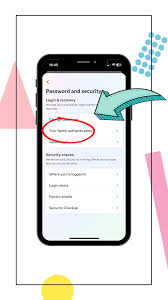
In the account settings section, tap on “Password and safety.” This will take you to a page where you can manage your password and security settings.
Step 3: Disable Two-factor Authentication
On the Password and safety page, scroll down to the “Two-factor authentication” section. Tap on this option and then select the type of authentication you want to disable (SMS or authenticator app). Follow the prompts to confirm that you want to disable 2FA.
Step 4: Confirm Disabling Two-factor Authentication
Once you’ve completed the previous step, Instagram will prompt you to confirm disabling 2FA. Review the information and select “Disable” to proceed.
Removing Two-factor Authentication on a Computer
If you’re accessing Instagram from a computer, the process is slightly different:
Step 1: Log In to Your Account
Visit the Instagram website and log in to your account using your username and password.
Step 2: Access Settings
Click on the three dots in the top-right corner of the screen to access the settings menu. From there, select “Settings” or “Account.”
Step 3: Select Password And Safety
In the account settings section, click on “Password and safety.” This will take you to a page where you can manage your password and security settings.
Step 4: Disable Two-factor Authentication
On the Password and safety page, scroll down to the “Two-factor authentication” section. Click on this option and then select the type of authentication you want to disable (SMS or authenticator app). Follow the prompts to confirm that you want to disable 2FA.
Important Considerations
While disabling 2FA may seem like a convenient solution, it’s essential to consider the potential risks involved. Without 2FA, your account is more vulnerable to unauthorized access. If you’re unsure about removing 2FA or have concerns about security, we recommend leaving this feature enabled.
Conclusion
Removing two-factor authentication on Instagram can make it easier to access your account from a new device. However, it’s crucial to understand the potential risks involved and take necessary precautions to protect your online identity. By following the steps outlined in this article, you can disable 2FA on Instagram, but always prioritize security when making these changes.
Additional Resources
For more information on protecting your Instagram account or learning how to use 2FA effectively, check out our additional resources:
As a responsible tech blogger and expert, I always recommend prioritizing security when making changes to your online accounts. By taking the necessary precautions, you can enjoy a secure and seamless experience on Instagram and other social media platforms.


