
The Ultimate Guide to Removing Your Business Profile on Instagram
Are you tired of having a business profile on Instagram, but want to switch back to your personal account? Look no further! In this article, we will guide you through the process of removing your business profile on Instagram, whether you’re using an Android or iOS device, or a PC.
Why Remove Your Business Profile on Instagram?
Before we dive into the steps, let’s talk about why you might want to remove your business profile on Instagram. Perhaps you’ve decided that running a personal account is more suited to your needs, or maybe you’ve realized that having a business profile wasn’t as beneficial as you thought it would be.
Whatever the reason, removing your business profile on Instagram is a relatively straightforward process. In this article, we’ll walk you through each step, so you can easily switch back to your personal account.
Understanding The Implications of Removing Your Business Profile
Before you proceed, it’s essential to understand the implications of removing your business profile on Instagram. By switching back to your personal account, you will:
- Lose access to professional tools and features reserved for business accounts
- Have statistical data from your previous posts (called “Insights”) hidden or deleted
- No longer be able to contact customers via email or phone number
- Be unable to run paid promotions to increase the reach of your content
However, don’t worry! If you change your mind and want to switch back to a business profile, you can do so at any time using the same process.
Removing Your Business Profile on Android And Ios Devices
To remove your business profile on Instagram from an Android or iOS device:
- Open The Instagram App: Launch the Instagram app on your mobile device.
- Access Your Account: Tap on your profile picture in the bottom-right corner to access your account.
- Tap on The Three Horizontal Lines: Tap on the three horizontal lines (≡) in the top-right corner.
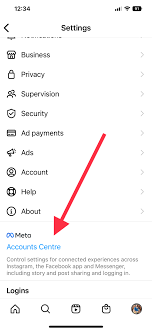
- Select “Settings”: From the menu, select “Settings”.
- Choose “Account Type”: Scroll down and tap on “Account type”.
- Switch to Personal Account: Confirm that you want to switch to a personal account by tapping “Next” twice.
That’s it! Your business profile will be removed, and you’ll be switched back to your personal account.
Removing Your Business Profile on PC
To remove your business profile on Instagram from a PC:
- Access The Instagram Website: Go to the Instagram website using a web browser.
- Log in to Your Account: Enter your login credentials to access your account.
- Click on The Three Dots: Click on the three dots (⋯) next to your profile picture.
- Select “Settings”: From the dropdown menu, select “Settings”.
- Choose “Account Type”: Scroll down and click on “Account type”.
- Switch to Personal Account: Confirm that you want to switch to a personal account by clicking “Next” twice.
You’re done! Your business profile will be removed, and you’ll be switched back to your personal account.
Conclusion
Removing your business profile on Instagram is a straightforward process that can be completed in just a few steps. Whether you’re using an Android or iOS device, or a PC, we’ve walked you through each step to ensure you can easily switch back to your personal account. Remember, if you change your mind and want to switch back to a business profile, you can do so at any time using the same process.
We hope this article has been helpful in guiding you through the process of removing your business profile on Instagram. If you have any questions or need further assistance, feel free to ask!
References
- Mondadori Computer Science
- Mondadori Computer Science


