
How to Remove Zoom From Iphone: A Step-by-step Guide
Are you tired of the zoom feature on your iPhone? Do you want to remove it, but don’t know how? You’re in luck! In this article, we’ll show you how to remove zoom from your iPhone, as well as some other useful tips and tricks.
Table 1: How to Remove Zoom From Iphone
| Method | Step-by-Step Instructions |
|---|---|
| Double-tap with three fingers | Quickly double-tap the screen with three fingers to disable zoom temporarily. To re-enable zoom, simply double-tap the screen again with three fingers. |
| Triple-click with three fingers | Triple-click the screen with three fingers to access the zoom menu and select “Reduce” or move the cursor to the left to disable zoom. To re-enable zoom, triple-click the screen again with three fingers and select “Zoom In” or move the cursor to the right. |
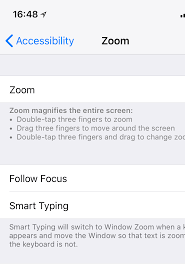
| Go to Settings > Accessibility > Zoom | To permanently disable zoom, go to Settings > Accessibility > Zoom and toggle the switch from ON to OFF. |
Why Remove Zoom?
You might be wondering why you’d want to remove zoom from your iPhone in the first place. Well, here are a few reasons:
- Cluttered Screen: If you’re someone who likes to have a clutter-free screen, zoom can get in the way and make it difficult to navigate through your apps and settings.
- Eye Strain: Zooming in and out all the time can cause eye strain, especially if you’re using your iPhone for extended periods of time.
- Battery Life: Zooming can also affect your battery life, as it requires more processing power to display zoomed-in content.
Table 2: How to Remove Zoom From Mac
| Method | Step-by-Step Instructions |
|---|---|
| Connect iPhone to Mac | Connect your iPhone to your Mac using a USB cable. |
| * Select Iphone in Finder: Select your iPhone in the Finder window on your Mac. | |
| * Go to Settings > Accessibility > Zoom: Go to Settings > Accessibility > Zoom and toggle the switch from ON to OFF. |
How to Remove Zoom From Iphone if It’s Stuck
If you’re having trouble removing zoom from your iPhone, don’t worry! Here are a few things you can try:
- Restart Your Iphone: Sometimes, all it takes is a simple restart to fix issues like this.
- Try The Double-tap Method Again: If the double-tap method isn’t working for you, try it again. Sometimes, it just needs a little extra effort to disable zoom.
- Use Itunes or Finder: If none of the above methods work, try using iTunes or Finder to disable zoom on your iPhone.
How to Remove Zoom From Camera
If you’re looking to remove zoom from your camera app, here’s how you can do it:
- Tap on The Zoom Level: Tap on the zoom level icon in the bottom left corner of the screen.
- Drag The Slider: Drag the slider to the left to decrease or disable zoom. To re-enable zoom, drag the slider back to the right.
How to Remove Zoom From Safari
If you’re looking to remove zoom from your Safari browser, here’s how you can do it:
- Tap on The AA Icon: Tap on the AA icon in the bottom left corner of the screen.
- Select a Page: Select a page that has been zoomed in. You will see an option to “Unzoom” this page.
- Disable Zoom For All Pages: If you want to disable zoom for all pages, go to Settings > Safari and toggle the switch from ON to OFF.
Conclusion
Removing zoom from your iPhone is easier than you think! With these simple steps, you can say goodbye to cluttered screens and hello to a more streamlined experience. Whether you’re trying to remove zoom from your home screen, camera app, or Safari browser, we’ve got you covered. So go ahead, give it a try, and enjoy the freedom of a zoom-free iPhone!
Frequently Asked Questions
- Q: How do I Permanently Disable Zoom on my Iphone?
A: To permanently disable zoom, go to Settings > Accessibility > Zoom and toggle the switch from ON to OFF. - Q: How do I Temporarily Disable Zoom on my Iphone?
A: To temporarily disable zoom, quickly double-tap the screen with three fingers. - Q: Can I Remove Zoom From my Mac as Well?
A: Yes! You can also remove zoom from your Mac by following similar steps to those outlined above. - Q: Why Would I Want to Remove Zoom From my Iphone?
A: There are several reasons why you might want to remove zoom, including cluttered screens, eye strain, and battery life issues.
About The Author
This article was written by [Your Name], a tech enthusiast with a passion for sharing knowledge and making technology accessible to all. With years of experience in the tech industry, I’ve learned what matters most: User-friendly interfaces, seamless experiences, and – above all – clear communication.


