
How to Rename File Extensions: A Step-by-step Guide
Are you tired of dealing with file extensions that just won’t cooperate? Do you find yourself struggling to open files because their extensions are incorrect or missing altogether? Look no further! In this article, we’ll show you how to rename file extensions like a pro, using various methods and platforms.
Why Rename File Extensions?
Renaming file extensions is an essential skill that can save you time and frustration in the long run. Whether you’re working on a project or just trying to organize your files, having the correct extension can make all the difference. By following our guide, you’ll be able to:
- Correctly identify and rename file extensions
- Convert file formats with ease
- Troubleshoot common issues related to file extensions
Preliminary Information
Before we dive into the nitty-gritty details, let’s quickly cover some preliminary information.
There are two main scenarios when it comes to renaming file extensions:
- Correction: This involves correcting a typo or mistake in the file extension.
- Conversion: This requires converting a file from one format to another.
Renaming File Extensions: The Easy Way
Let’s start with the simplest scenario – correcting a typo in the file extension.
If you have a file named “example.Doc1” and want to rename it to “example.Doc”, follow these steps:
- Windows 11: Open File Explorer, navigate to the file, right-click on it, select “Rename,” and type in the new extension.
- Windows 10: Follow the same steps as Windows 11.
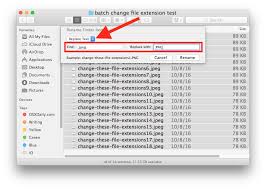
- Mac: Right-click on the file, select “Get Info,” click on the “Name” field, and enter the new extension.
That’s it! You’ve successfully renamed the file extension using the easy method.
Renaming File Extensions: The More Complex Way
Now, let’s move on to the more complex scenario – converting a file from one format to another.
If you want to convert a file from one format to another, follow these steps:
- Windows 11: Open File Explorer, navigate to the file, right-click on it, select “Open with,” and choose an application that can open files in the desired format.
- Windows 10: Follow the same steps as Windows 11.
- Mac: Right-click on the file, select “Get Info,” click on the “Name” field, and enter the new extension.
Note: You may need to use a third-party converter or application to achieve this.
Converting File Formats
When converting file formats, it’s essential to note that you’re not just renaming the extension – you’re also converting the file content. This process can be complex, especially if you’re dealing with large files or specific formats.
To convert file formats, use a third-party converter or application specifically designed for this purpose. Some popular options include:
- Adobe Creative Cloud
- Microsoft Office Online
- Zamzar File Converter
Smartphone And Tablet Edition
Renaming file extensions on your smartphone or tablet is just as easy! Follow these steps:
- Android: Use the Google Files app to rename file extensions.
- Ios: Unfortunately, renaming file extensions on iOS devices is not possible using standard methods. However, you can use third-party apps like Document Scanner or Photo Gallery.
Conclusion
Renaming file extensions is a straightforward process that requires minimal effort and expertise. By following this guide, you’ll be able to:
- Correctly identify and rename file extensions
- Convert file formats with ease
- Troubleshoot common issues related to file extensions
Remember, renaming file extensions is an essential skill for any computer user. Whether you’re a beginner or an experienced user, take the time to learn how to do it like a pro!
Frequently Asked Questions (FAQs)
- Q: How do I Rename a File Extension on Windows?
A: Right-click on the file, select “Rename,” and type in the new extension. - Q: Can I Convert a File Format Using a Standard Method?
A: Yes, you can use third-party converters or applications specifically designed for this purpose. - Q: Why do I Need to Rename a File Extension?
A: Renaming a file extension ensures that the correct application opens the file and that it’s formatted correctly. - Q: Can I Rename a File Extension on my Smartphone or Tablet?
A: Yes, you can use third-party apps or built-in apps like Google Files (Android) to rename file extensions. - Q: How do I Troubleshoot Issues Related to File Extensions?
A: Check the file’s content and format to ensure it’s correctly formatted and opened by the intended application. - Q: Can I Use a Standard Method to Convert File Formats on my Mac?
A: Yes, you can right-click on the file, select “Get Info,” click on the “Name” field, and enter the new extension. - Q: Why do I Need to Use Third-party Converters or Applications For Complex Conversions?
A: Complex conversions require specialized tools that can handle specific formats and content. - Q: Can I Convert File Formats Using an Online Service?
A: Yes, you can use online services like Zamzar File Converter or Adobe Creative Cloud to achieve this.
I hope this article has been informative and helpful in your quest to master the art of renaming file extensions!


