
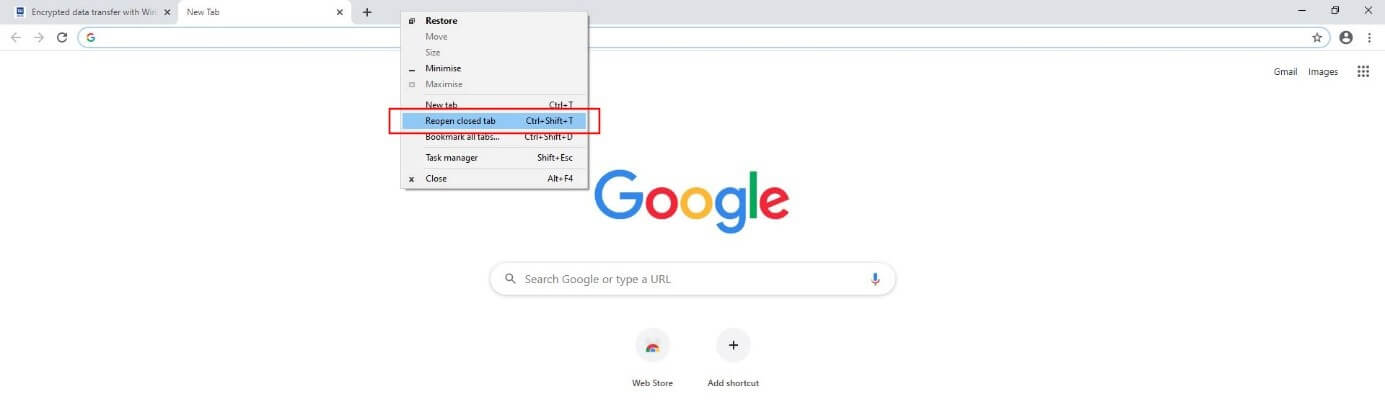
Reopening All Closed Tabs on Google Chrome: A Step-by-step Guide
Are you tired of losing all your open tabs on Google Chrome when you accidentally close the browser? Do you wish there was a way to reopen all the tabs without having to restart from scratch? Look no further! In this article, we will guide you through the process of reopening all closed tabs on Google Chrome for Windows, Mac, Android, and iPhone/iPad.
Why Reopen All Closed Tabs?
Reopening all closed tabs can save you a significant amount of time and effort. Imagine having to reopen all your tabs manually, one by one. Not only is this time-consuming, but it’s also frustrating when you accidentally close the browser without saving any progress.
How to Reopen All Closed Tabs on Google Chrome: Windows
To reopen all closed tabs on Google Chrome for Windows, follow these steps:
- Initiate The Browser: Open Google Chrome by double-clicking on its icon or searching for it in your start menu.
- Click on The Three Vertical Dots: Click on the three vertical dots located at the top right corner of the browser window. This will open a drop-down menu with various options.
- Select “History”: From the drop-down menu, select “History.” This will take you to the Chrome history page.
- Click on “Closed Recently”: On the Chrome history page, click on “Closed Recently.” This will display a list of all closed tabs within the last hour.
- Reopen Tabs: To reopen a tab, simply click on it in the list. You can also click on the three vertical dots next to each tab and select “Open” to open the entire window with all the tabs.
Alternative Method: Ctrl+shift+t
Alternatively, you can use the shortcut key combination Ctrl+Shift+T to reopen a single tab or an entire window with all the tabs. This method is faster than using the Chrome history page.
How to Reopen All Closed Tabs on Google Chrome: Mac
To reopen all closed tabs on Google Chrome for Mac, follow these steps:
- Initiate The Browser: Open Google Chrome by double-clicking on its icon or searching for it in your applications folder.
- Click on The Three Vertical Dots: Click on the three vertical dots located at the top right corner of the browser window. This will open a drop-down menu with various options.
- Select “History”: From the drop-down menu, select “History.” This will take you to the Chrome history page.
- Click on “Closed Recently”: On the Chrome history page, click on “Closed Recently.” This will display a list of all closed tabs within the last hour.
- Reopen Tabs: To reopen a tab, simply click on it in the list. You can also click on the three vertical dots next to each tab and select “Open” to open the entire window with all the tabs.
Alternative Method: Command+shift+t
Alternatively, you can use the shortcut key combination Command+Shift+T to reopen a single tab or an entire window with all the tabs. This method is faster than using the Chrome history page.
How to Reopen All Closed Tabs on Google Chrome: Android
To reopen all closed tabs on Google Chrome for Android, follow these steps:
- Open The App: Open the Google Chrome app by tapping its icon or searching for it in your app drawer.
- Tap on The Three Vertical Dots: Tap on the three vertical dots located at the top right corner of the browser window. This will open a drop-down menu with various options.
- Select “Recent Tabs”: From the drop-down menu, select “Recent Tabs.” This will take you to the list of all closed tabs within the last hour.
- Reopen Tabs: To reopen a tab, simply tap on it in the list. You can also tap on the three vertical dots next to each tab and select “Open” to open the entire window with all the tabs.
Alternative Method: Ctrl+shift+t
Alternatively, you can use the shortcut key combination Ctrl+Shift+T to reopen a single tab or an entire window with all the tabs. This method is faster than using the Chrome history page.
How to Reopen All Closed Tabs on Google Chrome: Iphone/ipad
To reopen all closed tabs on Google Chrome for iPhone/iPad, follow these steps:
- Open The App: Open the Google Chrome app by tapping its icon or searching for it in your home screen.
- Tap on The Three Horizontal Dots: Tap on the three horizontal dots located at the top right corner of the browser window. This will open a drop-down menu with various options.
- Select “Recent Tabs”: From the drop-down menu, select “Recent Tabs.” This will take you to the list of all closed tabs within the last hour.
- Reopen Tabs: To reopen a tab, simply tap on it in the list. You can also tap on the three vertical dots next to each tab and select “Open” to open the entire window with all the tabs.
Tips And Variations
- If you have multiple windows open, you can reopen the entire window by clicking or tapping on the window title.
- To enable the feature to reopen all closed tabs on Google Chrome for Android, go to chrome://Flags and search for “Enable restoring of previous Custom Tab session.”
- This feature is not available on iPhone/iPad.
In conclusion, reopening all closed tabs on Google Chrome can save you a significant amount of time and effort. By following these step-by-step guides for Windows, Mac, Android, and iPhone/iPad, you can quickly reopen all your tabs without having to restart from scratch. Remember to also use the alternative methods mentioned in this article to speed up the process.


