
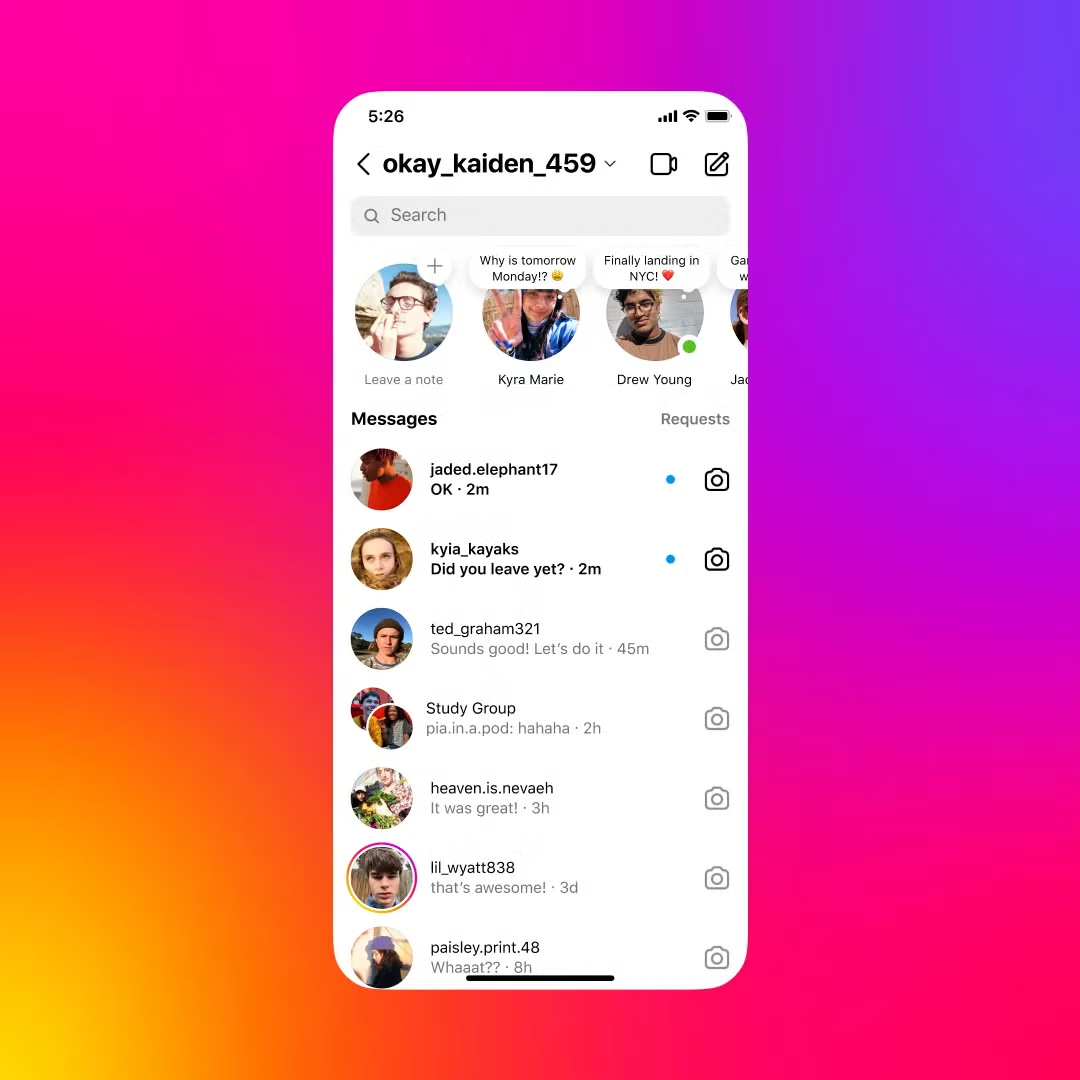
How to Answer Messages on Instagram: A Step-by-step Guide
Are you tired of not knowing how to answer messages on Instagram? Look no further! This article will guide you through the process of answering messages on Instagram, both on your smartphone and computer.
Why Is It Important to Know How to Answer Messages on Instagram?
Answering messages on Instagram is an essential feature that allows you to communicate with friends, family, and even potential customers. With over 1 billion active users on Instagram, it’s a great platform to connect with others and build your personal or business brand.
How to Answer Messages on Instagram on Android/ios
To answer messages on Instagram on your Android or iOS device, follow these steps:
- Access Your Account: First, make sure you have accessed your Instagram account.
- Find The Direct Message: Tap on the icon of the airplane in the top-right corner of the screen to access the direct message section.
- Select The Conversation: Find the conversation with the user that sent you a message and tap on it to open it.
- Type Your Response: Type your response in the text box at the bottom of the screen.
- Add Emoji or Reaction: Add an emoji or reaction to your response by tapping on the icon of the smiley face.
- Send The Message: Tap the send button (represented by a blue arrow) to send your message.
How to Answer Messages on Instagram on PC
To answer messages on Instagram on your PC, follow these steps:
- Access Your Account: First, make sure you have accessed your Instagram account using the official website or application for Windows 10.
- Find The Direct Message: Click on the icon of the airplane in the top-right corner of the screen to access the direct message section.
- Select The Conversation: Find the conversation with the user that sent you a message and click on it to open it.
- Type Your Response: Type your response in the text box at the bottom of the screen.
- Add Emoji or Reaction: Add an emoji or reaction to your response by clicking on the icon of the smiley face.
- Send The Message: Click the send button (represented by a blue arrow) to send your message.
How to Answer Comments on Instagram
To answer comments on Instagram, follow these steps:
- Access Your Account: First, make sure you have accessed your Instagram account.
- Find The Post: Tap or click on the post that has comments.
- Select The Comment: Find the comment you want to respond to and tap or click on it.
- Type Your Response: Type your response in the text box at the bottom of the screen.
- Add Emoji: Add an emoji to your response by tapping or clicking on the icon of the smiley face.
- Send The Message: Tap or click the send button (represented by a blue arrow) to send your message.
Tips And Tricks
- Make sure you have accessed your Instagram account before trying to answer messages or comments.
- Use emojis and reactions to add tone and personality to your responses.
- Keep your responses concise and clear, especially on mobile devices.
- Don’t forget to follow up with users who have commented on your posts.
Conclusion
Answering messages on Instagram is a straightforward process that can be done on both smartphones and computers. By following the steps outlined in this article, you’ll be able to communicate effectively with others on the platform. Remember to keep your responses concise and clear, and don’t forget to add emojis or reactions to add tone and personality to your messages.
Frequently Asked Questions
- Q: How do I answer messages on Instagram if I’m not sure who sent me a message?
A: To find out who sent you a message, tap on the icon of the airplane in the top-right corner of the screen to access the direct message section. - Q: Can I answer comments on Instagram with a photo?
A: Unfortunately, no. You can only answer comments in textual manner. - Q: How do I add an emoji or reaction to my response?
A: To add an emoji or reaction, tap or click on the icon of the smiley face.


