
How to Report a Video on Youtube: A Step-by-step Guide
Are you tired of watching videos on YouTube that violate the platform’s terms and conditions? Do you want to report a video that contains explicit content, copyright infringement, or other forms of abuse? Look no further! In this article, we’ll guide you through the process of reporting a video on YouTube.
Understanding Youtube’s Reporting Process
Before we dive into the step-by-step guide, it’s essential to understand how YouTube handles reports. When you report a video, YouTube reviews the content and decides whether to remove or keep it up. If your report is deemed valid, the platform will take action against the uploader.
Requirements For Reporting a Video on Youtube
To report a video on YouTube, you must be a registered user with an active account. This means that you need to create a Google account (which is also used to log in to YouTube) and have access to the platform’s reporting features.
Reporting a Video on Youtube: A Step-by-step Guide
Here are the steps to follow:
Reporting a Video For Copyright Infringement
- Sign in to Your Youtube Account: Make sure you’re logged in to your Google account, which is linked to your YouTube account.
- Navigate to The Video: Find the video that you want to report and click on it.
- Click on The Three Dots: Click on the three dots next to the video’s title and select “Report.”
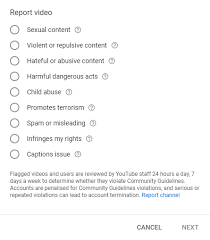
- Choose a Reason: Select the reason for reporting the video, such as copyright infringement.
- Provide Additional Information: Enter any additional details or evidence you have that supports your report.
- Submit Your Report: Click on the “Submit” button to send your report to YouTube.
Reporting a Video For Inappropriate Content
- Sign in to Your Youtube Account: Make sure you’re logged in to your Google account, which is linked to your YouTube account.
- Navigate to The Video: Find the video that you want to report and click on it.
- Click on The Three Dots: Click on the three dots next to the video’s title and select “Report.”
- Choose a Reason: Select the reason for reporting the video, such as explicit content.
- Provide Additional Information: Enter any additional details or evidence you have that supports your report.
- Submit Your Report: Click on the “Submit” button to send your report to YouTube.
Reporting a Video Using The Youtube App
If you’re using the YouTube app on your smartphone or tablet, follow these steps:
- Open The Youtube App: Open the YouTube app and navigate to the video that you want to report.
- Tap on The Three Dots: Tap on the three dots next to the video’s title and select “Report.”
- Choose a Reason: Select the reason for reporting the video, such as copyright infringement or explicit content.
- Provide Additional Information: Enter any additional details or evidence you have that supports your report.
- Submit Your Report: Tap on the “Submit” button to send your report to YouTube.
Reporting a Video From a TV Device
If you’re using YouTube on a TV device, follow these steps:
- Open The Youtube App: Open the YouTube app and navigate to the video that you want to report.
- Tap on The Menu Icon: Tap on the menu icon (represented by three horizontal lines) and select “Report.”
- Choose a Reason: Select the reason for reporting the video, such as copyright infringement or explicit content.
- Provide Additional Information: Enter any additional details or evidence you have that supports your report.
- Submit Your Report: Tap on the “Submit” button to send your report to YouTube.
What Happens After You Report a Video?
After you submit your report, YouTube will review the video and take action if necessary. If the report is deemed valid, YouTube may remove the video or issue a warning to the uploader.
Conclusion
Reporting a video on YouTube is an important step in maintaining a safe and respectful community. By following these steps, you can help ensure that videos that violate YouTube’s terms and conditions are removed from the platform.
Frequently Asked Questions (FAQs)
Here are some frequently asked questions about reporting a video on YouTube:
- Q: How do I Report a Video on Youtube?
A: To report a video on YouTube, sign in to your account, navigate to the video, click on the three dots next to the title, and select “Report.” - Q: What Are The Reasons For Reporting a Video on Youtube?
A: You can report a video for copyright infringement, explicit content, or other forms of abuse. - Q: How do I Provide Additional Information When Reporting a Video?
A: When reporting a video, you can enter any additional details or evidence that supports your claim. - Q: What Happens After I Submit my Report?
A: YouTube will review the video and take action if necessary. - Q: Can I Appeal a Decision to Remove a Video?
A: Yes, if you believe that your video was unfairly removed, you can appeal the decision by contacting YouTube’s support team. - Q: How do I Report a Video Using The Youtube App?
A: To report a video using the YouTube app, navigate to the video, tap on the three dots next to the title, and select “Report.” - Q: Can I Report a Video From a TV Device?
A: Yes, you can report a video from a TV device by navigating to the video, tapping on the menu icon (represented by three horizontal lines), and selecting “Report.”


