
How to Repost a Post on Instagram Where You’re Tagged
Have you ever seen a post on Instagram where you’ve been tagged, and you’d love to share it with your followers? But maybe you’re not sure how to do it? Don’t worry, you’ve landed in the right place! In this guide, we’ll walk you through various ways to repost a post on Instagram where you’ve been tagged, using both smartphones and computers.
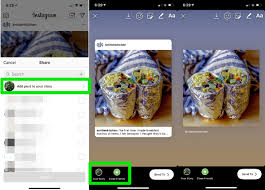
Adding Posts to Your Story
One of the easiest solutions is to add the post to your story. However, keep in mind that the person who tagged you must have a public profile for this option to work.
Here’s how to do it:
- Open Instagram and tap on the icon with a plane in the top-right corner.
- Choose the conversation with the person who tagged you (in the Messages section).
- Tap on the post in question.
- Select Add to Story from the screen that opens, and make any necessary modifications (such as adding music or text) before sharing.
Taking a Screenshot
If you’re not comfortable with adding posts to your story, another option is to take a screenshot of the post. This can be done on both smartphones and computers.
On mobile devices:
- Open Instagram and navigate to the post that was tagged.
- Wait for the tag icon to disappear before taking a screenshot (this will help prevent any unnecessary notifications).
- Capture a screenshot using your smartphone’s built-in features (if you’re unsure, check out our guides on Android or iPhone screenshotting).
On computers:
- Access Instagram via its website or app (for Windows users).
- Click on the Messages icon in the sidebar.
- Select the conversation with the person who tagged you and find the post in question.
- Take a screenshot using the computer’s built-in features, following our guides for Windows or Mac.
Using Third-party Apps
There are also third-party apps that can help you repost a post on Instagram where you’ve been tagged. However, be aware that these might require access to your personal account and may pose risks to your privacy.
- Some popular options include Repost for Instagram and InstaRepost.
- Please use caution when choosing a third-party app, as some may ask for sensitive information or contain malware.
Sharing Photos
If you’re looking to share a photo specifically that was tagged in an Instagram post, follow the same process as taking a screenshot. You can capture only the photo without the entire post and share it as a new post on your profile.
Sharing Videos
Reposting videos is similar to sharing photos, but keep in mind that they often include audio or background music that might not be available for reposting. If you’re unsure, consider reaching out to the original poster before resharing.
Requesting to Be Tagged
If someone has shared a post on Instagram without tagging you, one of the simplest solutions is to ask them to tag you in their next post. This can be done from your smartphone:
- Open Instagram and go to the profile where they posted.
- Tap on Their Story in the top-right corner.
- Choose Add Mention and search for your profile to tag yourself.
Reposting Posts With Computer
For those who prefer using a computer, reposting is slightly more complex due to platform differences. Here’s how to do it:
- Open Instagram via its website or app (for Windows users).
- Click on the Messages icon in the sidebar.
- Select the conversation where you were tagged and find the post in question.
- Capture a screenshot of the post using your computer’s built-in features.
- Return to the home screen, tap on the + symbol to create a new post, select the screenshot, apply any desired modifications (like filters or text), and then share.
Sharing Via Direct Message
If you’re unable to repost due to restrictions, another option is sharing the post directly with someone else via Instagram’s direct message feature. To do this:
- Search for the post that interests you.
- Click on it and select Share from your profile picture in the top-right corner.
- Choose who you want to share the post with by typing their username or searching through your contact list.
Conclusion
Reposting a post where you’ve been tagged on Instagram can be as simple as adding it to your story, taking a screenshot, using third-party apps, sharing photos or videos, requesting to be tagged, reposting with computer, or sharing via direct message. Just remember that some methods may require the person who initially shared the post to have a public profile.


