
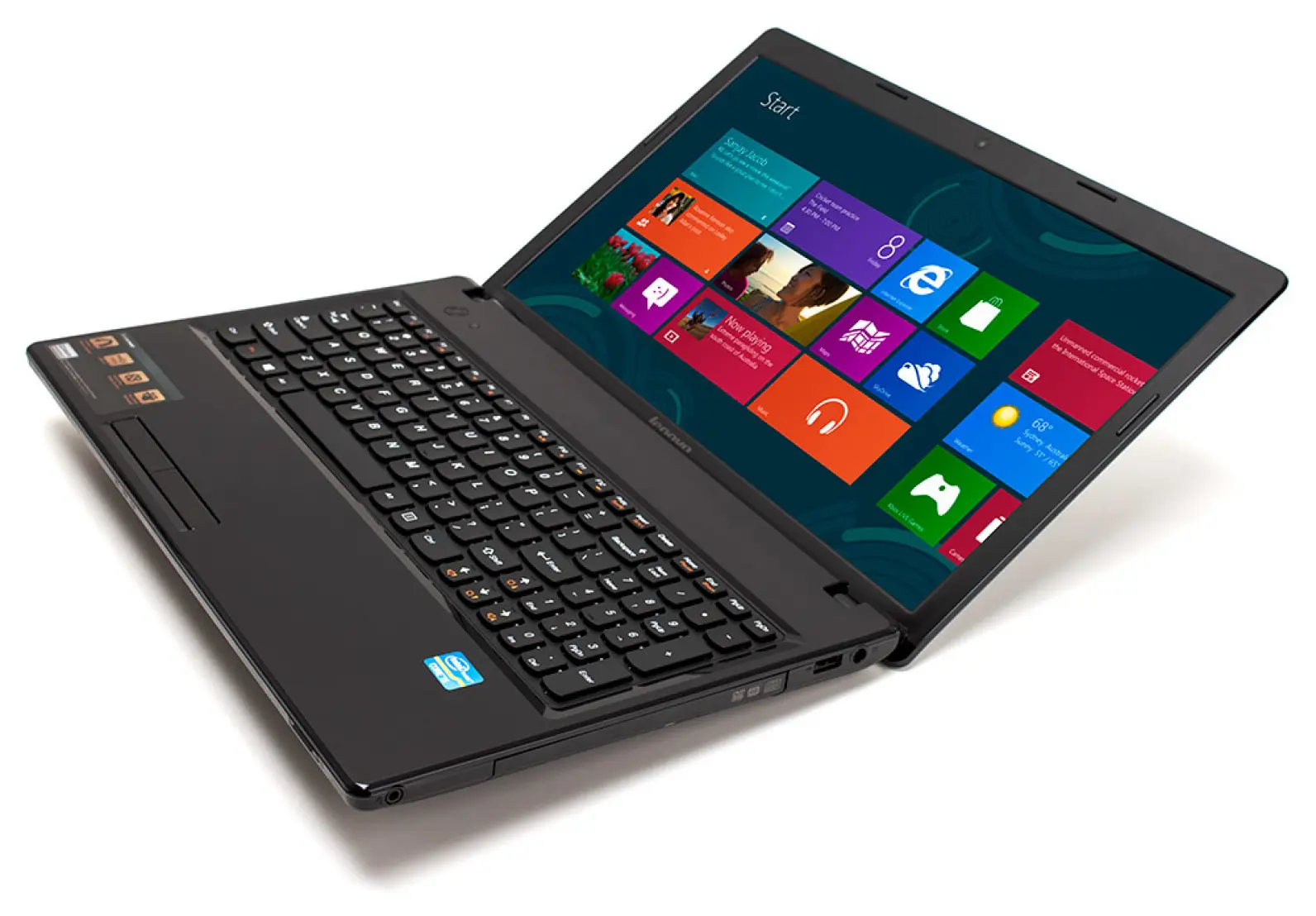
Blocked Lenovo Pc: A Step-by-step Guide to Resolve The Issue
Are you experiencing issues with your Lenovo PC, and it’s blocked? Don’t worry; we’ve got you covered! In this article, we’ll guide you through a series of procedures and tricks to resolve the situation.
Understanding The Problem
If your Lenovo PC is blocked, it can be frustrating and disrupt your daily activities. However, there are better solutions than just discharging frustration. You can take control of the situation by following our step-by-step guide.
Forcing The Shutdown
If your PC doesn’t respond to any commands, you can force the shutdown. This might not resolve the problem, but it will allow you to try a reboot and close any processes or programs that might be causing the issue.
- Press the combination of Alt+F4 to close the process occupying your monitor.
- Alternatively, open the shutdown panel by going to the desktop, pressing the Windows key + X, and selecting Shutdown.
- If this doesn’t work, press and hold the power button for around 10 seconds. This will force the PC to shut down.
Monitoring Processes
If your PC is blocked in partial mode, it’s likely due to a process consuming excessive resources. To identify the culprit:
- Press Ctrl+Alt+Canc to open the Task Manager.
- Go to the Processes tab and look for any processes using high CPU or memory resources.
- If you find a suspicious process, click on its name to see more details.
Resolving Issues With Lenovo Vantage Software
If you have a Lenovo PC, you likely have the Lenovo Vantage software installed. This software manages various aspects of your device and can help resolve issues.
- Update your device by searching for updates in the Lenovo Vantage software.
- Execute a diagnostic scan to detect any hardware problems.
- Request assistance from the Lenovo support team.
Total Recovery of Your PC
If none of the above steps resolve the issue, you may need to perform a total recovery of your PC. This will restore your system to its default settings.
- Go to Settings > Recovery and click on Restore PC.
- Choose whether to keep any files or delete everything.
- Follow the guided procedure until completion.
Conclusion
In this article, we’ve walked you through various steps to resolve issues with a blocked Lenovo PC. From forcing shutdowns to monitoring processes and resolving Lenovo Vantage software problems, we hope these procedures have helped you regain control of your PC.
Frequently Asked Questions (FAQs)
- Q: Why is my Lenovo PC Blocked?
A: There could be several reasons, including processes consuming excessive resources or malware infections. - Q: How do I Force a Shutdown if my PC Doesn’t Respond?
A: Press the Alt+F4 combination to close the process occupying your monitor or hold the power button for 10 seconds. - Q: What is Lenovo Vantage Software, And Why is it Important?
A: Lenovo Vantage software manages various aspects of your device and can help resolve issues, such as updating your device or executing a diagnostic scan. - Q: How do I Perform a Total Recovery of my Pc?
A: Go to Settings > Recovery and follow the guided procedure until completion.


