
How to Reset a HP Pc: A Step-by-step Guide
Are you tired of dealing with stubborn problems on your HP PC? Do you want to give it a fresh start without losing any important files? Look no further! In this article, we will guide you through the process of resetting your HP PC, whether it’s running Windows 10 or Windows 7.
Why Reset Your HP Pc?
Before we dive into the steps, let’s talk about why you might want to reset your HP PC. Perhaps you’ve been experiencing:
- Frequent crashes and errors
- Slow performance and lagging
- Virus or malware infections that can’t be removed
- Corrupted system files that are causing problems
Resetting your HP PC can help resolve these issues and give it a brand new feel.
Preparation is Key
Before you start, make sure to:
- Backup Your Important Files: Create a backup of all your personal files on an external hard drive or cloud storage.
- Disconnect Any External Devices: Remove any USB drives, printers, or other peripherals that might interfere with the reset process.
Resetting Your HP Pc: A Step-by-step Guide
Windows 10 Reset
- Go to Settings: Click on the Start button and select the gear icon (Settings).
- Update & Security: Click on Update & Security, then on Recovery.
- Get Started: Select “Reset this PC” and follow the prompts.
- Choose an Option: You’ll be given three options: Keep my files, Remove everything, or Reset now. Choose the one that best suits your needs.
Windows 7 Reset
- Boot in Safe Mode: Restart your HP PC and press F8 repeatedly to enter Safe Mode.
- System Restore: Click on Start, then on All Programs, and select System Tools.
- System Restore: Follow the prompts to restore your system to a previous point when it was working fine.
Resetting Your HP PC Without Windows
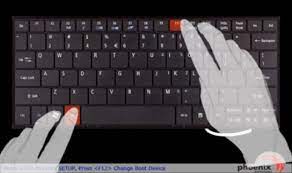
- Enter Advanced Startup Options: Press F11 repeatedly while booting up your HP PC to access advanced startup options.
- Choose Troubleshoot: Select “Troubleshoot” and then “Reset this PC”.
- Follow The Prompts: Follow the on-screen instructions to complete the reset process.
What to Do Next
Once you’ve completed the reset process, be sure to:
- Reinstall Any Necessary Drivers: Download and install any drivers that were removed during the reset process.
- Update Your Windows Version: If you’re running Windows 7, consider updating to Windows 10 for better security and performance.
Conclusion
Resetting your HP PC can seem daunting, but with this step-by-step guide, it’s easier than ever. Remember to backup your important files and disconnect any external devices before starting the process. By following these instructions, you’ll be able to give your HP PC a fresh start and enjoy improved performance and security.
Frequently Asked Questions
- Q: Will I Lose my Files During The Reset Process?
A: No, if you’ve backed up your important files, they will remain safe. - Q: Can I Reset my HP PC Without Windows?
A: Yes, but it’s not recommended unless you’re experiencing critical issues with your operating system. - Q: How Long Does The Reset Process Take?
A: The time required for a complete reset can vary depending on your internet connection and the speed of your computer. - Q: Can I Install Windows 10 on my HP PC Without Resetting it First?
A: Yes, but it’s recommended to reset your HP PC before installing a new operating system to ensure compatibility and stability.
Additional Resources
For more information on resetting your HP PC or troubleshooting common issues, check out the following resources:
Remember to always follow the manufacturer’s guidelines for any software updates and installation procedures.


