
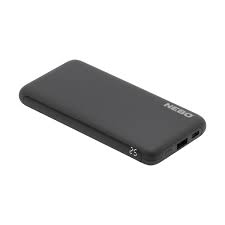
How to Reset a Power Bank: A Step-by-step Guide
Are you tired of your power bank not working as it should? Maybe it’s time to reset it! In this article, we’ll show you how to reset a power bank, and hopefully, get it back to its former glory.
Why Do I Need to Reset My Power Bank?
If your power bank is not charging properly, or if the battery life is shorter than usual, it might be time to reset it. This can happen due to various reasons such as:
- A faulty charger
- A malfunctioning device (like a phone or tablet)
- A problem with the power bank’s internal circuitry
Can I Reset My Power Bank?
Yes, you can! But before we dive into the steps, let’s make sure you’re ready for this. If your power bank is damaged or broken, it might be best to replace it instead of trying to reset it.
Preliminary Instructions
Before we start, make sure:
- Your power bank is turned off
- You’ve removed any cables or devices connected to the power bank
- You’re familiar with the power bank’s design and layout
How to Reset a Power Bank
Now that we’ve got the basics covered, let’s move on to the steps!
Step 1: Turn Off The Power Bank
First, switch off your power bank by pressing the power button. This will ensure your safety while working with the device.
Step 2: Locate The Reset Button (or Led)
Next, find the reset button or LED on your power bank. It’s usually located on the bottom or back of the device. Some power banks might have a physical reset button, while others might use an LED to indicate that the reset is complete.
Step 3: Press And Hold The Reset Button
If you’re lucky enough to have a physical reset button, press and hold it for about 5-10 seconds. If your power bank uses an LED instead, wait until the LED turns off before proceeding.
Step 4: Release The Power Bank From The Source
Now that the reset is complete (or at least initiated), release the power bank from its source of power (if it’s connected to a charger or device).
Step 5: Check For Any Leds Indicating Reset Completion
If your power bank has an LED, check if it’s still lit. If it is, wait until it turns off before proceeding.
Additional Instructions
Some power banks might have specific requirements or procedures for resetting them. Here are a few examples:
- Cable Connection: Some power banks require you to connect the device to the power bank using a cable, while others might need you to disconnect everything first.
- Led Indication: As mentioned earlier, some power banks use an LED to indicate that the reset is complete.
What to Do If Your Power Bank Still Doesn’t Work
If your power bank still doesn’t work after resetting it, don’t worry! There are a few things you can try:
- Check for any physical damage or defects
- Contact the manufacturer’s customer support
- Consider replacing the power bank with a new one
Frequently Asked Questions (FAQs)
Here are some frequently asked questions and their answers:
- What is The Purpose of Resetting a Power Bank?
The primary purpose of resetting a power bank is to resolve any issues related to charging or battery life.
- How Often Should I Reset my Power Bank?
You might need to reset your power bank every 6-12 months, depending on usage and environmental factors.
- Will Resetting my Power Bank Erase Any Data?
No, resetting a power bank will not erase any data stored within the device or connected devices.
- Can I Reset a Power Bank That’s Still Under Warranty?
It’s always best to consult with the manufacturer’s customer support before attempting to reset your power bank while it’s still under warranty.
Conclusion
And there you have it! Resetting a power bank can be a straightforward process, but remember to follow these steps carefully and take necessary precautions. If your power bank is still not working after resetting it, don’t hesitate to contact the manufacturer or seek professional help.


