
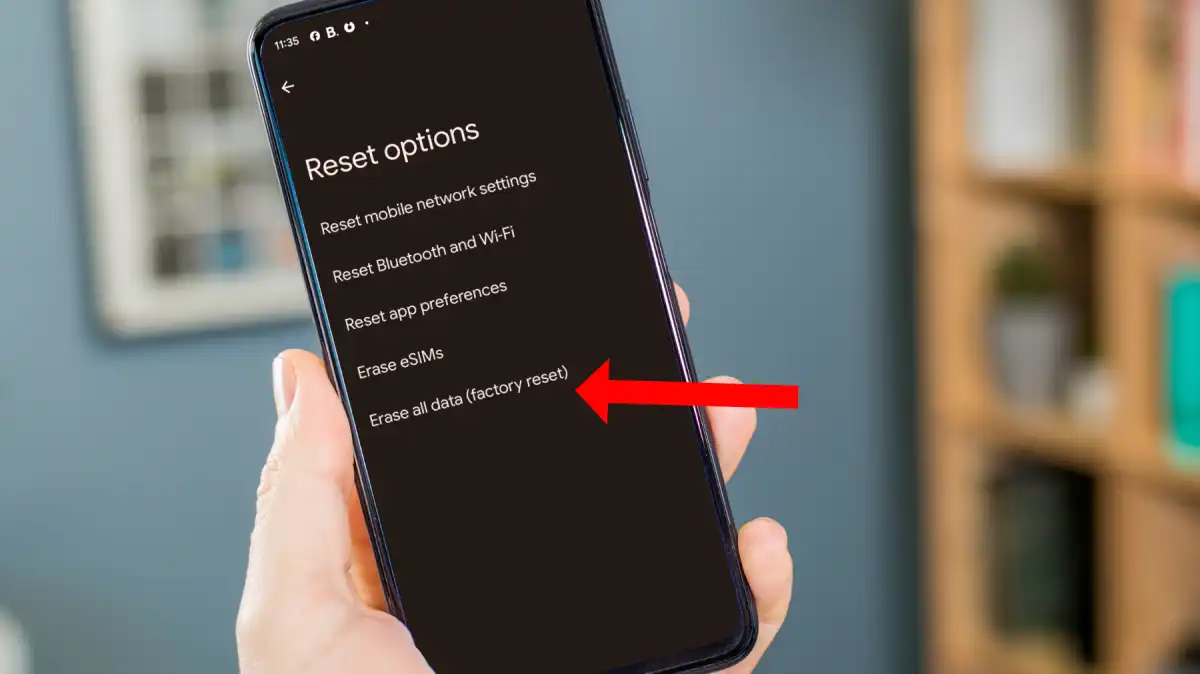
How to Reset a Blocked Samsung Device: A Step-by-step Guide
Are you tired of dealing with a blocked Samsung device? Look no further! In this article, we’ll guide you through the process of resetting your device, whether it’s a smartphone or tablet.
Understanding Why Your Device is Blocked
Before we dive into the solution, let’s understand why your device might be blocked in the first place. It could be due to software issues, overheating, or even hardware problems. Whatever the reason, don’t worry – we’ve got you covered!
Method 1: Resetting a Blocked Samsung Device Using Recovery Mode
If your device is still turning on but not responding properly, try using recovery mode. This method can resolve most issues and get your device up and running again.
Here’s how:
- Turn off your device completely.
- Press and hold the Volume Down button along with the Power button until you see the Samsung logo on the screen.
- Release the Power button but keep holding the Volume Down button.
- Select “Wipe data/factory reset” from the menu using the Volume buttons to navigate and the Power button to select.
- Confirm your selection by pressing the Power button again.
Method 2: Resetting a Blocked Samsung Device Using Find My Device
If you’re having trouble accessing recovery mode, try using Find My Device. This method requires an active Google account on your device, but it’s a great way to recover your data and reset your device remotely.
Here’s how:
- Go to the Find My Device website and sign in with your Google account.
- Select your device from the list of devices associated with your account.
- Choose “Erase device” to erase all data on the device and restore it to its factory settings.
Method 3: Resetting a Blocked Samsung Device Using Odin
If all else fails, you can try using Odin – a tool that allows you to flash new firmware onto your device. This method requires some technical expertise, so proceed with caution!
Here’s how:
- Download the latest Odin software and the corresponding firmware for your device.
- Extract the firmware file from its zip archive and save it in a folder on your computer.
- Connect your device to your computer using a USB cable.
- Open Odin on your computer and select the firmware file you extracted earlier.
- Click “Start” to begin the flashing process, which will erase all data on the device.
What Happens When You Reset Your Device?
When you reset your device, all data stored on it will be erased. This means that any apps, files, or settings you’ve added since purchasing the device will be lost forever. Make sure to backup your important data before proceeding with a reset!
Conclusion
Resetting a blocked Samsung device can seem daunting, but we hope this guide has made it easier for you. Remember to always backup your data and follow proper procedures when resetting your device. If you’re still having trouble, don’t hesitate to reach out to our team for assistance.
Frequently Asked Questions (FAQs)
- Why is my Samsung Device Blocked?
Your device might be blocked due to software issues, overheating, or hardware problems. - What Happens When I Reset my Device?
All data stored on your device will be erased, including apps, files, and settings added since purchase. - How do I Backup my Data Before Resetting my Device?
You can backup your data using the “Backup & reset” option in your device’s Settings app or by using a cloud storage service like Google Drive. - What if I’m Having Trouble Accessing Recovery Mode?
Try using Find My Device or Odin to recover your data and reset your device remotely. - Can I Still Use my Samsung Device Even if It’s Blocked?
No, you cannot use a blocked Samsung device until it has been reset or repaired by authorized personnel. - Will Resetting my Device Delete All my Apps And Files?
Yes, all data stored on your device will be erased when you reset it. - Can I Recover my Deleted Data After Resetting my Device?
Unfortunately, no – all data is lost forever when you reset your device.
We hope this guide has been helpful in resolving any issues with your Samsung device. If you have further questions or need assistance, please don’t hesitate to reach out!


