
How to Reset a Chromecast: A Step-by-step Guide
Are you experiencing problems with your Chromecast, such as connectivity issues or device freezing? Before attempting a complete reset, try restarting the device first. This simple procedure can resolve many common problems and save you from more complex troubleshooting processes.
In this article, we will guide you through the steps to reset your Chromecast, whether it’s a 1st-generation model or one of the newer versions like Ultra or 2nd/3rd generation devices. We’ll also cover how to reset the remote control if it stops working.
Understanding Chromecast Reset Modes
There are several ways to reset a Chromecast, depending on your device and situation. Here are the primary methods:
- Software Reset: This is a simple reboot that can resolve many connectivity issues.
- Factory Reset: A more comprehensive reset that restores the device to its original settings.
- Hardware Reset: Using the physical reset button to reset the device.
Preparation Before Resetting Your Chromecast
Before proceeding, ensure your Chromecast is properly connected to a power source and has sufficient battery life (if applicable).
Software Reset: A Quick Fix
Try restarting your Chromecast first if it’s experiencing issues. This simple step can resolve many problems without requiring a complete reset.
Step 1: Restarting The Device
For devices with Google TV, press the remote control’s central button until you see the Google TV home screen. Then, navigate to Settings > System > Restart. Confirm the restart process.
On other Chromecast models (without Google TV), use the Google Home app on your smartphone or tablet:
- Open the Google Home app.
- Tap the three dots at the top right corner of the screen.
- Select Devices.
- Find and select your Chromecast device.
- Choose Restart Device.
Step 2: Checking Connectivity
After restarting, check if the connectivity issues are resolved. If not, proceed to the next step for a factory reset or use the physical reset button on some models.
Factory Reset: A Comprehensive Solution
If the software reset didn’t work, you might need to perform a factory reset. This procedure will erase all data, settings, and apps from your Chromecast.
Step 1: Accessing The Google Home App
Open the Google Home app on your smartphone or tablet.
Step 2: Selecting Your Device
Find and select your Chromecast device in the app.
Step 3: Choosing Settings
Tap the three dots at the top right corner of the screen, then select Devices.
Step 4: Performing a Factory Reset
Select your Chromecast device again, and navigate to Settings > System > Factory Data Reset. Confirm the reset process by tapping Recovery of factory data.
Step 5: Completing The Process
The procedure might take several minutes. Once completed, you’ll see the setup screen on your TV.
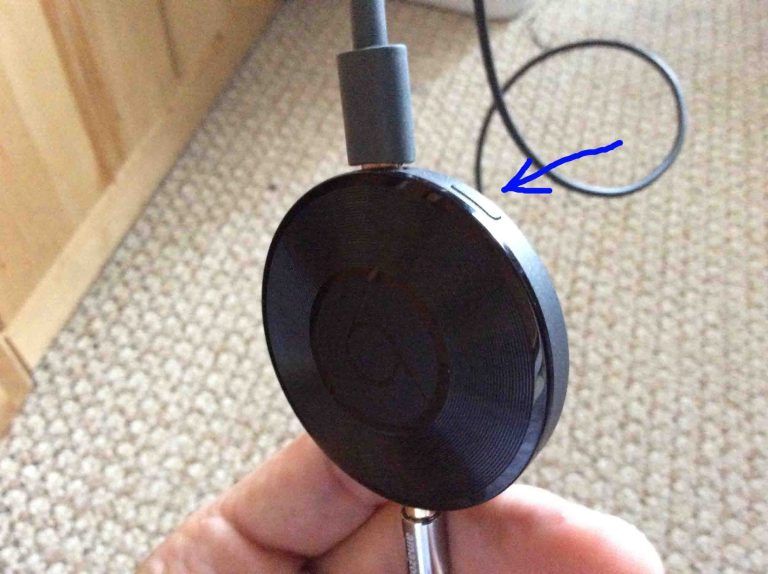
Hardware Reset: Using The Physical Reset Button
For some Chromecast models (1st generation, Ultra, and 2nd/3rd generations), there’s a physical reset button that can be used to restore the device to its factory settings.
Step 1: Locating The Reset Button
Find the physical reset button on your Chromecast device. It might be located on the back or side of the device.
Step 2: Pressing And Holding The Reset Button
Press and hold the reset button until you see the LED light start to flash yellow, then white. Release the button once it reaches a solid white state.
Resetting The Remote Control (Optional)
If your Chromecast remote control stops working, try resetting it by following these steps:
Step 1: Extracting The Batteries
Remove the batteries from the remote control.
Step 2: Holding Down The Home Button
While still holding down the Home button, insert the new batteries into the remote control.
Step 3: Releasing The Home Button
Release the Home button once you see the LED light start to flash.
Step 4: Associating The Remote Control With Your Chromecast
Follow the on-screen instructions or use the Google Home app to associate the remote control with your Chromecast device again.
Conclusion And Recommendations
Resetting your Chromecast can be a straightforward process, but it’s essential to follow the correct steps for your specific device. If you’re unsure about any step or if your problem persists after attempting these procedures, consider seeking assistance from the Google support team or consulting a professional electronics technician.
Additional Tips:
- Before initiating a factory reset, ensure that all sensitive data and settings are backed up.
- Consider keeping your Chromecast connected to power while performing a factory reset.
- If you encounter issues during the reset process, try restarting your device after each step.
We hope this guide has provided valuable insights into resetting your Chromecast.


