
How to Reset Your Facebook Password: A Step-by-step Guide
Are you having trouble accessing your Facebook account because you’ve forgotten your password? Don’t worry, we’ve got you covered! In this article, we’ll show you how to reset your Facebook password in just a few simple steps.
Why is it Important to Reset Your Facebook Password?
If you’ve forgotten your Facebook password, it’s essential to reset it as soon as possible. A forgotten password can leave your account vulnerable to unauthorized access, which can lead to personal data breaches and other security issues.
How to Reset Your Facebook Password From a Smartphone or Tablet
To reset your Facebook password from a smartphone or tablet, follow these steps:
- Open The Facebook App: First, open the Facebook app on your smartphone or tablet.
- Click on “Forgot Account”: Tap on the three horizontal lines (≡) at the top right corner of the screen and click on “Settings.”
- Select “Forgotten Password”: Scroll down to the “Security” section and select “Forgotten Password.”
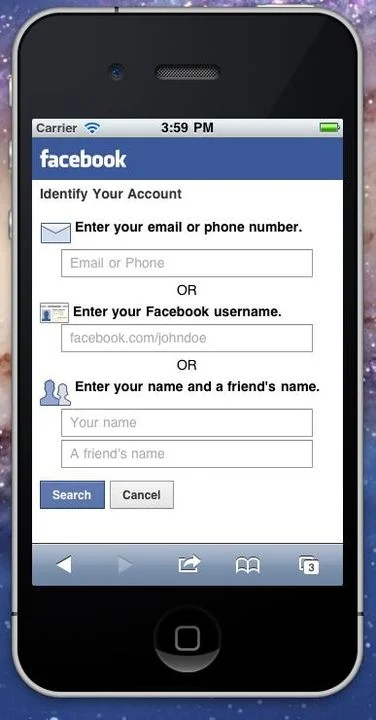
- Enter Your Email or Phone Number: Enter your email address or phone number associated with your Facebook account.
- Click on “Continue”: Click on the “Continue” button to proceed with the password reset process.
- Choose a Recovery Method: Choose how you’d like to receive the password reset code, either via SMS or email.
- Enter The Code And New Password: Enter the code sent to your phone or email address and create a new password.
How to Reset Your Facebook Password From a Computer
To reset your Facebook password from a computer, follow these steps:
- Log in to Facebook: First, log in to Facebook using your existing username and password.
- Click on “Forgot Account”: Click on the three dots (⋯) at the top right corner of the screen and click on “Forgot Account.”
- Select “Forgotten Password”: Select the “Forgotten Password” option from the dropdown menu.
- Enter Your Email or Phone Number: Enter your email address or phone number associated with your Facebook account.
- Click on “Continue”: Click on the “Continue” button to proceed with the password reset process.
- Choose a Recovery Method: Choose how you’d like to receive the password reset code, either via SMS or email.
- Enter The Code And New Password: Enter the code sent to your phone or email address and create a new password.
How to Change Your Facebook Password
If you want to change your Facebook password without losing access to your account, follow these steps:
- Access Settings: Access your Facebook settings by clicking on the three horizontal lines (≡) at the top right corner of the screen.
- Select “Security”: Select the “Security” option from the dropdown menu.
- Click on “Change Password”: Click on the “Change Password” button.
- Enter Your Old Password: Enter your current Facebook password in the first field.
- Create a New Password: Create a new password by entering it in both fields and clicking on the “Save Changes” button.
Tips For Securing Your Facebook Account
To keep your Facebook account secure, follow these tips:
- Use Strong Passwords: Use a combination of letters, numbers, and special characters to create a unique and secure password.
- Enable Two-factor Authentication: Enable two-factor authentication to add an extra layer of security to your account.
- Monitor Your Account Activity: Regularly monitor your account activity to detect any suspicious activity.
Conclusion
Resetting your Facebook password is a straightforward process that can be completed in just a few steps. By following the steps outlined above, you can regain access to your account and ensure that it remains secure and private. Remember to always use strong passwords and enable two-factor authentication to protect yourself from unauthorized access.


