
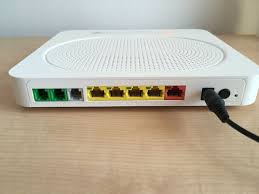
How to Reset Your Fastweb Modem: A Step-by-step Guide
Are you experiencing issues with your Fastweb modem, such as unexpected behavior or malfunctions? Don’t worry, we’ve got you covered! In this article, we’ll guide you through the process of resetting your Fastweb modem to its factory settings.
Why Reset Your Modem?
Before we dive into the steps, let’s briefly discuss why you might want to reset your modem. If your modem is experiencing issues or has been compromised in some way, resetting it can resolve the problem and restore your internet connection to its normal state. Additionally, if you’ve made changes to your modem settings that are causing problems, resetting it will revert those changes and return the modem to its default settings.
What You Need to Know Before Resetting
Before we proceed with the steps, there are a few things you should be aware of:
- Resetting Your Modem Will Erase All Personalized Settings: This includes any custom configurations, password changes, or other settings you may have made to your modem. If you’ve customized your modem in some way, resetting it will revert those changes.
- Some Modern Modems May Not Allow Backup Creation: Some newer Fastweb modems do not have the capability to export a backup of their settings. In this case, you’ll need to rely on other methods for restoring your settings after resetting your modem.
Step-by-step Guide: Resetting Your Fastweb Modem
Now that we’ve covered what you need to know before resetting your modem, let’s move on to the steps:
Method 1: Soft Reset (Recommended)
A soft reset is a gentle way to restart your modem without deleting any settings. Here’s how to do it:
- Unplug your modem from power.
- Wait for 10-15 seconds.
- Plug your modem back in.
Your modem should now be reset to its factory settings, and you can access it as if it were brand new.
Method 2: Hard Reset (Physical Button)
If a soft reset doesn’t work or you prefer a more traditional approach, you can try a hard reset using the physical button on your modem. Here’s how:
- Locate the small pinhole on the back of your modem.
- Insert a paper clip or similar object into the pinhole and press the reset button for 10-15 seconds.
- Release the button.
Your modem should now be reset to its factory settings, and you can access it as if it were brand new.
Method 3: Resetting Your Fastweb Nexxt Modem
If you have a Fastweb NeXXt modem, there are two ways to reset it:
- Use the MyFastweb app:
- Download and install the MyFastweb app on your Android or iOS device.
- Launch the app and follow the instructions to access your modem’s settings.
- Select “Reset Settings” and confirm your choice.
Alternatively, you can use the physical button to reset your NeXXt modem:
- Locate the small pinhole on the back of your modem.
- Insert a paper clip or similar object into the pinhole and press the reset button for 10-15 seconds.
- Release the button.
Method 4: Resetting Your Fastweb Fastgate Modem
If you have a Fastweb FASTGate modem, you can use either of the following methods to reset it:
- Use the physical button:
- Locate the small pinhole on the back of your modem.
- Insert a paper clip or similar object into the pinhole and press the reset button for 10-15 seconds.
- Release the button.
Alternatively, you can use the interface to reset your FASTGate modem:
- Access your modem’s settings using the web interface (192.168.1.254).
- Select “Configuration” and then “Restore Factory Settings.”
- Confirm your choice.
Method 5: Resetting Your Fastweb Technicolor Modem
If you have a Fastweb Technicolor modem, you can use either of the following methods to reset it:
- Use the interface:
- Access your modem’s settings using the web interface (192.168.1.254).
- Select “Configuration” and then “Restore Factory Settings.”
- Confirm your choice.
Alternatively, you can use the physical button to reset your Technicolor modem:
- Locate the small pinhole on the back of your modem.
- Insert a paper clip or similar object into the pinhole and press the reset button for 10-15 seconds.
- Release the button.
Method 6: Resetting Your Fastweb Adb, Belkin, or Fibre Top Modem
If you have a Fastweb ADB, Belkin, or Fibre TOP modem, you can use either of the following methods to reset it:
- Use the interface:
- Access your modem’s settings using the web interface (192.168.1.254).
- Select “System” and then “Restore Factory Settings.”
- Confirm your choice.
Alternatively, you can use the physical button to reset your modem:
- Locate the small pinhole on the back of your modem.
- Insert a paper clip or similar object into the pinhole and press the reset button for 10-15 seconds.
- Release the button.
Conclusion
Resetting your Fastweb modem is a relatively simple process that can resolve various issues with your internet connection. By following these steps, you should be able to reset your modem and restore it to its factory settings. Remember to consider the implications of resetting your modem before proceeding, as this will erase any personalized settings.
Frequently Asked Questions (FAQs)
Q: What happens when I reset my Fastweb modem?
A: Resetting your modem erases all customized settings and returns the device to its factory default settings.
Q: Will resetting my modem affect my internet connection?
A: Yes, resetting your modem may temporarily disrupt your internet connection. Wait for a few minutes after the reset before attempting to access the internet again.
Q: Can I restore my personalized settings after resetting my modem?
A: If you have backed up your settings before resetting your modem, yes. Otherwise, you’ll need to reconfigure your modem from scratch.
Q: How often should I reset my Fastweb modem?
A: Resetting your modem is generally not necessary unless you’re experiencing issues with your internet connection or have made changes to your modem settings that are causing problems.
Q: Can I use a third-party tool to reset my Fastweb modem?
A: No, it’s recommended to use the official methods for resetting your modem as outlined in this guide.


