
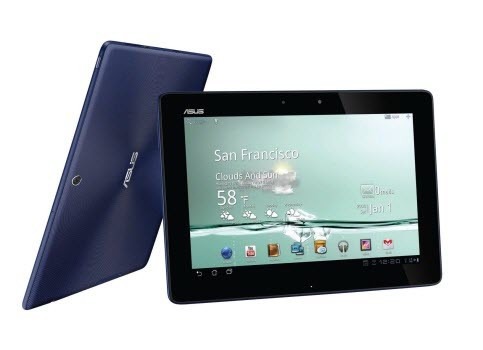
Unlocking Your Asus Tablet: A Step-by-step Guide
Are you tired of your Asus tablet being blocked by a mysterious code? Do you want to regain access to your device without losing any personal data? Look no further! In this comprehensive guide, we’ll walk you through the steps to unlock and reset your Asus tablet.
Understanding The Problem
If you’ve tried to access your Asus tablet but are greeted with a lock screen that refuses to budge, don’t panic. This issue is more common than you think, and there are solutions available. In this guide, we’ll explore two main approaches: Using the recovery mode or performing a hard reset.
Preparation is Key
Before diving into the procedures, it’s essential to understand the risks involved. Resetting your Asus tablet will erase all data, including personal files and settings. If you’re not comfortable with this consequence, consider taking a backup of your device before proceeding.
Removing The Lock Screen Using Twrp
One method to bypass the lock screen is by using the TWRP recovery mode. This approach requires root access to your device, which can be achieved through various means (more on that later). If you’re not familiar with rooting your Asus tablet, we recommend exploring alternative methods.
Hard Reset: A Last Resort
If all else fails, a hard reset might be your only option. This procedure involves using specific button combinations to access the recovery mode and perform a factory reset. Be aware that this method will erase all data on your device.
Managing Devices With Android
If you’re not in possession of your Asus tablet, don’t worry! You can still remotely manage or recover your device through the Google Management Devices panel. This service allows you to access and control your device from a web interface.
Reseting Your Asus Tablet Using Root Access
If your Asus tablet has root access enabled, you can use the TWRP recovery mode to perform a complete reset of your device. This method is more advanced and requires some technical expertise.
Conclusion
Unlocking your Asus tablet might seem daunting, but with this guide, you’ll be well on your way to resolving the issue. Remember to always take precautions when working with your device’s settings, and consider taking a backup before attempting any procedure.
Frequently Asked Questions (FAQs)
- What is The Difference Between Twrp And Stock Recovery?
TWRP (Team Win Recovery Project) is a custom recovery mode that provides more features than the standard Android recovery mode. Stock recovery is the default recovery mode provided by your device manufacturer.
- How do I Root my Asus Tablet?
Rooting your Asus tablet requires specific steps, which vary depending on your device model and operating system version. We recommend exploring reputable sources online for guidance.
- Will a Hard Reset Delete All my Data?
Yes, a hard reset will erase all data on your device, including personal files, settings, and applications.
- Can I Recover Deleted Data After a Hard Reset?
In most cases, no, it’s not possible to recover deleted data after a hard reset. However, if you’ve taken a backup before resetting your device, you might be able to restore some of the lost information.
- How do I Use The Google Management Devices Panel?
To access the Google Management Devices panel, visit the official website and sign in with your Google account credentials. From there, follow the on-screen instructions to manage or recover your device.
- What is Twrp Recovery Mode?
TWRP recovery mode is a custom recovery environment that allows you to perform advanced operations on your Android device, such as flashing ROMs or kernels, and backing up data.
- Can I Reset my Asus Tablet Without Using The Recovery Mode?
Yes, you can use alternative methods to reset your Asus tablet, such as using the Google Management Devices panel or performing a hard reset. However, these procedures might not be applicable in all situations.
- What Are The Risks Associated With Rooting my Asus Tablet?
Rooting your Asus tablet can void your warranty, expose you to security vulnerabilities, and potentially brick your device if done incorrectly.


