
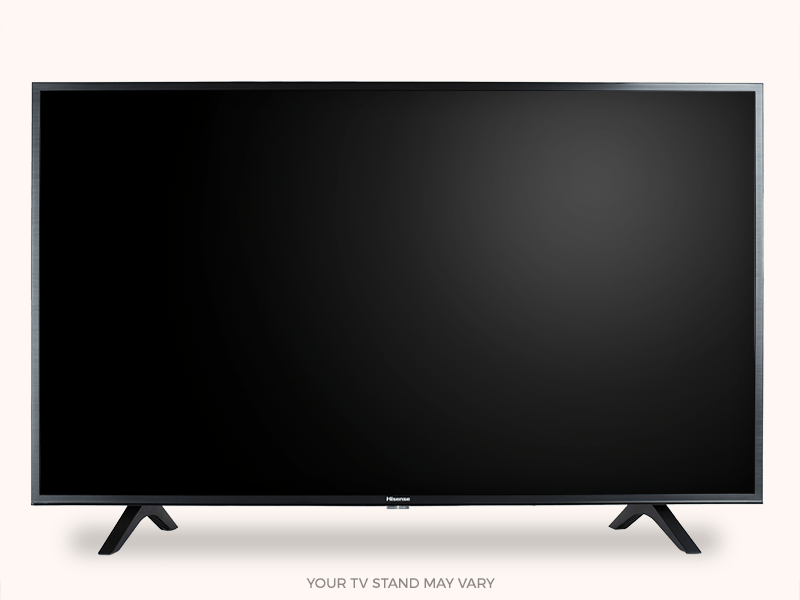
How to Reset Your Hisense Tv: A Step-by-step Guide
Are you experiencing problems with your Hisense TV? Do you want to reset it back to its factory settings? Look no further! In this article, we will guide you through the process of resetting your Hisense TV, whether you have a remote control or not.
Why Reset Your Tv?
Before we dive into the step-by-step instructions, let’s quickly discuss why you might want to reset your TV. There are several reasons:
- Resolve Problems: If your TV is experiencing technical issues, resetting it can resolve the problem.
- Free up Storage Space: Resetting your TV will remove all data and apps from its memory, freeing up storage space.
- Troubleshoot Connectivity Issues: Resetting your TV can help you troubleshoot connectivity issues.
How to Reset Your Hisense TV With a Remote Control
To reset your Hisense TV using a remote control, follow these steps:
- Press the “Menu” button on your remote control to access the main menu.
- Navigate to the “Settings” section and select it.
- Choose the “Support” option and then select “Reset.”
- Follow the prompts to enter the PIN code (default is usually 0000, 1111, or 1234).
- Select “Yes” to confirm the reset process.
How to Reset Your Hisense TV Without a Remote Control
If you don’t have a remote control, don’t worry! You can still reset your TV using the following steps:
- Find The Menu Button: Look for a physical menu button on your TV. It might be labeled as “Menu” or have an icon of a square with two lines.
- Follow the same steps as above to access and select the settings, support, and reset options.
How to Reset Your Hisense TV Pin
If you’re experiencing issues with your TV’s PIN code, follow these steps:
- Access the main menu using the physical menu button (if applicable).
- Select “Settings” and then “System.”
- Choose the “PIN of the system” option.
- Enter the current PIN code and create a new one.
Troubleshooting Issues With Your Hisense TV
If you’re experiencing problems resetting your TV, try the following:
- Check For Software Updates: Ensure that your TV is running the latest software version.
- Visit the official website of Hisense to find detailed instructions on troubleshooting specific issues.
Additional Tips And Tricks
When resetting your Hisense TV, keep in mind the following tips:
- Save Important Data: Before performing a factory reset, save any important data or settings you want to retain.
- After completing the reset process, you’ll need to reconfigure your TV from scratch. This includes setting up your Wi-Fi network and installing apps.
Conclusion
Resetting your Hisense TV can resolve technical issues, free up storage space, and troubleshoot connectivity problems. By following the step-by-step guide provided in this article, you should be able to reset your TV with or without a remote control.
Frequently Asked Questions (FAQs)
Here are some additional questions that might help clarify any doubts:
- Q: What happens if I forget my TV’s PIN code?
A: You can try resetting the code by entering 0000, 1111, or 1234. If this doesn’t work, contact Hisense support for assistance. - Q: Can I reset my TV without affecting its settings and channels?
A: Yes, you can choose to keep your existing channels and preferred list when performing a factory reset.
Bonus Tip
If you’re experiencing problems with your Hisense TV, try visiting the official website of Hisense or contacting their customer support for assistance.


