
How to Reset Iphone 7: A Step-by-step Guide
Are you tired of your iPhone 7’s settings being cluttered with unnecessary information? Do you want to reset it to its factory settings? Look no further! In this article, we’ll guide you through the process of resetting your iPhone 7 in a simple and easy-to-follow manner.
Why Reset Your Iphone 7?
Resetting your iPhone 7 can be beneficial in several ways. For instance, if you’re selling or giving away your device, it’s essential to reset it to its factory settings to prevent any sensitive information from being accessed by the new owner. Additionally, resetting your iPhone 7 can help resolve issues related to freezing, slow performance, or app crashes.
Operations Preliminary
Before we dive into the main procedure, there are a few preliminary operations that need to be completed.
- Backup Your Data: It’s crucial to back up all your data on your iPhone 7 using iTunes or iCloud. This will ensure that you can recover any important information in case something goes wrong during the reset process.
- Disable Find My Iphone: If you have enabled Find My iPhone, it’s necessary to disable it before resetting your device.
Procedure Via Itunes
If you prefer using iTunes for resetting your iPhone 7, follow these steps:
- Connect Your Iphone 7 to Your Computer: Connect your iPhone 7 to your computer using a USB cable.
- Open Itunes: Open iTunes on your computer and select your iPhone 7 from the list of devices connected.
- Select Restore Iphone : From the Summary tab, click on “Restore iPhone” and then click on “Continue.”
- Confirm Your Action: Confirm that you want to reset your iPhone 7 to its factory settings.
Procedure Via Ios Settings
Alternatively, you can also reset your iPhone 7 using the iOS settings app.
- Open The Settings App: Open the Settings app on your iPhone 7.
- Select General: Select “General” from the list of options.
- Select Reset: Select “Reset” and then select “Erase All Content and Settings.”
- Confirm Your Action: Confirm that you want to reset your iPhone 7 to its factory settings.
What Happens After Resetting My Iphone 7?
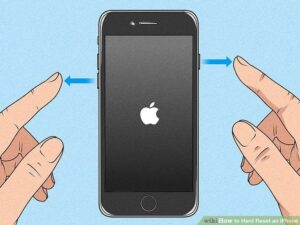
After resetting your iPhone 7, it will restart and display the Apple logo. You can now set up your device as if it were a new one.
Troubleshooting: In Case of Problems
If you encounter any issues during the reset process, don’t worry! Simply follow these steps to troubleshoot:
- Contact Your Device in Dfu Mode: If you’re unable to reset your iPhone 7 using iTunes or iOS settings, you can try contacting it in DFU mode. This will bypass some restrictions and allow you to reset your device.
- Consult The User Guide: If you’re still having trouble, consult the user guide for further assistance.
Conclusion
Resetting your iPhone 7 is a straightforward process that can be completed using either iTunes or iOS settings. By following these steps, you’ll be able to restore your device to its factory settings and start fresh with a clean slate. Remember to backup your data before resetting your iPhone 7, and don’t hesitate to contact us if you need further assistance.
Frequently Asked Questions (FAQs)
Here are some frequently asked questions related to resetting your iPhone 7:
- Q: Will I Lose my Data When I Reset my Iphone 7?
A: Yes, resetting your iPhone 7 will erase all content and settings. Make sure to back up your data before proceeding. - Q: Can I Reset my Iphone 7 Without Losing Any Data?
A: Unfortunately, no. Resetting your iPhone 7 is a one-way process that erases all data on the device. - Q: Will Resetting my Iphone 7 Affect Its Warranty?
A: Yes, resetting your iPhone 7 may void its warranty. Consult Apple’s official documentation for more information.
Conclusion
Resetting your iPhone 7 can be beneficial in resolving performance issues or preparing it for resale. By following these steps and taking the necessary precautions, you’ll be able to reset your device to its factory settings and enjoy a fresh start.
Here are eight FAQs related to resetting an iPhone:
- Q: How do I Reset my Iphone?
A: To reset your iPhone, go to Settings > General > Reset. - Q: Will I Lose Any Data When I Reset my Iphone?
A: Yes, resetting your iPhone will erase all content and settings. Make sure to back up your data before proceeding. - Q: Can I Reset my Iphone Without Losing Any Data?
A: Unfortunately, no. Resetting your iPhone is a one-way process that erases all data on the device. - Q: Will Resetting my Iphone Affect Its Warranty?
A: Yes, resetting your iPhone may void its warranty. Consult Apple’s official documentation for more information. - Q: How do I Reset my Iphone to Its Factory Settings?
A: To reset your iPhone to its factory settings, go to Settings > General > Reset and select “Erase All Content and Settings.” - Q: Can I Contact my Iphone in Dfu Mode if I’m Having Trouble Resetting It?
A: Yes, you can try contacting your iPhone in DFU mode. However, this will bypass some restrictions and may not always work. - Q: What Should I do if I Encounter Any Issues During The Reset Process?
A: If you encounter any issues during the reset process, don’t worry! Simply follow these steps to troubleshoot. - Q: Is it Possible to Recover Data After Resetting my Iphone?
A: Unfortunately, no. Resetting your iPhone is a one-way process that erases all data on the device.


