
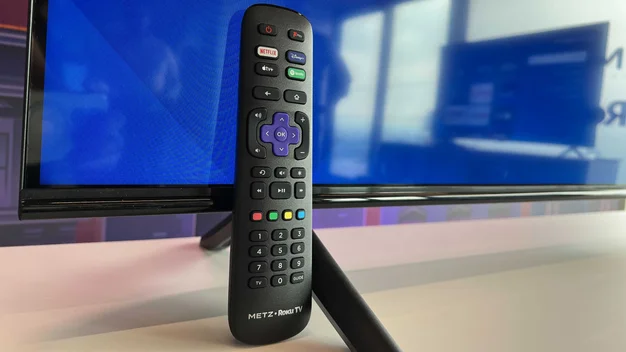
How to Reset Your Metz Smart Tv: A Step-by-step Guide
Are you tired of dealing with glitches and errors on your Metz Smart TV? Look no further! In this article, we will guide you through the process of resetting your Metz Smart TV to its factory settings.
Why Reset Your Metz Smart Tv?
Resetting your Metz Smart TV can resolve various issues such as:
- Glitches and freezes
- Connection problems
- App crashes
- Settings not saving
Method 1: Resetting With The Remote Control
To reset your Metz Smart TV using the remote control, follow these steps:
Step 1: Access The Settings Menu
Press the “Menu” button on your remote control to access the settings menu.
Step 2: Go to Preferences
Navigate to the “Preferences” section in the menu.
Step 3: Select Reboot
Choose the option to reboot your TV.
Step 4: Confirm Reboot
Press the “Reboot” button to confirm.
Note: This method will erase all data, including Google account settings and downloaded apps. If you’re sure you want to reset your TV, proceed with caution.
Method 2: Resetting Without a Remote Control
If you don’t have access to the remote control or it’s not working, don’t worry! You can still reset your Metz Smart TV using other methods.
Step 1: Connect Your TV to Power
Unplug your TV from power for about 30 seconds.
Step 2: Press And Hold Volume Down And Power Buttons
Press and hold the volume down button and the power button simultaneously for at least 5 seconds. Release the buttons, wait for a few seconds, then press them again for another 5 seconds.
Step 3: Wait For Reboot
Wait for your TV to reboot automatically.
Method 3: Resetting With an External Device
You can also reset your Metz Smart TV using an external device like a universal remote control or a smartphone app. However, this method is not recommended unless you’re comfortable with advanced settings and configuration.
Step 1: Acquire a Universal Remote Control
Purchase or borrow a universal remote control compatible with your Metz Smart TV.
Step 2: Configure The Remote Control
Follow the instructions provided with the remote control to configure it for your TV.
Common Issues And Solutions
- My Metz Smart TV won’t turn on. What do I do?
- Check if the power cord is properly connected.
- Try unplugging the TV, waiting 30 seconds, then plugging it back in.
- How do I reset my Google account settings?
- Follow the steps above to reset your TV.
- Can I still access my favorite apps after resetting my TV?
- Unfortunately, yes. All downloaded apps will be deleted.
Troubleshooting Tips
If you’re experiencing issues with your Metz Smart TV, try these troubleshooting tips:
- Restart your TV by unplugging it from power and plugging it back in.
- Check for software updates and install them if available.
- Clear the cache of apps by going to Settings > Apps > Clear Cache.
Conclusion
Resetting your Metz Smart TV can resolve various issues, but be aware that all data will be erased. If you’re experiencing problems with your TV, try these troubleshooting tips before resetting it. If none of these methods work, consider contacting Metz customer support for further assistance.
Frequently Asked Questions (FAQs)
- How Often Should I Reset my Metz Smart Tv?
- Resetting is usually not necessary unless you experience persistent issues or software updates.
- Will Resetting my TV Delete All Data And Settings?
- Yes, all data will be erased, including Google account settings and downloaded apps.
- Can I Still Use my Favorite Apps After Resetting my Tv?
- Unfortunately, no. All downloaded apps will be deleted.
- How Can I Troubleshoot Issues With my Metz Smart Tv?
- Try restarting your TV, checking for software updates, or clearing app cache.
Important Links
By following these steps and tips, you’ll be able to reset your Metz Smart TV to its factory settings and resolve various issues. Remember to always check for software updates and clear app cache to maintain optimal performance.


