
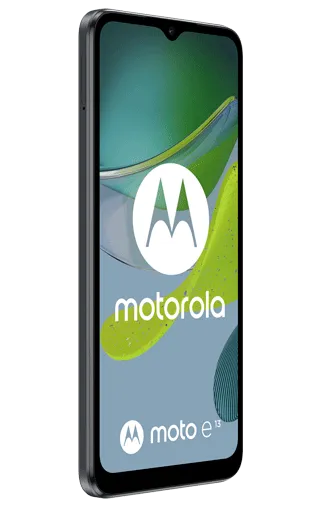
How to Reset Motorola Smartphone: A Step-by-step Guide
Are you experiencing issues with your Motorola smartphone, such as slow performance or app crashes? Have you tried restarting it, but the problem persists? Don’t worry; we’ve got you covered! In this article, we’ll show you how to reset your Motorola smartphone using two different methods. We’ll also provide a detailed guide on what to do if your phone is frozen or missing.
Why Reset Your Smartphone?
Resetting your smartphone can resolve various issues, including:
- Slow performance
- App crashes
- Battery drain
- Frozen screen
Resetting your phone returns it to its factory settings, erasing all data, including contacts, photos, and apps. Make sure you back up your important files before proceeding.
Method 1: Soft Reset
A soft reset is a simple procedure that doesn’t erase any data. It’s like restarting your computer, but for your smartphone.
Step 1: Access Settings
Open the settings app on your Motorola smartphone by tapping the cogwheel icon.
Step 2: System Options
Scroll down to find the “System” option and tap it.
Step 3: Reset Options
Select “Reset options.”
Step 4: Confirm Erase
Choose “Erase all data (factory reset)” and confirm your intention by pressing the “Erase all data” button.
Method 2: Hard Reset
A hard reset is a more drastic measure that erases all data on your smartphone. This method should be used only if you’re experiencing severe issues or want to completely start over with your phone.
Step 1: Turn Off Phone
Press and hold the power button until your phone turns off.
Step 2: Access Recovery Mode
Press and hold the volume down button while powering on your phone. Release the buttons when you see the Android logo.
Step 3: Select Wipe Data/factory Reset
Use the volume down button to navigate to “Wipe data/factory reset” and select it using the power button.
Step 4: Confirm Erase
Choose “Yes — delete all user data” to confirm your intention.
What If My Phone Is Frozen?
If your Motorola smartphone is frozen, you can try the following:
- Press and hold the power button for 10 seconds.
- Press and hold both the volume down and power buttons simultaneously for 10 seconds.
- Boot your phone in recovery mode (as described above).
How to Reset a Lost or Stolen Motorola Smartphone
If your Motorola smartphone is lost or stolen, you can use the Google “Find my device” service to remotely reset it.
Step 1: Sign In
Sign in to your Google account on a computer or another Android device.
Step 2: Access Find My Device
Click on the “Find my device” link and select your Motorola smartphone from the list of devices connected to your account.
Step 3: Reset Device
Select “Erase device” and confirm your intention.
Conclusion
Resetting your Motorola smartphone can resolve various issues, including slow performance, app crashes, and frozen screens. We’ve provided two methods for resetting your phone: A soft reset, which doesn’t erase any data, and a hard reset, which erases all data on your smartphone. Additionally, we’ve shown you how to reset a lost or stolen Motorola smartphone using the Google “Find my device” service.
Frequently Asked Questions
- Q: What is The Difference Between a Soft Reset And a Hard Reset?
A: A soft reset restarts your phone without erasing any data, while a hard reset erases all data on your smartphone. - Q: Will Resetting my Phone Erase my Contacts And Photos?
A: Yes, resetting your phone will erase all data, including contacts, photos, and apps. - Q: How do I Back up my Important Files Before Resetting my Phone?
A: You can back up your files using Google Drive or by creating a copy on your computer. - Q: Can I Reset my Motorola Smartphone if It’s Frozen?
A: Yes, you can try the methods described above to resolve a frozen screen issue. - Q: What is The Google “Find my Device” Service?
A: The Google “Find my device” service allows you to remotely locate and erase data on your Android device. - Q: Can I Reset a Lost or Stolen Motorola Smartphone Using The Google “Find my Device” Service?
A: Yes, you can use the Google “Find my device” service to remotely reset a lost or stolen Motorola smartphone. - Q: Will Resetting my Phone Affect my Warranty?
A: It’s recommended that you check with your manufacturer before attempting any resets on your Motorola smartphone.
References
- Motorola Support
- Google Support
- Android Authority


