
How to Reset Your Irobot Roomba: A Step-by-step Guide
Are you experiencing issues with your iRobot Roomba? Maybe it’s not responding to commands, not returning to its base, or having trouble cleaning? Don’t worry, we’ve got you covered! In this article, we’ll show you how to reset your iRobot Roomba using both the device itself and the official app.
Before You Begin
Before attempting to reset your Roomba, it’s essential to check a few things. Make sure:
- Your Roomba is properly connected to your home Wi-Fi network.
- There are no objects blocking the brushes in the inferior part of the robot.
- The issue persists even after checking for these common problems.
Step 1: Check The Connection And Brushes
Before resetting your Roomba, try checking the connection and ensuring there are no blockages. This can be done by:
- Checking the Wi-Fi connection to ensure it’s stable.
- Placing the robot on a flat surface and examining the brushes for any objects blocking them.
Step 2: Reset Your Roomba Using The Device
If the above checks don’t resolve the issue, you can try resetting your Roomba using the device itself. Here’s how:
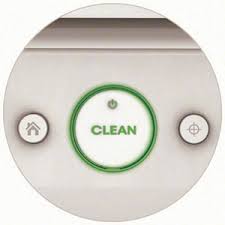
- Press and hold the Clean button on the top of the robot for 20 seconds.
- Release the button when the LED light on the Clean button starts to flash in a circular motion.
- Wait for around two minutes until the light stops flashing, indicating that the reset has been successful.
Step 3: Reset Your Roomba Using The Irobot Home App
Alternatively, you can also reset your Roomba using the official iRobot Home app. Here’s how:
- Open the iRobot Home app on your smartphone or tablet.
- Make sure you’re logged in with your account details.
- Tap on the Settings icon (represented by a cogwheel).
- Scroll down to the section labeled “Riavvia [name robot]” and tap on it.
- Confirm that you want to reset the Roomba, and wait for around one minute for the process to complete.
Step 4: Recovery to Factory Settings
If none of the above steps resolve the issue, you might need to perform a recovery to factory settings. This will erase all your maps and settings but can help resolve more severe issues.
- Tap on the voice “Removal/Recovery [name robot]” in the app.
- Confirm that you want to proceed with the recovery process.
- Wait for around one minute for the process to complete, after which you’ll need to reconfigure your Roomba from scratch.
Why Reset Your Irobot Roomba?
Resetting your iRobot Roomba can help resolve various issues such as:
- Not responding to commands
- Not returning to its base
- Trouble cleaning or navigating around obstacles
Conclusion
Reseting your iRobot Roomba is a simple process that can help resolve common issues. By following the steps outlined in this article, you should be able to troubleshoot and fix problems with your device. If none of these solutions work, it may be worth reaching out to iRobot support for further assistance.
Frequently Asked Questions
Here are some frequently asked questions related to resetting your iRobot Roomba:
- Q: Will Resetting my Roomba Delete All my Maps?
A: Yes, resetting your Roomba will erase all your saved maps and settings. - Q: How Long Does The Reset Process Take?
A: The reset process can take around one to two minutes to complete, depending on your device’s specifications. - Q: Can I Reset my Roomba if It’s Not Responding to Commands?
A: Yes, try resetting your Roomba using the device itself or the iRobot Home app if it’s not responding to commands. - Q: What Should I do if my Roomba Still Doesn’t Work After Resetting?
A: If your Roomba still doesn’t work after resetting, you might need to perform a recovery to factory settings, which will erase all your maps and settings but can help resolve more severe issues.
Additional Resources
For further assistance or guidance on using your iRobot Roomba, be sure to check out the following resources:
- The official iRobot website (irobot.Com)
- The iRobot Home app (available for Android and iOS devices)
- The user manual provided with your Roomba device


