
How to Restore Safari on Your Mac
Are you tired of experiencing strange “freeze” or crash issues with your Safari browser? Do you want to start fresh and erase all your browsing history, cookies, and extensions? Look no further! In this article, we’ll guide you through the process of restoring Safari on your Mac.
Why Restoring Safari is Necessary
Before we dive into the steps, let’s understand why restoring Safari might be necessary. Over time, your browser can accumulate unwanted data, such as browsing history, cookies, and extensions, which can slow it down or even cause crashes. By restoring Safari to its default settings, you’ll be able to erase all this unnecessary data and start fresh.
How to Restore Safari on Mac
To restore Safari on your Mac, follow these simple steps:
- Backup Your Data: Before making any changes, make sure to backup your important files and data using Time Machine.
- Scan For Malware: Run a malware scan using Malwarebytes Anti-Malware to ensure your system is clean.
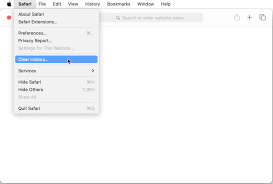
- Access Safari Preferences: Go to Safari > Preferences on your Mac.
- Erase History And Cookies: In the Safari preferences window, click on the “Privacy” tab and select “Erase History and Website Data.”
- Clear Cache: Click on the “Advanced” tab and select “Show Develop menu in menu bar.” Then, click on “Develop” > “Empty Caches.”
- Disable Extensions: In the Safari preferences window, click on the “Extensions” tab and disable any extensions that might be causing issues.
- Manually Reset Safari Settings: If the above steps don’t resolve your issues, you may need to manually reset Safari settings by deleting configuration files.
How to Restore Safari on Iphone or Ipad
If you’re using an iPhone or iPad, follow these steps:
- Go to Settings: Tap on the “Settings” icon on your device.
- Tap on Safari: Scroll down and tap on “Safari.”
- Erase History And Cookies: Tap on “Clear History and Website Data.”
- Force Close Safari: Press and hold the Home button or swipe up from the bottom of the screen to force close Safari.
Tips And Variations
- To reset Safari icon on your Mac, go to Applications > Utilities > Terminal and run the command
defaults write com.Apple.Safari ResetIcon. - If you’re experiencing issues with specific extensions, try disabling them one by one to identify the culprit.
- Consider using CleanMyMac X to clean up unnecessary files and optimize your system.
Conclusion
Restoring Safari on your Mac or iPhone/iPad is a straightforward process that can help resolve various browsing issues. By following these steps, you’ll be able to erase all unwanted data, start fresh, and enjoy a faster and more stable browsing experience.
Frequently Asked Questions (FAQs)
Q: What are the benefits of restoring Safari?
A: Restoring Safari helps remove unwanted data, such as browsing history, cookies, and extensions, which can slow down or crash your browser.
Q: How often should I restore Safari?
A: Depending on how frequently you use Safari, it’s recommended to restore it every 1-3 months to maintain optimal performance.
Q: Will I lose my bookmarks and saved passwords?
A: No, restoring Safari will not affect your bookmarks or saved passwords. These will remain intact after the process.
Q: Can I restore Safari on iPhone or iPad without losing data?
A: Yes, when you force close Safari on an iPhone or iPad, it won’t delete any browsing history, cookies, or extensions.
Q: What are some other tips for maintaining a healthy browser experience?
A: Regularly clear cache and history, disable unnecessary extensions, and consider using CleanMyMac X to clean up unnecessary files.


