
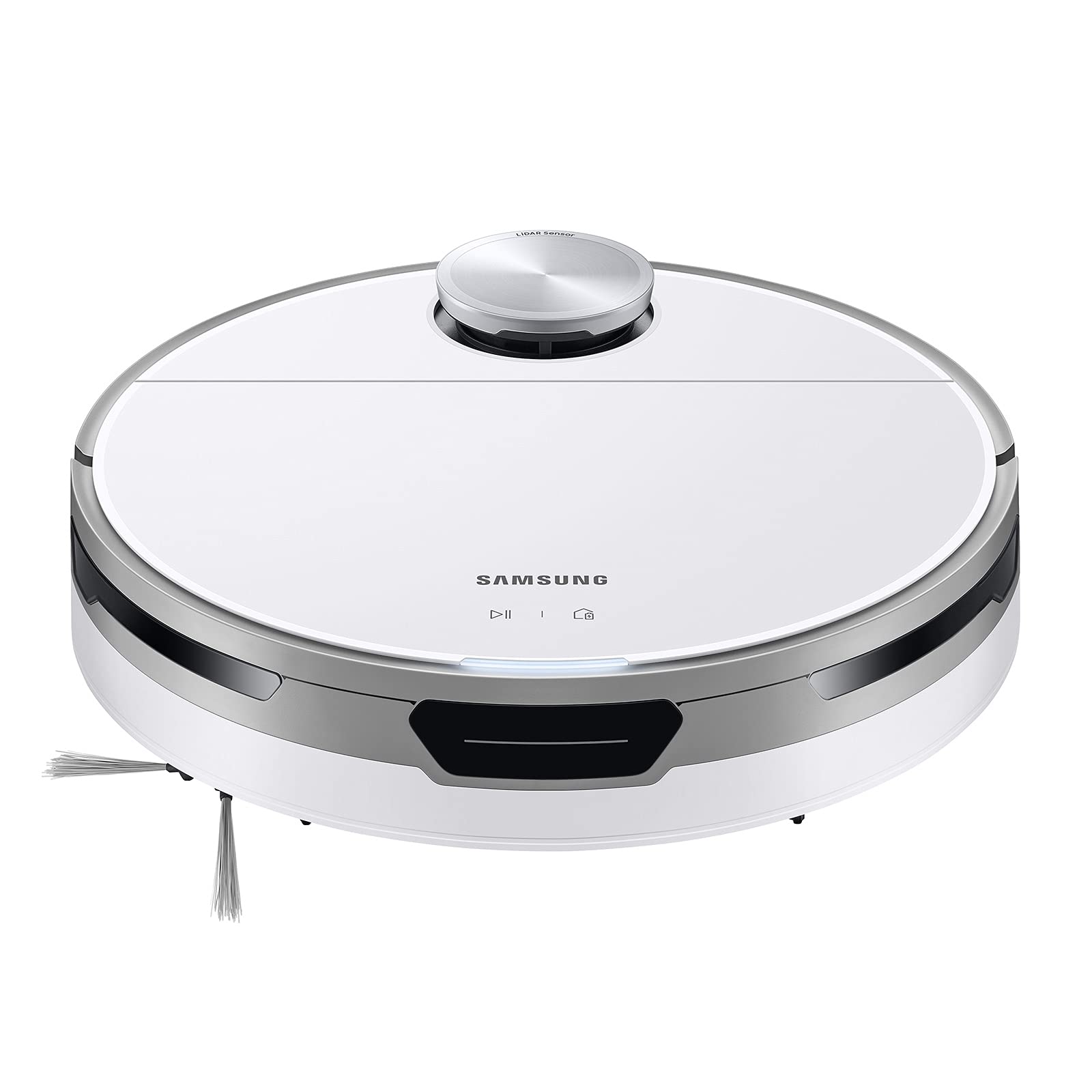
How to Reset a Samsung Robot Vacuum: A Step-by-step Guide
Are you tired of dealing with a malfunctioning robot vacuum cleaner? Do you suspect that the problem lies in the software rather than the hardware? If so, resetting your Samsung robot vacuum might be the solution you’re looking for. In this article, we’ll guide you through the process of resetting your robot vacuum cleaner using both the device itself and the SmartThings app.
Before You Begin
Before proceeding with the reset, it’s essential to understand that the procedure will erase all settings and maps saved on the device. If your robot is not functioning correctly, try restarting it first. Sometimes, a simple reboot can resolve issues without the need for a full factory reset.
If the problem persists after trying these steps, proceed with caution, as resetting the device may not resolve the issue entirely.
Resetting The Robot Vacuum Cleaner Directly
Some Samsung robot vacuum cleaners allow you to execute the reset directly from the device itself. To do this:
- Locate The Filter Lid: Find the lid that conceals the filter and any water reservoir.
- Switch Off The Device: Place the lid back, ensuring it’s secure.
- Find The Emergency Power Button: Locate the emergency power button (on/off switch) under the device or in a specific area, depending on your model.
- Press And Hold: Press and hold the button for 2-3 minutes to complete the reset process.
Resetting Using The Smartthings App
If resetting directly from the device is not possible or you’re more comfortable using the app, follow these steps:
- Open The Powerbot-e App: Launch the app on your smartphone or tablet.
- Select Your Robot: Choose the Samsung robot vacuum connected to the app.
- Tap on Settings: Navigate to the settings menu within the app.
- Recovery of Factory Settings: Tap on “Recovery of factory settings” and confirm by tapping “OK.”
- Wait For Completion: The process will complete in a few minutes.
Important Considerations
Before proceeding with either method, note that:
- If your robot is not functioning correctly after the reset, try restarting it as mentioned earlier.
- Check if the issue lies with your modem/router, especially if you’re experiencing Wi-Fi connectivity problems. Try restarting your router/modem to resolve any potential issues.
- If none of these steps resolve the problem or if you intend to resell the robot vacuum, a factory reset might still be the best option.
Conclusion
Resetting your Samsung robot vacuum can often resolve software-related issues and is an essential step in troubleshooting. By following either the direct device reset method or using the SmartThings app, you should be able to restore your robot’s settings to their original state. Remember to try restarting the device before proceeding with a factory reset, as this might solve minor issues without erasing all settings.
Frequently Asked Questions
- Can I still use my Samsung robot vacuum if it has already been reset?
- Yes, but you may need to reconfigure some settings and reconnect any devices that were previously paired.
- Will resetting the device remove all my personal data and history?
- Yes, a factory reset will erase all stored data, including maps, cleaning histories, and other personalized settings.


