
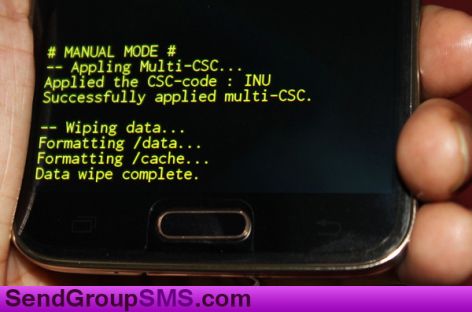
How to Reset Your Samsung Galaxy S5: A Step-by-step Guide
Are you experiencing issues with your Samsung Galaxy S5 that require a factory reset? Or perhaps you’re looking to sell your device and erase all personal data? Don’t worry, you’ve come to the right place. This article will guide you through the process of resetting your Samsung Galaxy S5, ensuring it returns to its default state.
Before You Begin: Backing Up Your Data
Before embarking on this journey, it’s essential to create a backup of your important data, including photos, videos, messages, and more. This can be done in two ways:
- Local Backup: Use the official Samsung software, SmartSwitch, to back up your data to your computer.
- Online Backup: Ensure that Google services such as Google Drive are enabled on your device.
Why Back Up Your Data?
Backing up your data is crucial to prevent loss of valuable memories and information in case something goes wrong during the reset process.
How to Create a Local Backup With Smartswitch
To create a local backup using SmartSwitch, follow these steps:
- Download Smartswitch: Visit the Samsung website and download the software for your Windows or Mac computer.
- Install Smartswitch: Run the installation file and follow the prompts to complete the setup process.
- Connect Your Galaxy S5: Connect your Galaxy S5 to your computer using a USB cable.
- Launch Smartswitch: Launch SmartSwitch on your computer and select the backup option.
How to Create an Online Backup
To ensure that your data is also backed up online, follow these steps:
- Check Google Services: Open the Settings app on your Galaxy S5 and verify that Google services such as Google Drive are enabled.
- Backup Your Data: Ensure that your photos, videos, and other data are synced to Google Drive.
The Benefits of Online Backup
Online backup provides a convenient and secure way to store your data, ensuring it’s accessible from anywhere, at any time.
Understanding The Reset Process
Resetting your Samsung Galaxy S5 will erase all personal data, settings, and installed apps. However, it won’t affect the microSD card or any other external storage devices connected to your device.
How to Reset Your Galaxy S5
To reset your Galaxy S5, follow these steps:
- Open Settings: Access the Settings app on your device.
- Backup And Recovery: Select Backup and recovery from the settings menu.
- Factory Data Reset: Choose Factory data reset.
- Confirm Reset: Confirm that you want to reset your device.
What Happens During a Factory Reset?
During a factory reset, your Galaxy S5 will:
- Erase all personal data and installed apps.
- Return to its default settings.
- Update the operating system to the latest version.
Additional Tips And Tricks
Before performing a factory reset, ensure that you:
- Have created a backup of your important data.
- Removed any SIM cards or external storage devices.
- Backed up your WhatsApp chat history (if applicable).
Troubleshooting Common Issues
If you encounter issues during the reset process, refer to our troubleshooting guide for help.
Conclusion
Resetting your Samsung Galaxy S5 can seem daunting, but with this step-by-step guide, you’ll be able to navigate the process with ease. Remember to create a backup of your data before proceeding and follow all necessary precautions to ensure a successful reset.
Frequently Asked Questions (FAQs)
- What Happens During a Factory Reset?
A factory reset will erase all personal data, settings, and installed apps on your Galaxy S5. - Will a Factory Reset Affect my Microsd Card?
No, a factory reset won’t affect the microSD card or any other external storage devices connected to your device. - How do I Backup my Whatsapp Chat History?
To back up your WhatsApp chat history, ensure that Google Drive is enabled on your Galaxy S5 and sync your data regularly. - Can I Restore my Data After a Factory Reset?
Yes, if you’ve created a backup of your data before performing the factory reset, you can restore it using the SmartSwitch software.


