
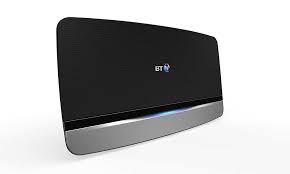
How to Reset Your Telecom Modem: A Step-by-step Guide
Are you experiencing issues with your Telecom modem, such as slow internet speeds or connectivity problems? Don’t worry, resetting your modem is often the simplest solution! In this article, we’ll guide you through the process of resetting your Telecom modem using various methods.
Understanding The Process
Before we dive into the steps, it’s essential to understand that resetting your modem will restore its settings to their factory default. This means that any customized settings, including your Wi-Fi password and network name, will be erased.
Why Reset Your Modem?
Resetting your modem can resolve various issues, such as:
- Slow internet speeds
- Connectivity problems
- Failure to connect to the internet
- Forgotten Wi-Fi password
Method 1: Resetting Via The Web Interface
To reset your modem using the web interface, follow these steps:
- Access The Modem’s Web Interface: Open a web browser and type in the IP address of your modem (usually
http://192.168.0.1Orhttp://192.168.1.1). Log in with your admin credentials. - Go to Settings: Click on the “Settings” or “Configuration” tab, depending on your modem’s interface.
- Click on Factory Reset: Look for a section that says “Factory Reset” or “Restore Default Settings.” Click on it to proceed.
- Confirm Your Choice: You may be prompted to confirm that you want to reset the modem. If so, click “Yes” or “OK.”
- Wait For The Process to Complete: The modem will restart and restore its settings to their factory default.
Method 2: Resetting Via The Physical Button
If you’re having trouble accessing the web interface, you can try resetting your modem using the physical button:
- Locate The Reset Button: Find the reset button on the back of your modem. It’s usually a small pinhole or a tiny button.
- Press And Hold The Button: Use a paper clip or a similar object to press and hold the reset button for 10-15 seconds.
- Release The Button: Release the button, and wait for the modem to restart.
Method 3: Resetting Via The Telecom App
If you have the Telecom app installed on your device, you can try resetting your modem using the app:
- Open The Telecom App: Launch the Telecom app on your smartphone or tablet.
- Go to Modem Settings: Navigate to the “Modem” or “Settings” section of the app.
- Click on Factory Reset: Look for a button that says “Factory Reset” or “Restore Default Settings.” Click on it to proceed.
Resetting Specific Modems
If you have a specific modem model, such as:
- TIM HUB+, TIM HUB, and Smart Modem Plus
- Telecom Smart Modem Technicolor
- Telecom Smart Modem Sercomm
- FRITZ!Box 7590
Follow the instructions below for each respective modem.
Resetting Tim Hub+, Tim Hub, And Smart Modem Plus
- Access The Web Interface: Open a web browser and type in the IP address of your modem (usually
http://192.168.0.1Orhttp://192.168.1.1). Log in with your admin credentials. - Click on Gateway: Click on the “Gateway” icon, followed by the “Settings” tab.
- Click on Reset: Look for a button that says “Reset” and click on it to proceed.
Resetting Telecom Smart Modem Technicolor
- Access The Web Interface: Open a web browser and type in the IP address of your modem (usually
http://192.168.0.1Orhttp://192.168.1.1). Log in with your admin credentials. - Click on My Mediaaccess: Click on the “My MediaAccess” tab, followed by the “Settings” tab.
- Click on Reset: Look for a button that says “Reset” and click on it to proceed.
Resetting Telecom Smart Modem Sercomm
- Access The Web Interface: Open a web browser and type in the IP address of your modem (usually
http://192.168.0.1Orhttp://192.168.1.1). Log in with your admin credentials. - Click on Settings: Click on the “Settings” tab, followed by the “Configuration” tab.
- Click on Reset: Look for a button that says “Reset” and click on it to proceed.
Resetting Fritz!box 7590
- Access The Web Interface: Open a web browser and type in the IP address of your modem (usually
http://192.168.0.1Orhttp://192.168.1.1). Log in with your admin credentials. - Click on System: Click on the “System” tab, followed by the “Backup” tab.
- Click on Reset: Look for a button that says “Reset” and click on it to proceed.
Frequently Asked Questions (FAQs)
Q: What happens when I reset my modem?
A: When you reset your modem, its settings are restored to their factory default, erasing any customized settings, including your Wi-Fi password and network name.
Q: Will resetting my modem affect my internet connection?
A: Yes, resetting your modem will disconnect your device from the internet. Wait for 5-10 minutes after the process is complete before reconnecting.
Q: Can I reset my modem without using a computer or phone?
A: No, you need to access the web interface or use a physical button to reset your modem.
Conclusion
Resetting your Telecom modem can resolve various issues and get your internet connection up and running smoothly. Remember to follow the instructions carefully for each specific modem model, and never turn off or discontinue power to the modem during the process.
Additional Resources
For more information on resetting your modem or troubleshooting common issues, visit:
- TIM’s official website
- Telecom’s official website
Remember to consult the user manual for specific guidance on resetting your modem. If you’re still having trouble, feel free to ask in the comments below!


