
How to Reset a TV With a Black Monitor: A Step-by-step Guide
Are you tired of staring at a black screen on your TV? Don’t worry, it’s not the end of the world! In most cases, a black monitor can be easily resolved by performing a simple reset procedure. In this article, we’ll guide you through the process of resetting a TV with a black monitor, including specific examples for popular brands like Samsung, LG, and Philips.
Why Does My TV Have a Black Monitor?
Before we dive into the reset procedure, let’s quickly explore why your TV might have a black screen in the first place. There are several possible reasons, including:
- Power issues: A faulty power supply or a loose connection can cause your TV to display a black screen.
- Software problems: Software glitches or outdated firmware can also lead to a black monitor.
- Hardware issues: In some cases, a hardware problem like a malfunctioning LED panel can result in a black screen.
Resetting a Samsung TV With a Black Monitor
If you’re experiencing a black monitor on your Samsung TV, follow these steps:
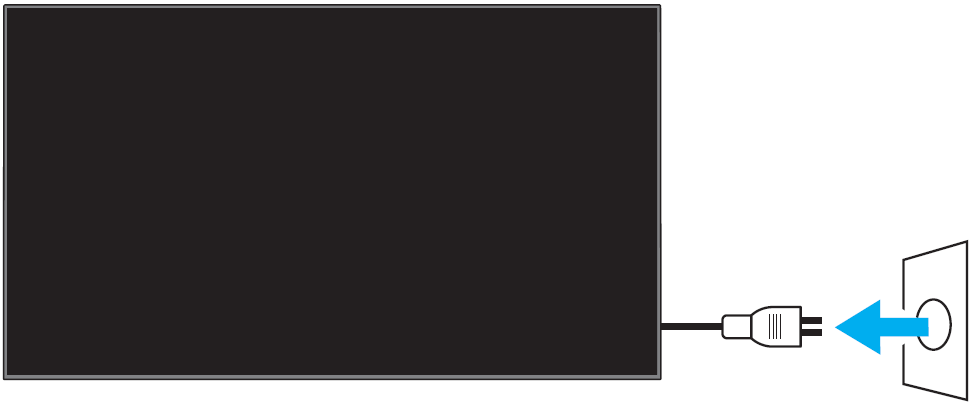
- Unplug The Power Cord: Disconnect the power cord from the back of the TV and wait for at least 40 minutes.
- Press And Hold The Power Button: Press and hold the Power button on the remote control or the TV itself for around 30 seconds.
- Reconnect The Power Cord: Plug the power cord back in and turn on the TV using the remote control.
Resetting an LG TV With a Black Monitor
If your LG TV is displaying a black screen, try the following:
- Unplug The Power Cord: Disconnect the power cord from the back of the TV and wait for at least 20-30 seconds.
- Press And Hold The Power Button: Press and hold the Power button on the remote control or the TV itself for around 10-15 seconds.
- Reconnect The Power Cord: Plug the power cord back in and turn on the TV using the remote control.
Resetting a Philips TV With a Black Monitor
For Philips TVs, follow these steps:
- Disconnect All Cables: Unplug all cables from the back of the TV, including HDMI, antenna, and audio inputs.
- Wait For 1-2 Minutes: Wait for 1-2 minutes to allow any residual power to drain.
- Reconnect The Power Cord: Plug the power cord back in and turn on the TV using the remote control.
Resetting a TV of Another Brand With a Black Monitor
If your TV is from another brand, follow these general steps:
- Unplug All Cables: Disconnect all cables from the back of the TV.
- Wait For 1-2 Minutes: Wait for 1-2 minutes to allow any residual power to drain.
- Reconnect The Power Cord: Plug the power cord back in and turn on the TV using the remote control.
What if The Reset Procedure Doesn’t Work?
If the reset procedure doesn’t resolve the issue, it’s likely that there’s a more serious problem with your TV’s software or hardware. In this case, contact the manufacturer’s technical support for assistance.
Conclusion
Resetting a TV with a black monitor is usually a straightforward process. By following the step-by-step guides above, you should be able to resolve the issue and get back to enjoying your favorite shows and movies on your TV. Remember to always unplug any cables before attempting a reset, and if the problem persists, don’t hesitate to contact the manufacturer’s technical support for further assistance.


