
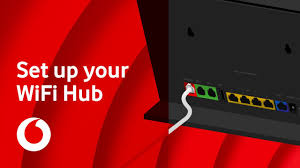
Are you experiencing issues with your Vodafone Station, such as difficulties connecting to the internet or Wi-Fi? Before contacting Vodafone customer support, try resetting your device to see if that resolves the problem. In this article, we will guide you through the process of resetting your Vodafone Station using two different methods: Physically and via the panel of control.
Why Reset Your Vodafone Station?
Resetting your Vodafone Station can help resolve connectivity issues, improve performance, and ensure that your device is functioning correctly. By following these steps, you can troubleshoot common problems and get back online quickly.
Method 1: Physically Resetting Your Vodafone Station
If you’re experiencing connection issues with your Vodafone Station, try physically resetting the device before attempting any other solutions. Here’s how to do it:
- Turn Off Your Vodafone Station: Switch off the power button on the back of the device.
- Wait For a Few Seconds: Let the device rest for 30 seconds.
- Press And Hold The Reset Button: Locate the small pinhole on the back of the device, usually marked with a “Reset” label. Use a paper clip or similar object to press and hold the button for about 30 seconds.
- Release The Button: Release the reset button and wait for your Vodafone Station to complete its self-test.
Method 2: Resetting Your Vodafone Station Via Panel of Control
If you prefer not to physically touch your device, you can also reset it using the panel of control method:
- Access The Panel of Control: Open a web browser on your computer and type
http://192.168.1.1(Orhttp://Vodafone.Station) in the address bar. - Enter Your Login Credentials: Log in to the panel with your username and password.
- Go to Advanced Settings: Click on “Advanced” in the top menu, then select “Other Settings.”
- Reset Your Vodafone Station: In this section, you’ll find the option to reset your device. Choose either a software or factory reset, depending on your needs.
Tips And Precautions
Before resetting your Vodafone Station, make sure to save any important settings or configurations that you don’t want to lose. Additionally, if you’re experiencing issues with connectivity after resetting your device, consult the official Vodafone support page for troubleshooting tips.
Resetting Specific Vodafone Stations
If you have a specific Vodafone Station model, follow these instructions:
- Vodafone Station 2: Locate the reset button on the back of the device and press and hold it for about 30 seconds.
- Vodafone Power Station: Turn off the power button on the back of the device, wait for a few seconds, then press and hold the reset button for about 30 seconds.
- Vodafone Station 6: Flip your device over, locate the reset button, and press and hold it for about 30 seconds.
Resetting Your Vodafone Station Password
If you’ve forgotten your Vodafone Station password, follow these steps:
- Access The Panel of Control: Open a web browser on your computer and type
http://192.168.1.1(Orhttp://Vodafone.Station) in the address bar. - Enter Your Login Credentials: Log in to the panel with your username and password.
- Go to Advanced Settings: Click on “Advanced” in the top menu, then select “Other Settings.”
- Change Password: In this section, you’ll find the option to change your password.
Resetting Your Vodafone Station on a Smartphone or Tablet
If you want to reset your Vodafone Station using a smartphone or tablet, download the Vodafone Station app and follow these steps:
- Download The App: Get the Vodafone Station app from the app store.
- Follow The Setup Process: Complete the initial setup process for the app.
- Change Password: Select “Change Password” in the settings section of the app.
Frequently Asked Questions
Q: Why do I need to reset my Vodafone Station?
A: Resetting your device can help resolve connectivity issues, improve performance, and troubleshoot common problems.
Q: How do I physically reset my Vodafone Station?
A: Turn off the power button on the back of the device for 30 seconds, then press and hold the reset button for another 30 seconds.
Q: Can I reset my Vodafone Station via panel of control?
A: Yes! Open a web browser on your computer and follow the instructions to access the panel of control.
Q: How do I change my Vodafone Station password?
A: Access the panel of control, enter your login credentials, then go to the settings section and select “Change Password.”
Q: What if I forget my Vodafone Station password?
A: You can reset it using the method described above or consult the official Vodafone support page for additional assistance.
Q: Can I reset my Vodafone Station on a smartphone or tablet?
A: Yes! Download the Vodafone Station app, follow the initial setup process, and select “Change Password” in the settings section.
Q: Will resetting my Vodafone Station affect my existing settings and configurations?
A: No! Your settings will be saved and restored after the reset process is complete.


