
How to Reinstall Windows 10: A Step-by-step Guide
Are you experiencing issues with your computer running Windows 10? Do you want to reinstall the operating system to get it back to its original state? Look no further! In this article, we will guide you through the process of reinstalling Windows 10.
Why Reinstall Windows 10?
There are several reasons why you might want to reinstall Windows 10. Maybe your computer has become slow and unresponsive, or maybe you’re experiencing issues with specific programs or drivers. Whatever the reason, reinstalling Windows 10 can help get your computer back to its original state.
What Are The Methods of Reinstalling Windows 10?
There are several methods to reinstall Windows 10, including:
- Resetting Windows 10: This method will restore your computer to its factory settings, removing all installed programs and files.
- Recovering From a Backup: If you’ve created a backup of your system using the built-in tool in Windows 10, you can use it to recover your computer to a previous state.
- Using a Usb Drive: You can create a bootable USB drive with Windows 10 installed on it and use it to reinstall the operating system.
- Using a Dvd or CD: If you don’t have a USB drive, you can create a DVD or CD with Windows 10 installed on it.
Method 1: Resetting Windows 10
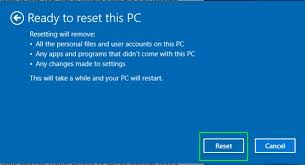
Resetting Windows 10 is the simplest method of reinstalling the operating system. Here’s how to do it:
- Go to Settings: Click on the Start button and select “Settings”.
- Update & Security: In the Settings window, click on “Update & Security”.
- Recovery: In the Update & Security window, click on “Recovery”.
- Reset This PC: In the Recovery window, click on “Reset this PC”.
- Choose an Option: You’ll be presented with two options: “Keep my files” or “Remove everything”. Choose the option that best suits your needs.
- Confirm: Confirm that you want to reset Windows 10.
Method 2: Recovering From a Backup
If you’ve created a backup of your system using the built-in tool in Windows 10, you can use it to recover your computer to a previous state. Here’s how:
- Go to Settings: Click on the Start button and select “Settings”.
- Update & Security: In the Settings window, click on “Update & Security”.
- Recovery: In the Update & Security window, click on “Recovery”.
- Select a Backup: Select the backup you want to use to recover your computer.
- Confirm: Confirm that you want to recover Windows 10.
Method 3: Using a Usb Drive
If you don’t have access to the internet or can’t use the built-in tool in Windows 10, you can create a bootable USB drive with Windows 10 installed on it and use it to reinstall the operating system. Here’s how:
- Create a Bootable Usb Drive: Use Microsoft Media Creation Tool to create a bootable USB drive.
- Insert The Usb Drive: Insert the USB drive into your computer.
- Boot From The Usb Drive: Restart your computer and select the USB drive as the boot device.
- Follow The Instructions: Follow the instructions on the screen to complete the installation process.
Method 4: Using a Dvd or CD
If you don’t have access to a USB drive, you can create a DVD or CD with Windows 10 installed on it and use it to reinstall the operating system. Here’s how:
- Create a Bootable Disc: Use Microsoft Media Creation Tool to create a bootable disc.
- Insert The Disc: Insert the disc into your computer.
- Boot From The Disc: Restart your computer and select the disc as the boot device.
- Follow The Instructions: Follow the instructions on the screen to complete the installation process.
Conclusion
Reinstalling Windows 10 can be a straightforward process if you follow these steps. Whether you choose to reset, recover from a backup, or use a USB drive or DVD/CD, make sure you have all the necessary files and drivers saved before proceeding with the installation process.
Frequently Asked Questions (FAQs)
- Q: Can I Reinstall Windows 10 on my Laptop?
A: Yes, you can install Windows 10 on your laptop just like you would on a desktop computer. - Q: Will Reinstalling Windows 10 Delete All my Files And Programs?
A: It depends on the method you choose to reinstall Windows 10. If you use the “Remove everything” option, all files and programs will be deleted. - Q: How Long Does it Take to Reinstall Windows 10?
A: The time it takes to reinstall Windows 10 can vary depending on your computer’s specifications and the method you choose. - Q: Can I Reinstall Windows 10 Without a Usb Drive or Dvd/cd?
A: Yes, you can use the built-in tool in Windows 10 to reset or recover from a backup. - Q: Will Installing Windows 11 Affect my Current Installation of Windows 10?
A: No, installing Windows 11 will not affect your current installation of Windows 10.
Recommended Guides
- Reinstalling Windows 10 With a Usb Drive: Learn how to create a bootable USB drive and use it to reinstall Windows 10.
- Recovering From a Backup: Find out how to recover your computer using a backup created with the built-in tool in Windows 10.
- Installing Windows 11: Discover how to install Windows 11 on your computer.
Common Issues
- Windows 10 Won’t Boot: Learn what to do if Windows 10 won’t boot after attempting to reinstall it.
- Can’t Access The Recovery Environment: Find out why you might not be able to access the Recovery Environment and how to resolve the issue.
- Files Are Missing: Discover what to do if files or programs are missing after reinstalling Windows 10.
Related Guides
- Windows 10 System Requirements: Learn the minimum system requirements for installing Windows 10.
- How to Create a Bootable Usb Drive: Find out how to create a bootable USB drive using Microsoft Media Creation Tool.
- What is The Recovery Environment?: Discover what the Recovery Environment is and how it can help you recover your computer.
Final Tips
- Make sure you have all necessary files and drivers saved before reinstalling Windows 10.
- Consider backing up your system regularly to prevent data loss in case of a system failure.
- Use reliable sources for guidance, such as official Microsoft documentation or trusted tech websites.


