
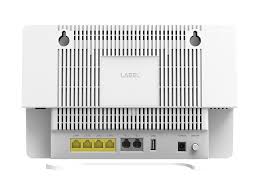
How to Reset Windtre Modem: A Step-by-step Guide
Are you experiencing connectivity issues with your Windtre modem? Have you tried resetting it, but still can’t seem to get it working properly? Look no further! In this article, we will guide you through the process of resetting your Windtre modem, both in standard and emergency situations.
Why Reset Your Modem?
Before we dive into the steps, let’s understand why resetting your modem is essential. A reset can resolve issues such as:
- Slow internet speeds
- Disconnections from the network
- Failure to connect to Wi-Fi
By resetting your modem, you’ll restore it to its factory settings, erasing any customized configurations that may be causing problems.
Standard Procedure: Resetting Your Modem
In most cases, you can reset your modem using the web interface. Here’s how:
Step 1: Accessing The Modem Interface
- Connect your device (computer, smartphone, or tablet) to the same network as the modem.
- Open a web browser and type the IP address of the modem in the address bar. The default IP address for Windtre modems is usually
192.168.1.1. - Log in using the administrator username and password printed on the back of the modem.
Step 2: Creating a Backup of Your Settings
- Click on the “Settings” or “Maintenance” tab.
- Select “Backup/Recovery” and click on “Save Configuration.”
- Choose a folder to save the backup file. This is an essential step, as you’ll need this backup when resetting your modem.
Step 3: Resetting Your Modem
- Go back to the main menu and select “Maintenance > Restore Factory Settings.”
- Click on the “Restore” button to initiate the reset process.
- Wait for around 3 minutes while the modem restores its factory settings. Do not turn off the device or disconnect power during this time.
Procedure of Emergency: Resetting Your Modem
Sometimes, you may encounter issues that prevent you from accessing the web interface. In such cases, follow these steps to reset your modem:
Step 1: Locating The Reset Button
- Find the small pinhole on the back or bottom of the modem.
- Insert a paper clip or a similar object into the hole and press the tiny button inside.
Step 2: Holding Down The Reset Button
- Hold down the reset button for about 30 seconds.
- Release the button, and the lights on the modem will flash. Wait for around 4-5 minutes while the device resets itself.
What to Do After Resetting Your Modem?
After resetting your Windtre modem:
- Try connecting to Wi-Fi using the default settings printed on the back of the modem.
- Use an Ethernet cable if you still can’t connect to Wi-Fi.
- If issues persist, contact Windtre support for further assistance.
Conclusion
Resetting your Windtre modem is a straightforward process that can resolve connectivity issues. By following these steps, you’ll be able to restore your modem to its factory settings and get back online in no time. Remember to always create a backup of your settings before resetting your modem, as this will save you from potential headaches later on.
Frequently Asked Questions (FAQs)
- Why do I Need to Reset my Windtre Modem?
- Resetting your modem resolves issues like slow internet speeds, disconnections, and failure to connect to Wi-Fi.
- How Often Should I Reset my Windtre Modem?
- Only when experiencing persistent connectivity problems or after a major change in network settings.
- What Are The Consequences of Not Resetting my Windtre Modem?
- Ignoring issues may lead to more severe problems, such as complete loss of internet access.
- Can I Reset my Windtre Modem Multiple Times?
- Yes, but be aware that repeated resets can cause more harm than good.
- What Should I do if Resetting my Windtre Modem Doesn’t Work?
- Contact Windtre support for assistance and follow their guidance to resolve the issue.
- How Long Does it Take For The Modem to Reset Itself?
- The process usually takes around 3-5 minutes, depending on your internet connection speed.
- Can I Use my Windtre Modem Without Creating a Backup of my Settings?
- No, it’s essential to create a backup before resetting your modem to avoid losing customized configurations.
References:


