
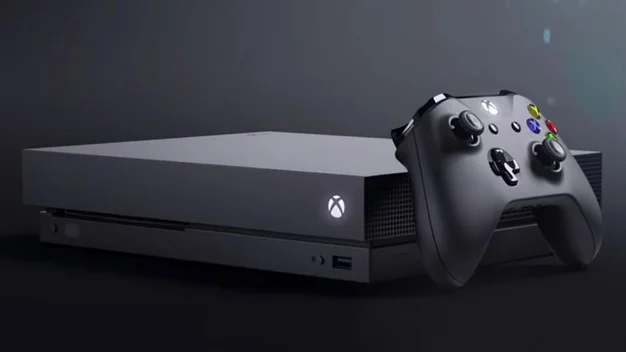
Resettare Xbox One: A Step-by-step Guide
Are you experiencing problems with your Xbox One console? Do you want to sell or give it away, but need to reset it first? Look no further! In this article, we’ll guide you through the process of resetting your Xbox One console, whether it’s using the built-in backup and restore feature or by using a USB drive.
Why Reset Your Xbox One?
Before we dive into the steps, let’s quickly discuss why you might want to reset your Xbox One console. Maybe you’re selling it, giving it away, or simply want to start fresh with a new setup. Whatever the reason, resetting your Xbox One can be a great way to erase all of your personal data and settings.
Preparing For Reset
Before we begin, make sure you have the following:
- A USB drive (at least 256 GB) formatted in NTFS
- A PC running Windows with internet access
Step 1: Backup Your Data
To avoid losing any important data, let’s start by backing up your Xbox One console. This will ensure that all of your saved games, apps, and settings are preserved.
- Insert the USB drive into your Xbox One console’s USB port.
- Select your profile user on the dashboard.
- Navigate to Settings > System > Backup and Restore.
- Choose to transfer data from your Xbox One console to the USB drive.
- Select the files you want to backup (e.G., Saved games, apps).
Step 2: Reset Your Xbox One Console
Now that we’ve backed up your data, let’s move on to resetting your Xbox One console.
- Press the Xbox button on your controller to open the dashboard.
- Select Settings > System > Backup and Restore.
- Choose the option “Reinstall and keep my games and apps” or “Reinstall and reset everything”.
- If you choose the first option, all of your saved games and settings will be preserved. However, if you choose the second option, all data on your console will be erased.
Using a Usb Drive to Reset
If you don’t have access to the dashboard or are experiencing problems with your Xbox One console, you can use a USB drive to reset it.
- Download the FactoryReset.Zip file from Microsoft’s official website.
- Extract the contents of the zip file to the root directory of your USB drive.
- Insert the USB drive into your Xbox One console’s USB port.
- Press and hold the power button on your Xbox One console for 30 seconds to turn it off.
- Remove any cables and plug them back in.
- Insert the USB drive into the top right door of your Xbox One console.
- Hold down the association (pairing) and expulsion buttons while pressing the Xbox button to initiate the reset process.
Resetting Your Controller
If you’re experiencing issues with your controller, try resetting it by following these steps:
- Connect your controller to your Xbox One console using a USB cable.
- Access the Settings app on your Xbox One console.
- Navigate to Settings > Kinect and devices > Devices and accessories.
- Check for any available updates.
- If an update is available, follow the prompts to install it.
Tips And Tricks
Here are some additional tips and tricks to keep in mind:
- Always backup your data before resetting your Xbox One console.
- Make sure you have a valid Microsoft account to restore your data if needed.
- Consider using a cloud storage service like OneDrive to store your data online.
Conclusion
Resetting your Xbox One console can seem intimidating, but with this step-by-step guide, you should be able to complete the process easily. Remember to always backup your data before resetting your console and consider using a USB drive as an alternative method if needed. If you have any further questions or concerns, feel free to ask!
Faqs
- Why do I Need to Reset my Xbox One Console?
- You may want to reset your Xbox One console if you’re selling it, giving it away, or simply want to start fresh with a new setup.
- How Long Does The Reset Process Take?
- The time it takes to reset your Xbox One console depends on the method used. If using the dashboard, it should take around 10-15 minutes. If using a USB drive, it may take longer (around 30-40 minutes).
- Will Resetting my Xbox One Console Erase All of my Data?
- Yes, resetting your Xbox One console will erase all of your personal data and settings.
- Can I Restore my Data if I Reset my Xbox One Console?
- Yes, you can restore your data from a backup if you have a valid Microsoft account.
- Why do I Need to Use a Usb Drive to Reset my Xbox One Console?
- If you’re experiencing problems with your Xbox One console or don’t have access to the dashboard, using a USB drive can be an alternative method to reset your console.
- Can I Update my Controller if It’s Not Functioning Properly?
- Yes, you can try updating your controller by following the steps outlined in this article.
- How Often Should I Backup my Data on my Xbox One Console?
- It’s recommended to back up your data regularly (at least once a month) to ensure that all of your saved games and settings are preserved.
- Can I Reset my Xbox One Console Without Using a Usb Drive?
- Yes, you can reset your Xbox One console using the built-in backup and restore feature or by using the dashboard.


