
How to Reset Your Pc: A Step-by-step Guide
Are you tired of dealing with a slow or unresponsive computer? Do you want to give your PC a fresh start without losing any important data? Look no further! In this article, we’ll guide you through the process of resetting your PC, covering various methods and scenarios.
Why Reset Your Pc?
Resetting your PC can help resolve several issues, including:
- Slow performance
- Crashes or freezes
- Errors and bugs
- Corrupted files and settings
By resetting your PC, you can restore it to its original state, free from any malware, viruses, or other unwanted programs.
Preparation is Key
Before we dive into the reset process, make sure you have:
- Created a backup of your important files and data
- Removed any external devices (e.G., USB drives, CDs)
- Updated your PC with the latest Windows updates
Method 1: Resetting Your PC to Factory Settings
If you want to start from scratch, resetting your PC to factory settings is the way to go. This method will erase all installed programs, files, and settings.
To reset your PC to factory settings:
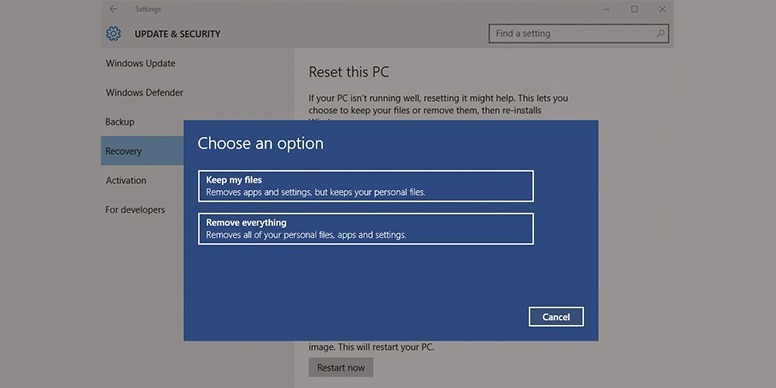
- Go to Settings > Update & Security > Recovery
- Click on Get Started under the “Reset this PC” section
- Choose whether you want to keep your personal files or remove them entirely
- Confirm your decision and let the reset process complete
Method 2: Resetting Your PC With The Windows Recovery Environment
If you can’t access your PC, use the Windows Recovery Environment (WinRE) to reset it.
To access WinRE:
- Insert the Windows installation media (CD or USB)
- Restart your PC and enter the BIOS settings
- Set the boot order to the installation media
- Save changes and exit the BIOS settings
Once in WinRE, follow these steps:
- Select the Troubleshoot option
- Click on Reset This PC
- Choose whether you want to keep your personal files or remove them entirely
- Confirm your decision and let the reset process complete
Method 3: Resetting Your PC With a Usb Drive
If you have a Windows installation media on a USB drive, you can use it to reset your PC.
To reset your PC with a USB drive:
- Insert the USB drive
- Restart your PC and enter the BIOS settings
- Set the boot order to the USB drive
- Save changes and exit the BIOS settings
Once in the Windows installation menu, follow these steps:
- Select the Troubleshoot option
- Click on Reset This PC
- Choose whether you want to keep your personal files or remove them entirely
- Confirm your decision and let the reset process complete
Method 4: Resetting Your Mac
If you have a Mac, follow these steps:
- Restart your Mac while holding down the Command + R keys
- Select your language and click on Continue
- Click on Disk Utility and select your startup disk
- Quit Disk Utility and click on Restart
- Select your language and click on Continue
Once in the Recovery Mode menu, follow these steps:
- Click on Disk Utility and select your startup disk
- Click on Reset and confirm your decision
Troubleshooting Tips
If you encounter any issues during the reset process, try the following:
- Restart your PC or Mac to ensure a clean boot
- Check for any hardware issues with your computer
- Run a virus scan or malware removal tool
- Contact Microsoft Support or Apple Support for further assistance
Conclusion
Resetting your PC is a straightforward process that can help resolve various issues. By following these step-by-step guides, you’ll be able to reset your PC and start fresh. Remember to back up your important files and data before attempting the reset process.
Frequently Asked Questions (FAQs)
- What Happens to my Personal Files And Settings When I Reset my Pc?
When you reset your PC, all installed programs, files, and settings will be erased. However, if you choose to keep your personal files during the reset process, they will remain intact. - Can I Reset my PC Without Losing Any Important Data?
Yes, by creating a backup of your essential files and data before resetting your PC, you can ensure that your important information remains safe. - Why do I Need to Create a Windows Installation Media on a Usb Drive?
A Windows installation media is required to access the recovery environment or perform a clean install of Windows. - Can I Reset my Mac Without Losing Any Important Data?
Yes, by following the steps outlined in Method 4, you can reset your Mac while preserving your essential files and settings.
I hope this article has provided you with the information you need to reset your PC successfully!


