
How to Redimension a Video: A Step-by-step Guide
Are you struggling to find the perfect video resolution? Do you want to know how to redimension a video without compromising its quality? Look no further! In this article, we will guide you through the process of redimensioning a video using various software and online tools.
What is Video Redimensioning?
Video redimensioning refers to the process of changing the resolution or dimensions of a video file. This can be done to make it compatible with different devices or platforms, such as smartphones, tablets, or social media websites. However, not all videos are created equal, and some may have excessive dimensions that cannot be displayed on certain devices.
Why is Video Redimensioning Necessary?
There are several reasons why video redimensioning is necessary:
- Compatibility Issues: Videos with high resolutions may not be compatible with older devices or platforms.
- Space Constraints: Large videos can take up a lot of space on your device, making it difficult to store or share them.
- Bandwidth Limitations: Large videos can consume a lot of bandwidth, leading to slow streaming times or buffering issues.
Methods For Redimensioning a Video
There are several methods for redimensioning a video, including:
Using Avidemux
Avidemux is a free and open-source video editing software that can be used to redimension videos. Here’s how to do it:
- Download Avidemux: You can download Avidemux from the official website.
- Open Avidemux: Once downloaded, open Avidemux and select the video you want to redimension.
- Choose The Output Format: Select the output format as MP4 or any other compatible format.
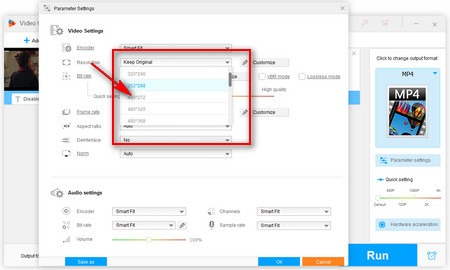
- Set The Resolution: Set the resolution to the desired size (e.G., 1080P, 720p, etc.).
- Save The Video: Save the video with the new dimensions.
Using Imovie
IMovie is a free video editing software developed by Apple that can be used to redimension videos. Here’s how to do it:
- Open Imovie: Open iMovie and select the video you want to redimension.
- Trim The Video: Trim the video to the desired length.
- Resize The Video: Resize the video to the desired size (e.G., 1080P, 720p, etc.).
- Save The Video: Save the video with the new dimensions.
Using Vlc
VLC is a free media player that can be used to redimension videos. Here’s how to do it:
- Open Vlc: Open VLC and select the video you want to redimension.
- Go to The ‘Video’ Menu: Go to the ‘Video’ menu and select the desired resolution (e.G., 1080P, 720p, etc.).
- Save The Video: Save the video with the new dimensions.
Using Online Tools
There are several online tools available that can be used to redimension videos. Here’s how to do it:
- Find a Reliable Online Tool: Find a reliable online tool that offers video redimensioning services.
- Upload Your Video: Upload your video to the online tool.
- Choose The Output Format: Choose the output format as MP4 or any other compatible format.
- Set The Resolution: Set the resolution to the desired size (e.G., 1080P, 720p, etc.).
- Save The Video: Save the video with the new dimensions.
Conclusion
Redimensioning a video is a simple process that can be done using various software and online tools. Whether you’re looking to make your videos compatible with different devices or platforms, or simply want to save space on your device, redimensioning a video is the way to go. By following the steps outlined in this article, you’ll be able to easily redimension your videos and share them with others.
Frequently Asked Questions (FAQs)
- What is Video Redimensioning?
Video redimensioning refers to the process of changing the resolution or dimensions of a video file. - Why is Video Redimensioning Necessary?
Video redimensioning is necessary due to compatibility issues, space constraints, and bandwidth limitations. - How do I Redimension a Video Using Avidemux?
To redimension a video using Avidemux, download the software, open it, select the video you want to redimension, choose the output format, set the resolution, and save the video. - How do I Redimension a Video Using Imovie?
To redimension a video using iMovie, open the software, trim the video, resize the video, and save the video. - How do I Redimension a Video Using Vlc?
To redimension a video using VLC, open the software, go to the ‘Video’ menu, select the desired resolution, and save the video. - Can I Use Online Tools to Redimension Videos?
Yes, you can use online tools to redimension videos by finding a reliable tool, uploading your video, choosing the output format, setting the resolution, and saving the video.
Conclusion
In conclusion, redimensioning a video is a simple process that can be done using various software and online tools. Whether you’re looking to make your videos compatible with different devices or platforms, or simply want to save space on your device, redimensioning a video is the way to go. By following the steps outlined in this article, you’ll be able to easily redimension your videos and share them with others.
Additional Tips
- Always Backup Your Videos: Before redimensioning a video, make sure to backup it to prevent any loss of data.
- Choose The Right Output Format: Choose the output format that is compatible with the device or platform you want to use.
- Set The Resolution Correctly: Set the resolution to the desired size (e.G., 1080P, 720p, etc.) To ensure compatibility and quality.


