
How to Restart Android: A Step-by-step Guide
Are you tired of dealing with a slow or unresponsive Android device? Do you want to know how to restart your smartphone or tablet in the most efficient way possible? Look no further! In this article, we will guide you through the process of restarting Android in various ways, including traditional methods, forced restarts, and even using apps to turn off and restart your device.
Why Restart Your Android Device?
Before we dive into the how-to section, let’s quickly discuss why restarting your Android device is essential. A simple reboot can resolve many issues, such as:
- Frozen or unresponsive screen
- Slow performance
- Battery drain
- App crashes
How to Restart Android in Traditional Manner
If you’re familiar with the traditional method of restarting your Android device, skip this section. Otherwise, follow these steps:
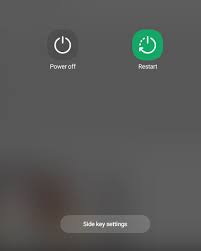
- Press and hold the Power button (usually located on the right side or top of your device).
- Tap and hold the “Power off” option.
- Confirm by tapping “OK.”
- Wait for 30 seconds to allow your device to shut down completely.
How to Restart Android Without Tasti
If you’re experiencing problems with the Power button, don’t worry! You can use an app called Shutdown (no Root) to turn off and restart your device. Here’s how:
- Download and install the Shutdown app from the Play Store or a third-party store.
- Launch the app and select “Power off.”
- Confirm by tapping “OK.”
- Wait for 30 seconds to allow your device to shut down completely.
How to Initiate Android in Provisional Modality
Are you experiencing issues with your device, but don’t want to perform a complete reset? Initiating Android in provisional modality is the way to go! Here’s how:
- Press and hold the Power button until the screen turns off.
- Immediately press and hold the Volume down button.
- Keep holding both buttons until you see the boot menu on your screen.
- Select “Recovery mode” from the menu.
How to Initiate Android in Recovery Modality
Are you experiencing severe issues with your device, and a simple reboot won’t do? It’s time to perform a recovery mode reset! Here’s how:
- Press and hold the Power button until the screen turns off.
- Immediately press and hold the Volume down button.
- Keep holding both buttons until you see the boot menu on your screen.
- Select “Recovery mode” from the menu.
- Follow the prompts to complete the reset process.
How to Restart Android Auto
Is your Android Auto system experiencing issues? Don’t worry! You can restart it without affecting your vehicle’s infotainment system. Here’s how:
- Disconnect and reconnect your smartphone to the car’s USB port.
- Wait for 30 seconds to allow the system to shut down completely.
- Reconnect your smartphone to the car’s USB port.
Conclusion
Restarting Android can be a simple yet effective way to resolve various issues with your device. Whether you’re using traditional methods, forced restarts, or apps like Shutdown, we hope this guide has helped you understand how to restart Android in various ways. Remember, before attempting any of these methods, make sure to back up your data and ensure that you have the necessary permissions.
Frequently Asked Questions (FAQs)
Q: How often should I restart my Android device?
A: It’s recommended to restart your device every 1-2 weeks to maintain optimal performance.
Q: Will restarting my device delete any data?
A: No, a simple reboot will not delete any data. However, if you perform a factory reset, all data will be erased.
Q: Can I use a third-party app to restart my Android device?
A: Yes, apps like Shutdown (no Root) can help you turn off and restart your device without using the Power button.
Q: How do I prevent my Android device from freezing or becoming unresponsive?
A: Regularly updating your operating system, closing unused apps, and avoiding overheating can help prevent issues with your device.


