
How to Reset Your Modem: A Step-by-step Guide
Are you experiencing connectivity issues with your internet service? Have you tried restarting your modem, but still can’t get online? Don’t worry! In this article, we’ll guide you through the process of resetting your modem, step by step.
Why Reset Your Modem?
Before we dive into the instructions, let’s briefly discuss why resetting your modem might be necessary. Over time, modems can accumulate errors and glitches that disrupt internet connectivity. By restarting your modem, you can resolve these issues and get back online quickly.
How to Reset Your Modem: A Beginner’s Guide
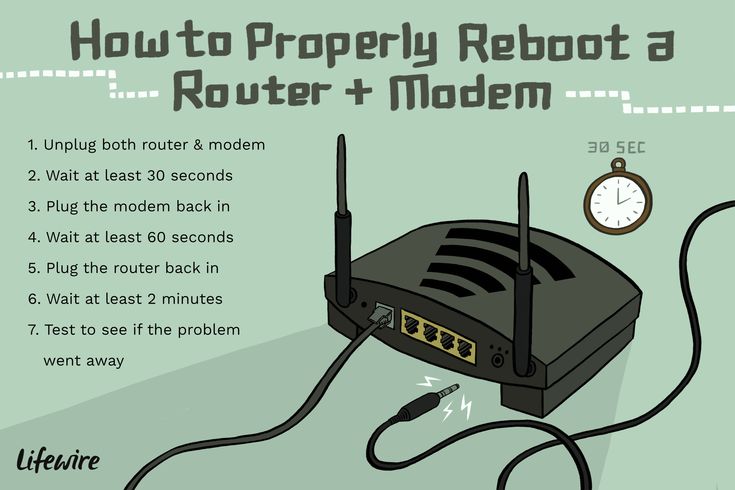
Resetting your modem is a relatively simple process that requires minimal technical expertise. Here are the steps:
Step 1: Identify The Problem
Before resetting your modem, try to identify the cause of the problem. Is your internet connection slow or unreliable? Are you experiencing dropped connections or errors on your device? Take note of any error messages or symptoms.
Step 2: Locate The Modem
Next, locate your modem and ensure it’s turned off. You can find the modem in a variety of locations, depending on your setup. It might be:
- Behind Your TV: In this case, you’ll need to access the back panel of your TV to find the modem.
- Near Your Router: If you have a separate router and modem, you may find them together or nearby.
- In a Network Closet: Large businesses and organizations might store their modems in a designated area.
Step 3: Turn Off The Modem
Once you’ve located the modem, turn it off by pressing the power button. If your modem has a physical switch, ensure it’s flipped to the “Off” position.
Step 4: Wait For 30 Seconds
Allow the modem to sit idle for at least 30 seconds. This allows any residual energy to dissipate and helps prevent damage to the device.
Step 5: Turn On The Modem
Press the power button again to turn on your modem. You may hear a series of beeps or see lights flash as it initializes.
Step 6: Wait For Initialization
Wait patiently for your modem to complete its initialization process. This might take several minutes, depending on the type and complexity of your setup.
Alternative Methods For Resetting Your Modem
While resetting your modem via physical means is often the most straightforward approach, some situations require alternative methods. Here are a few scenarios:
- Modem With a Reset Button: Some modems have a dedicated reset button. Consult your user manual or search online to find instructions specific to your device.
- Modem Connected to a Router: If you’re experiencing issues with both your modem and router, try resetting the router as well. This might resolve connectivity problems and restore internet access.
Common Modem Brands And Reset Procedures
Not all modems are created equal! Different manufacturers have varying reset procedures. Here are some popular modem brands and their specific reset instructions:
- Tp-link: Press and hold the reset button for 10 seconds while powered on.
- D-link: Locate the recessed reset button, usually found near the power input, and press it with a paper clip or pin.
- Netgear: Press and hold the reset button for 7 seconds while powered on.
Conclusion
Resetting your modem is a simple yet effective solution to resolve connectivity issues. By following these steps and understanding the specific procedures for your device, you can get back online quickly.


